
5 min read
External SSDs versus hard drives and flash drives
External SSDs, hard drives and flash drives each suit different jobs. Here is how to choose between them.
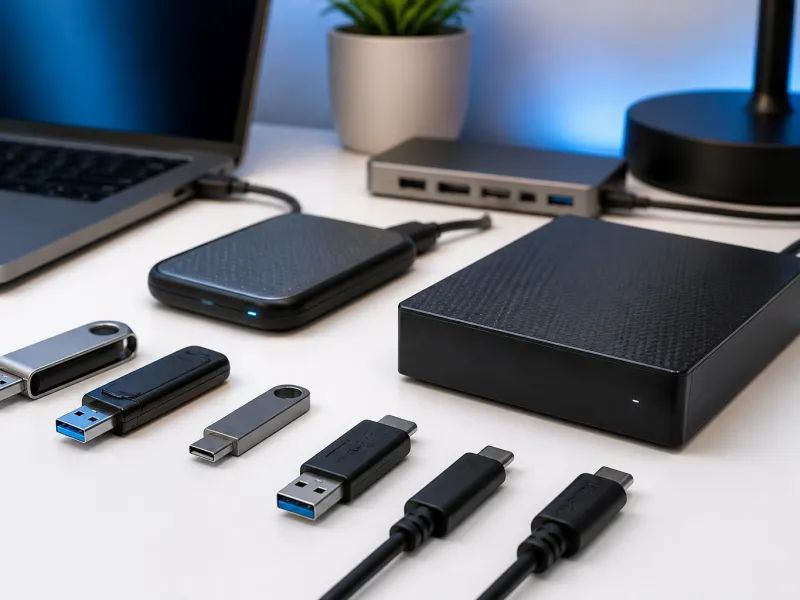
External storage has quietly moved from spinning hard drives to solid state drives for many people, and from flash drives to something closer to genuine portable performance. Choosing between an external hard drive, an external SSD and a simple flash drive now depends less on price alone and more on what the storage will actually be used for.
This guide compares external SSDs, hard drives and flash drives, explains what happens inside an enclosure, the practical difference between NVMe and SATA drives, why heat matters, what TBW means for a drive's lifespan, and how external storage fits into a proper, reliable backup routine.
01
External SSD, hard drive or flash drive
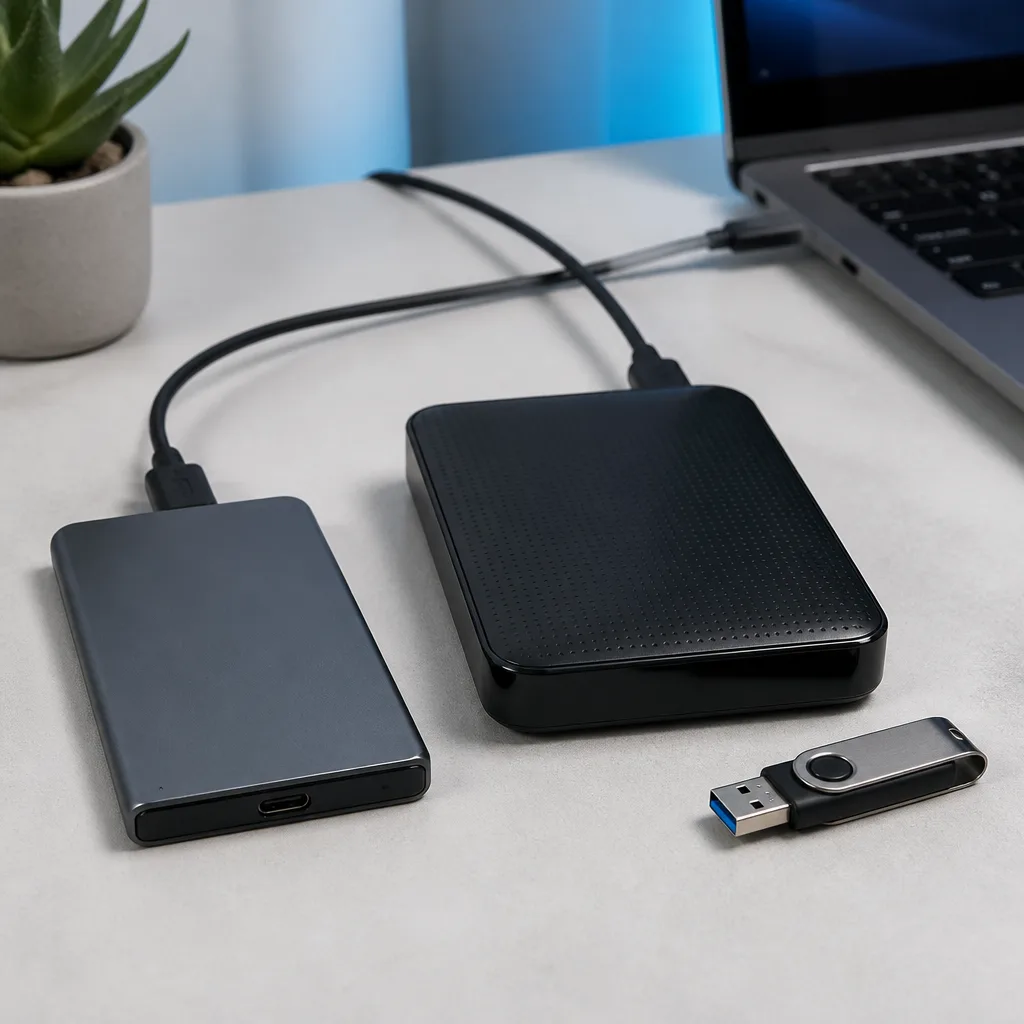
An external hard drive stores data on spinning magnetic platters and remains the most cost effective way to get a very large amount of storage. It is more sensitive to physical shock than solid state storage, since a hard drive contains moving parts, and it is generally slower, though for simple backup tasks that speed difference often does not matter much in practice.
An external SSD uses the same NAND flash memory technology described in our guide to USB flash drives, but built with more capable controllers, more memory chips working together, and enclosures generally designed for sustained performance. This makes external SSDs noticeably faster, more resistant to physical shock, and usually more expensive per unit of storage than a hard drive of the same capacity. A simple flash drive sits at the smaller, more portable end of the same solid state family, generally with a slower controller and fewer memory chips than a dedicated external SSD.
 Matching productExternal SSDAmazon →
02
What is actually inside an external SSD enclosure
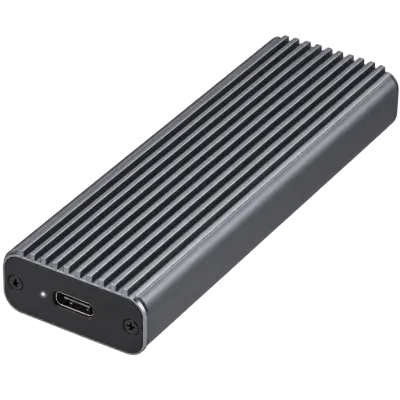
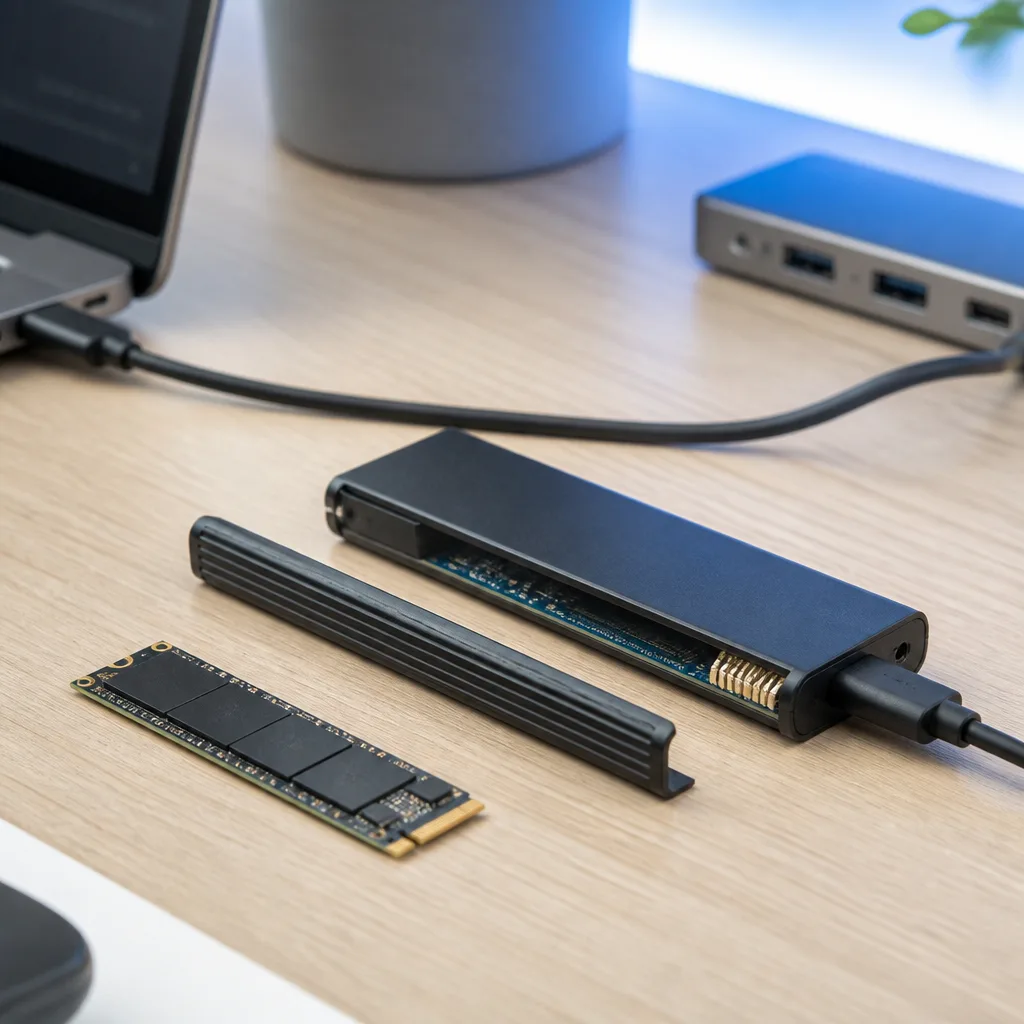
An external SSD is, in essence, an internal solid state drive paired with a small circuit board called a bridge, housed inside an enclosure, with the bridge translating between the drive's native interface and USB. Many external SSDs on the market today are built around a small M.2 format internal drive, the same kind used inside many laptops and desktops, placed inside a purpose built enclosure with its own USB-C port.
Some external SSDs are sold as a complete sealed unit, while others are sold as an empty enclosure that the buyer fits with their own internal drive, which can be a practical way to reuse a drive removed from an old laptop or desktop upgrade.
 Matching productNVMe SSD enclosureAmazon →
03
NVMe versus SATA based external SSDs
Internal drives generally come in two underlying types. Older SATA based solid state drives are limited by the SATA interface's own speed ceiling, typically around 6 Gbit/s, regardless of how fast the drive's memory chips could theoretically go. NVMe drives connect over the faster PCI Express interface instead, removing that ceiling and allowing considerably higher speeds when paired with a USB connection fast enough to take advantage of them, such as USB 10Gbps, 20Gbps or faster.
An NVMe based external SSD only reaches its full potential when the enclosure's bridge chip and the USB port it is connected to both support a high enough speed. Pairing a very fast NVMe drive with a slow USB 5Gbps enclosure or port wastes much of the drive's own performance, since the connection itself becomes the limiting factor, a general pattern explained in our guide to real world USB speeds.
04
Heat and sustained performance
Fast NVMe based external SSDs generate more heat than SATA based drives or hard drives, particularly during long, sustained transfers such as copying a very large video file. Many enclosures include some form of heat spreading material or a metal casing to help manage this. When an external SSD gets too hot, its controller can deliberately reduce speed to protect itself, a behaviour usually called thermal throttling, which shows up as a transfer that starts fast and then noticeably slows partway through.
Choosing an enclosure with a metal body rather than plain plastic, and avoiding placing the drive somewhere with poor airflow such as underneath other equipment, both help reduce how often throttling occurs during demanding, sustained use. For everyday tasks like copying photos or documents, throttling rarely becomes noticeable at all, since those transfers finish well before heat has a chance to build up.
05
Comparing the main external storage types
| Type | Typical speed | Shock resistance |
|---|---|---|
| External hard drive | Lower, mechanical limit | Lower, moving parts inside |
| SATA based external SSD | Moderate, limited by SATA interface | High, no moving parts |
| NVMe based external SSD | High, limited mainly by USB connection | High, no moving parts |
| USB flash drive | Varies, generally lower than a dedicated SSD | High, no moving parts |
 Matching productUSB flash driveAmazon →
06
TBW and understanding drive lifespan
TBW, terabytes written, is a manufacturer rating that estimates how much total data can be written to a solid state drive over its lifetime before it is expected to wear out. For most everyday use, including regular backups and normal file storage, this figure is high enough that a drive is far more likely to be replaced for capacity or speed reasons than to actually reach its rated write limit.
Drives used for constant, heavy rewriting, such as certain professional workflows involving continuous large recordings, wear towards their TBW rating faster than drives used mainly for occasional backup and storage. A feature called TRIM, supported by most modern operating systems, helps a solid state drive manage its own memory efficiently over time, which supports both performance and longevity.

07
External SSDs as part of a real backup routine
An external SSD, hard drive or flash drive is a convenient way to keep a second copy of important files, but relying on a single external drive as the only backup carries real risk, since any single device can fail or be lost. A sound approach keeps at least two separate copies of anything irreplaceable, ideally in two different physical locations, such as one drive kept at home and another kept elsewhere, or one local copy alongside a separate cloud based backup.
It is also worth testing a backup copy occasionally rather than simply assuming it will work when it is actually needed later on. Plugging in the drive from time to time and confirming that a few files open correctly catches a failing drive or a broken backup routine early, before an original file is lost and the backup turns out to be the only remaining copy that actually matters.
Is an external SSD always better than an external hard drive?
Not always. Hard drives remain more cost effective for very large amounts of storage where speed and shock resistance matter less, such as long term archival backups.
Why is my external SSD slower than the drive's advertised speed?
This usually means either the USB port or cable is not fast enough to match the drive, or the drive has begun thermal throttling during a long, sustained transfer.
What does TBW actually tell me?
It estimates the total amount of data the drive can write over its lifetime before wear becomes a concern, which for most everyday use is a very high figure that is unlikely to be reached.
Can I use an external SSD as my only backup?
It is better to keep at least two copies of anything important, in more than one location, rather than relying on a single external drive alone.
Explore
Read next
 USB Standards and Speeds Explained: USB 1.0 to USB4 Version 2.0A complete overview of USB versions and speeds, from USB 1.0 to USB4 Version 2.0, including the confusing renaming of USB 3.x.
 USB Connector Types Explained: Type-A to USB-CA guide to every USB connector type, from Type-A and Micro-USB to USB-C, which devices use which, and how adapters bridge between them.
 How USB-C Charging Works: Power Delivery, PPS and EPR ExplainedA clear explanation of USB-C charging: Power Delivery negotiation, PPS, Extended Power Range, cable current limits, and common reasons for …