
8 min read
USB Connector Types Explained: Type-A to USB-C
A guide to every USB connector type, from Type-A and Micro-USB to USB-C, which devices use which, and how adapters bridge between them.
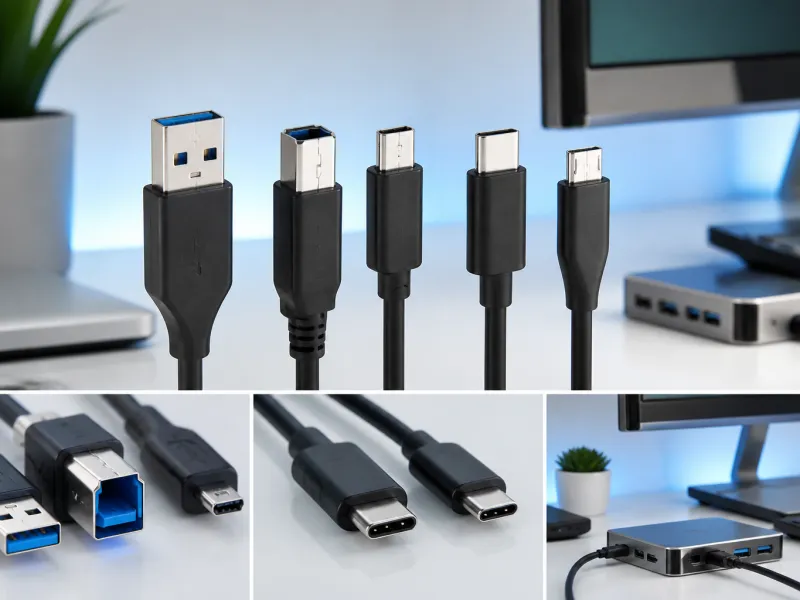
Plugging in a USB cable sounds like it should be simple, yet the range of connector shapes that have existed over the years can make a drawer full of old cables genuinely confusing. This overview describes every connector type you are likely to encounter, which devices typically use each one, and how adapters can bridge between them.
A connector's shape tells you nothing on its own about the speed or power behind it, a point covered in more depth in our USB standards overview. Two cables can look identical yet support very different speeds, so shape and capability are two separate questions worth keeping apart when comparing products or troubleshooting a slow connection.
01
USB Type-A
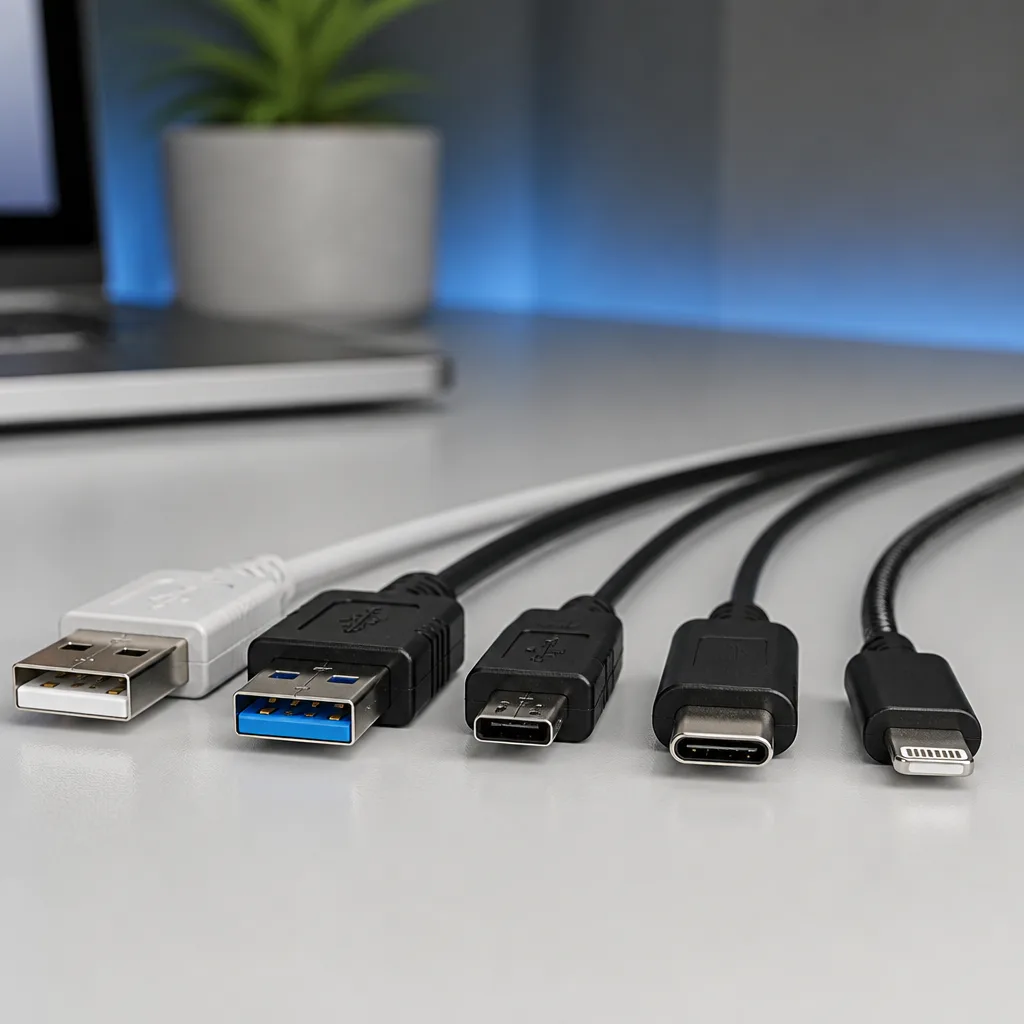
Type-A is the original rectangular USB connector, found on the host side of a connection, meaning computers, chargers, game consoles, and older televisions and cars. It is not reversible, so it only fits one way, and it has remained largely unchanged in shape since the first USB standard, even as the electronics inside it evolved through USB 2.0 and the SuperSpeed generations. A Type-A port with a blue plastic insert is often, though not always, an indication of USB 3.x SuperSpeed support.
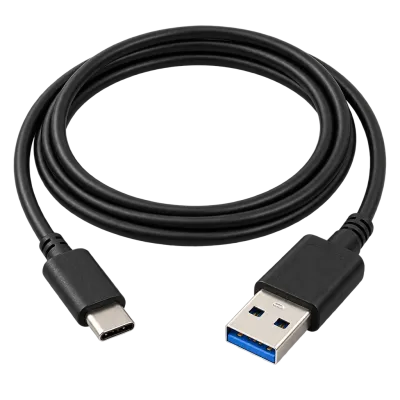 Matching productUSB-C to USB-A cableAmazon →
02
USB Type-B
Type-B is a squarer, less common connector historically used on the device side of larger peripherals, most notably printers, scanners, and some audio equipment. It is rarely found on newer consumer electronics, since most modern peripherals have moved to Micro-USB, USB-C, or a permanently attached cable instead. A SuperSpeed variant of Type-B exists with extra pins for USB 3.x, mainly seen on some external hard drive enclosures and scanners.
03
Mini-USB
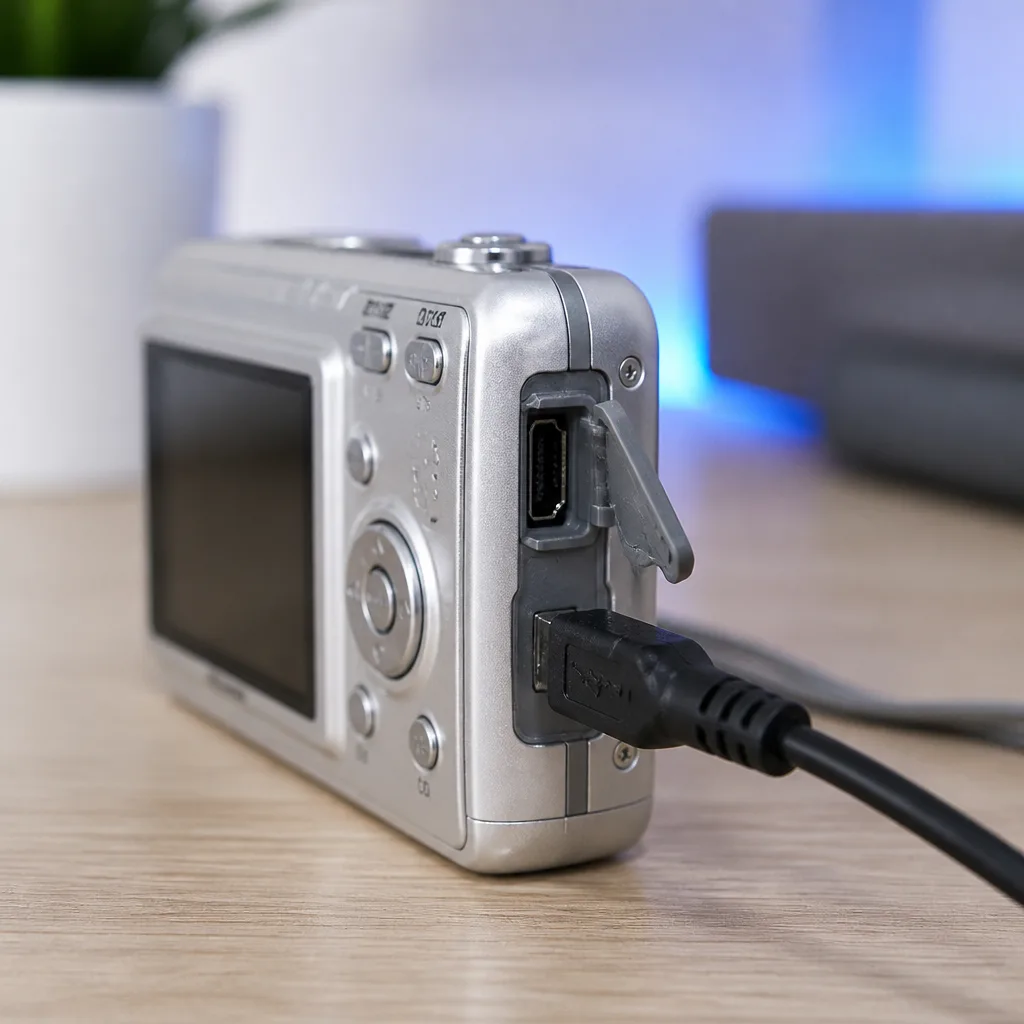
Mini-USB is a small, trapezoidal connector that was common in the mid to late 2000s on devices such as digital cameras, early smartphones, MP3 players, and some game controllers. It has largely been phased out in favour of Micro-USB and later USB-C, so it mainly appears today on older equipment still in use, or on a small number of specialised devices such as some musical instruments and industrial hardware.
04
Micro-USB
Micro-USB replaced Mini-USB as the dominant small connector through much of the 2010s, appearing on the majority of Android phones, e-readers, portable speakers, and countless small accessories before USB-C took over. It is thinner and more fragile than Mini-USB, with a fine metal tab inside the port that can bend if the cable is inserted at an angle, which is a common cause of Micro-USB ports failing over time.
 Matching productUSB microphoneAmazon →
05
Micro-B SuperSpeed
Micro-B SuperSpeed is a wider, two part version of Micro-USB, built to carry USB 3.x SuperSpeed signalling at 5 Gbit/s. It has a standard Micro-USB section alongside an additional set of pins, giving it a distinctive stepped shape. This connector is mainly found on external hard drives and some external SSDs from the era before USB-C became standard for storage devices, and a plain Micro-USB cable will fit only the smaller half of its port, providing power and slow USB 2.0 data but not the full SuperSpeed connection.
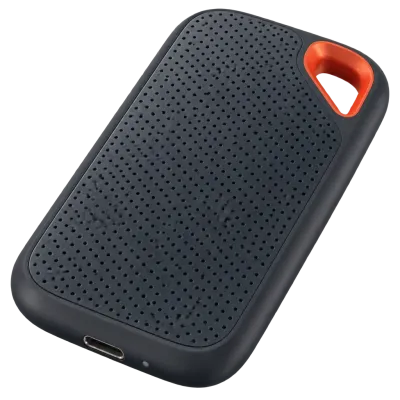 Matching productExternal SSDAmazon →
06
USB-C
USB-C is the current standard connector, identifiable by its small, oval, reversible shape that plugs in the same way whichever side faces up. It has become the near universal connector for phones, tablets, laptops, cameras, and accessories, replacing Type-A, Type-B, Mini-USB and Micro-USB in new products across most of the industry. Its physical shape stays the same across every USB generation, from slow USB 2.0 accessories through to USB4 Version 2.0 at 80 Gbit/s, and it is also the exclusive connector for USB Power Delivery fast charging and for Alternate Modes such as DisplayPort video, all of which is covered in our USB-C charging guide.
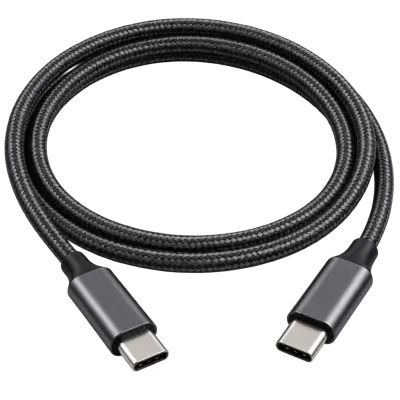 Matching productUSB4 / Thunderbolt cableAmazon →
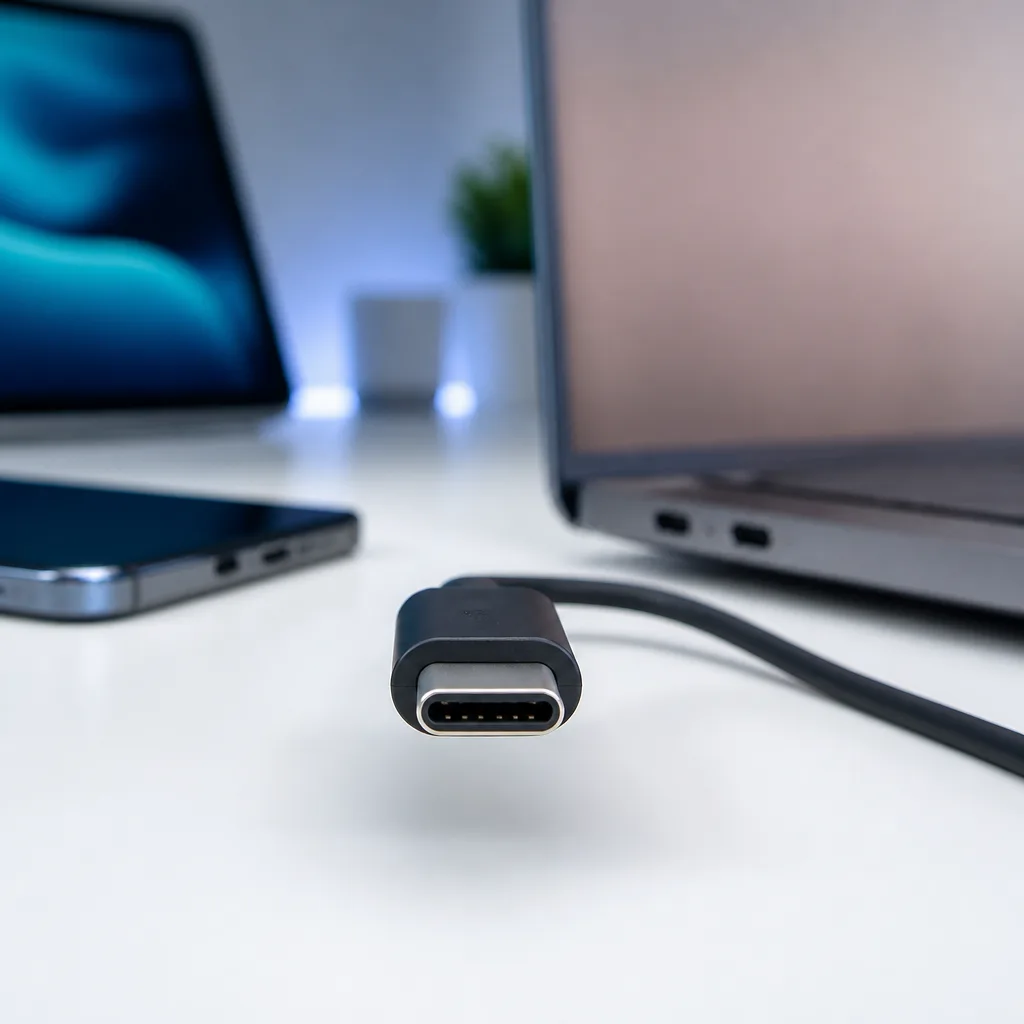
07
Lightning, for comparison
Lightning is Apple's proprietary connector, used for many years on iPhones, iPads, and Apple accessories, and it is included here only for comparison since it is not a USB connector shape at all, even though it can carry USB data and power internally. Regulatory changes in major markets, including the EU common charger rules covered in our guide to that regulation, have pushed manufacturers toward USB-C for new phones and similar devices, and Lightning is being phased out of new products as a result, though many existing Lightning devices and accessories remain in everyday use.
08
Why the connector shape changed so often
Early USB connectors were designed around the electronics available at the time and around the size of the devices they served. Type-A and Type-B were sized for the relatively bulky circuit boards of the 1990s, while Mini-USB and later Micro-USB were developed as mobile phones and cameras shrank and needed a smaller connector that still fit into a thin case. Each new shape solved a real size or durability problem of its time, but the result, from a distance, is a long trail of connectors that all did roughly the same job in slightly different ways.
USB-C was designed to be the last shape change for the foreseeable future. It is small enough for the thinnest phones, robust enough for laptops, reversible so it is easier to plug in without looking, and flexible enough in its internal wiring to support far higher speeds and power levels than earlier shapes ever could. That flexibility is why USB-C has been able to absorb so many roles, from charging a phone to driving external monitors, that used to need separate ports and separate cables.
09
Reversibility, durability and pin count
Reversibility is one of USB-C's most noticeable everyday advantages. Older connectors such as Type-A and Micro-USB only fit one way round, which meant a certain amount of trial and error, especially in a dim room or behind a desk. USB-C solves this by duplicating the relevant contacts on both sides of the connector internally, so it works the same way regardless of which side faces up.
Durability differs noticeably between connector generations too. Type-A is mechanically simple and tends to last a long time. Micro-USB, by contrast, relies on a small internal metal tab that can bend out of shape with repeated or angled use, which is one of the most common reasons an old Micro-USB port stops making a reliable connection. USB-C's more robust, symmetrical internal contacts were designed partly to avoid this specific weakness, though the port and cable can still wear out with heavy daily use over several years.

10
Which devices use which connector
| Connector | Commonly found on | Status today |
|---|---|---|
| Type-A | Computers, chargers, older TVs and cars, consoles | Still widespread on host devices |
| Type-B | Printers, scanners, some audio gear | Declining, replaced by USB-C on new models |
| Mini-USB | Older cameras, MP3 players, some controllers | Largely obsolete |
| Micro-USB | Older Android phones, speakers, small accessories | Still common on budget and older devices |
| Micro-B SuperSpeed | External hard drives predating USB-C storage | Uncommon on new products |
| USB-C | Phones, tablets, laptops, cameras, modern accessories | Current standard, still expanding |
| Lightning | Older iPhones and iPads, Apple accessories | Being phased out on new devices |
11
Not every USB-C port is the same
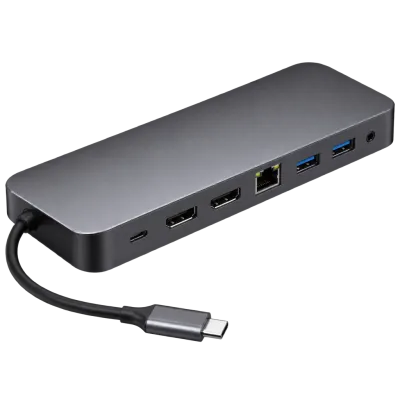
Because USB-C is just a shape, a laptop or tablet can have several USB-C ports that each support different features. One port might support full USB4 speeds, video output and high wattage charging, while a second, identical looking port on the same device only supports basic USB 2.0 data and slower charging. Manufacturers usually list these differences in the product manual or occasionally with a small icon printed next to the port itself, such as a lightning bolt for charging or a small display icon for video output.
This matters most when connecting a dock, an external display, or a fast external drive, since plugging into the wrong port on a multi port laptop can silently limit what the connected accessory is able to do, even though the cable clicks in exactly the same way. If a dock or monitor is not performing as expected, trying a different USB-C port on the same computer is one of the simplest checks worth making before assuming the cable or accessory is faulty, and it costs nothing beyond a minute of your time.
 Matching productUSB-C docking stationAmazon →
12
Adapters between connector types
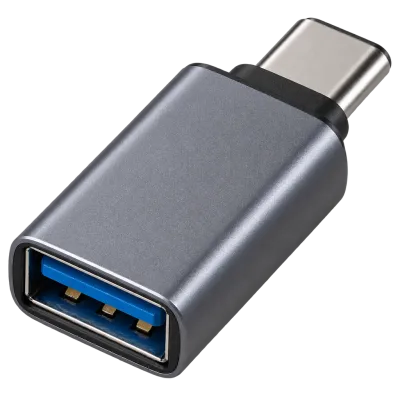
Adapters can convert between most of these connector shapes, letting an older cable work with a newer port or the reverse, and they are a practical way to keep using existing cables and accessories during a transition period. An adapter changes the connector shape only, and it cannot add capabilities that were never present in the cable or port behind it. A Micro-USB to USB-C adapter, for instance, will not turn a slow USB 2.0 cable into a fast USB 3.x connection, since the actual data lines and their speed are unaffected by the shape of the adapter.
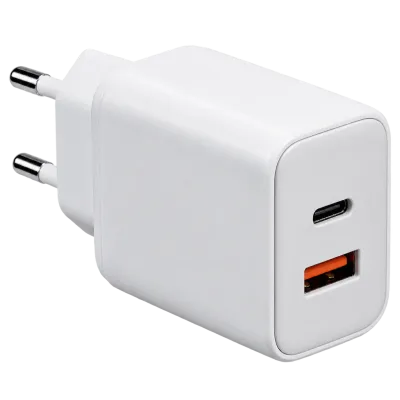
When using an adapter for charging, check that it and the cable behind it can carry the current the device requests, since a thin or poorly made adapter can become warm or bottleneck charging speed even when the shapes on both ends match correctly. Our buying guide covers what to check on a cable or adapter before relying on it for charging.
 Matching productUSB-C to USB-A adapterAmazon →
13
Frequently asked questions
Can I tell a connector's speed just by looking at it?
Not reliably. Shape indicates only the physical fit, not the speed or power behind it, so two visually similar cables can perform very differently. Checking the packaging or product listing is the safer approach.
Why did my old Micro-USB cable stop working?
The thin metal tab inside a Micro-USB port is prone to bending from repeated or angled insertion, which can prevent a firm connection. This is one of the more common failure points of that connector generation.
Is USB-C the same thing as USB4 or Power Delivery?
No. USB-C is only the connector shape. USB4 is a speed standard and Power Delivery is a charging standard, and both happen to use the USB-C connector, but a USB-C port does not automatically support either one on its own.
Will USB-C eventually replace every other connector?
It already dominates new consumer devices, and regulation in some regions is accelerating that shift further, but older connectors such as Type-A remain common on computers and chargers for the time being, and will likely persist for years on existing hardware.
Can I charge a Lightning device with a USB-C charger?
Only with a cable or adapter that has a USB-C connector on one end and Lightning on the other, since the two connectors are not physically compatible without one.
Why do my laptop's USB-C ports behave differently from each other?
Manufacturers often wire only some of a laptop's USB-C ports to the fastest internal controllers or to the display and power circuitry, to save cost or space, while other ports on the same laptop are limited to slower data or lighter charging. Checking the manual for a port diagram, or looking closely for a small printed icon next to each port, is the most reliable way to find out which port supports what.
 Matching productGaN charger 65 WAmazon →
Explore
Read next
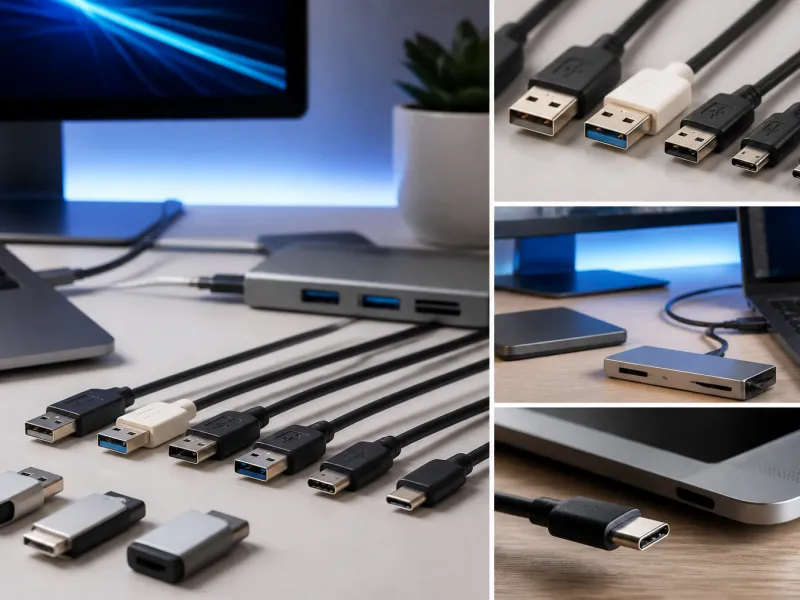 USB Standards and Speeds Explained: USB 1.0 to USB4 Version 2.0A complete overview of USB versions and speeds, from USB 1.0 to USB4 Version 2.0, including the confusing renaming of USB 3.x.
 How USB-C Charging Works: Power Delivery, PPS and EPR ExplainedA clear explanation of USB-C charging: Power Delivery negotiation, PPS, Extended Power Range, cable current limits, and common reasons for …
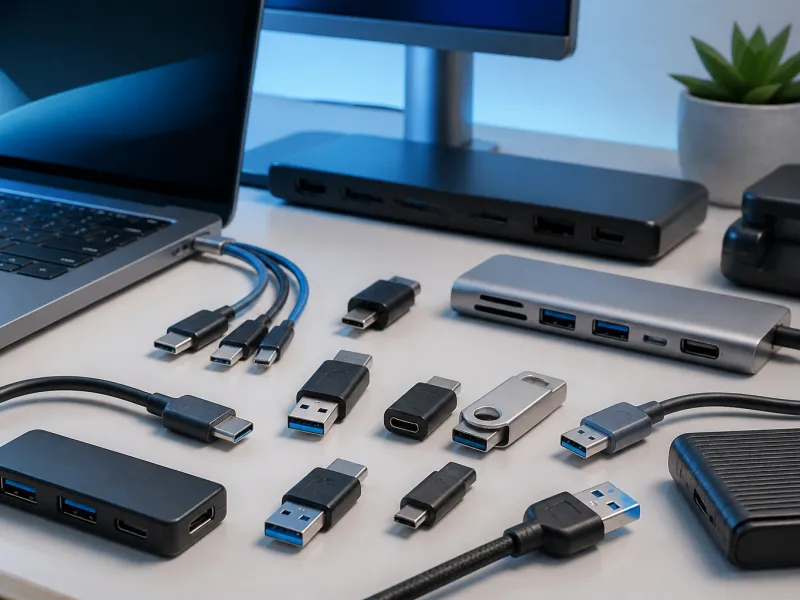 USB Glossary: Terms Explained from A to ZA quick reference glossary of USB terms from A to Z, from connector names to charging and storage vocabulary.