
5 min read
USB flash drives: how they work and how to choose
A small flash drive hides real complexity inside. Here is what determines its speed, lifespan and security.
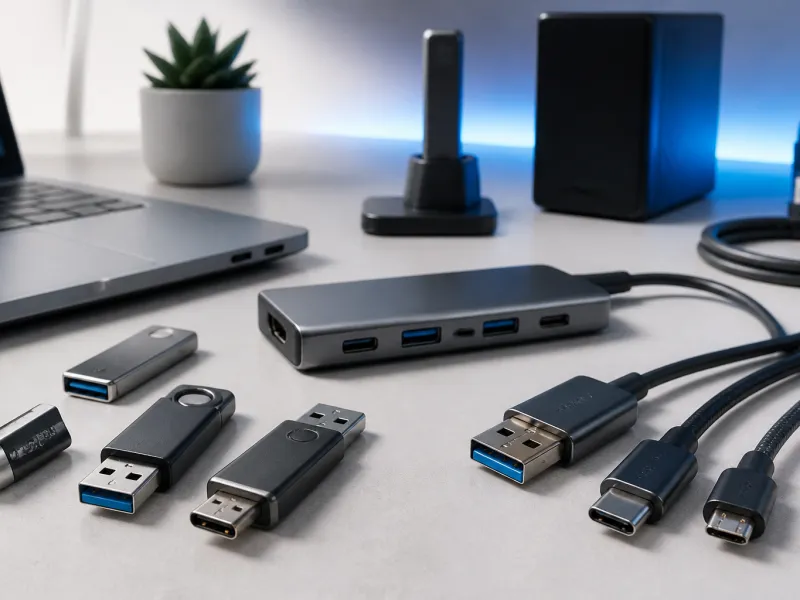
The USB flash drive remains one of the simplest and most portable ways to move files between computers, even in an age of cloud storage. A small stick that fits on a keyring can hold years of documents, or a full set of installation files for an operating system.
This guide explains how flash drives actually work inside, what affects their speed, which file system to choose, how long they tend to last, how to keep the data on one secure, and how to pick the right capacity for what you actually do.
01
What is inside a USB flash drive
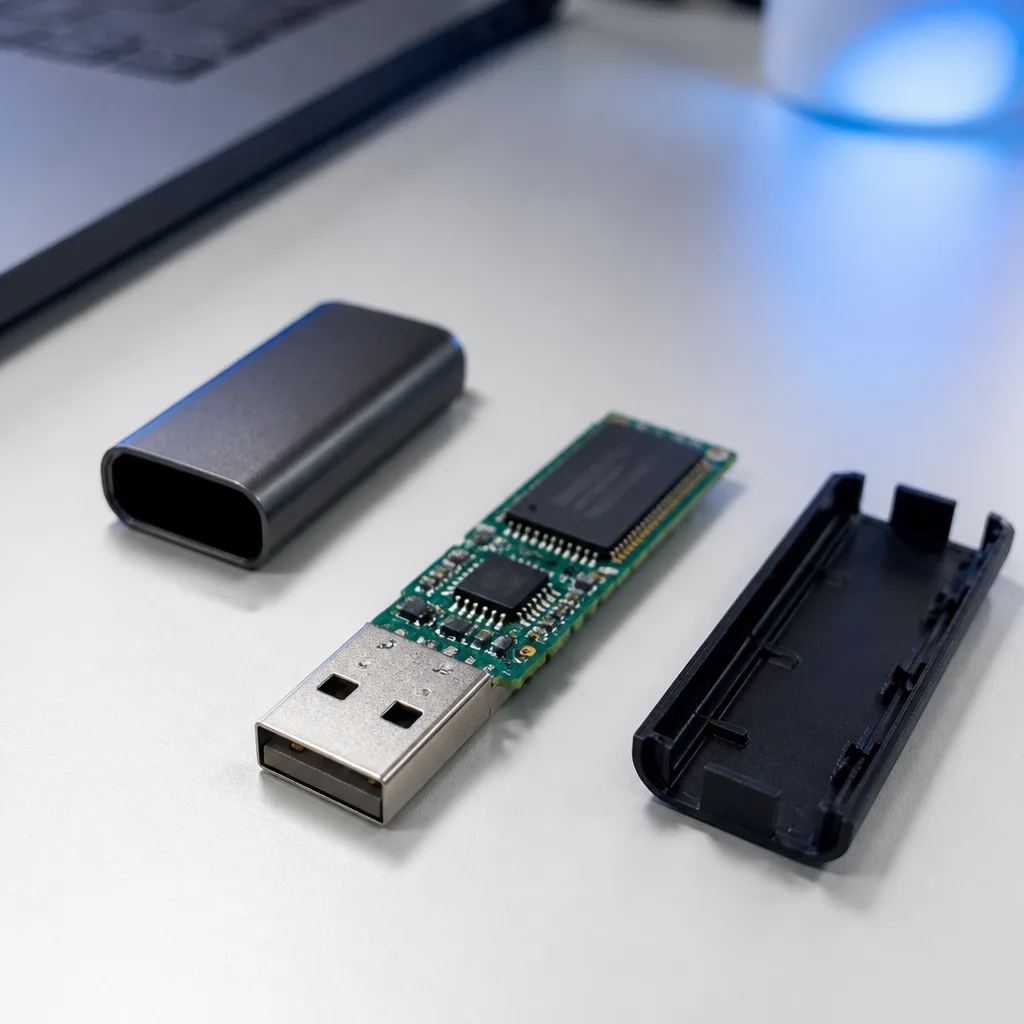
A USB flash drive is built around two main components: a small controller chip and one or more NAND flash memory chips, the same basic storage technology used inside solid state drives, though usually a simpler and less expensive version of it. The controller manages how data is written across the memory chips, handles error correction, and presents the drive to a computer as ordinary removable storage.
Because flash memory has no moving parts, drives are resistant to the kind of physical shock that can damage a mechanical hard drive, which is part of why they have remained popular for portable use for so long despite competition from cloud storage and other portable devices.
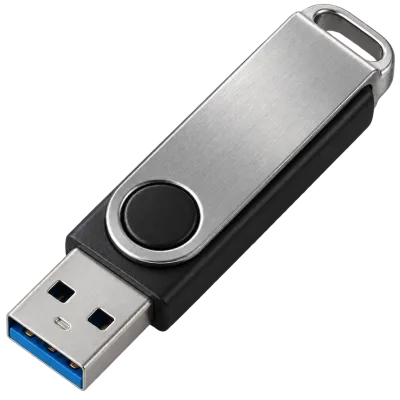 Matching productUSB flash driveAmazon →
02
What actually determines a flash drive's speed
The controller chip and the quality of the NAND memory inside a flash drive have a much bigger effect on real world speed than the USB standard printed on the packaging. Two drives that both claim USB 10Gbps compatibility can perform very differently if one uses a more capable controller and faster internal memory than the other.
Many flash drives are also noticeably faster when reading data than when writing it, since writing to flash memory is inherently a slower operation than reading from it. This is worth keeping in mind when a drive's advertised speed does not specify whether it refers to reading or writing, since the two can differ substantially on the same device.
03
Choosing a file system: exFAT, FAT32 or NTFS
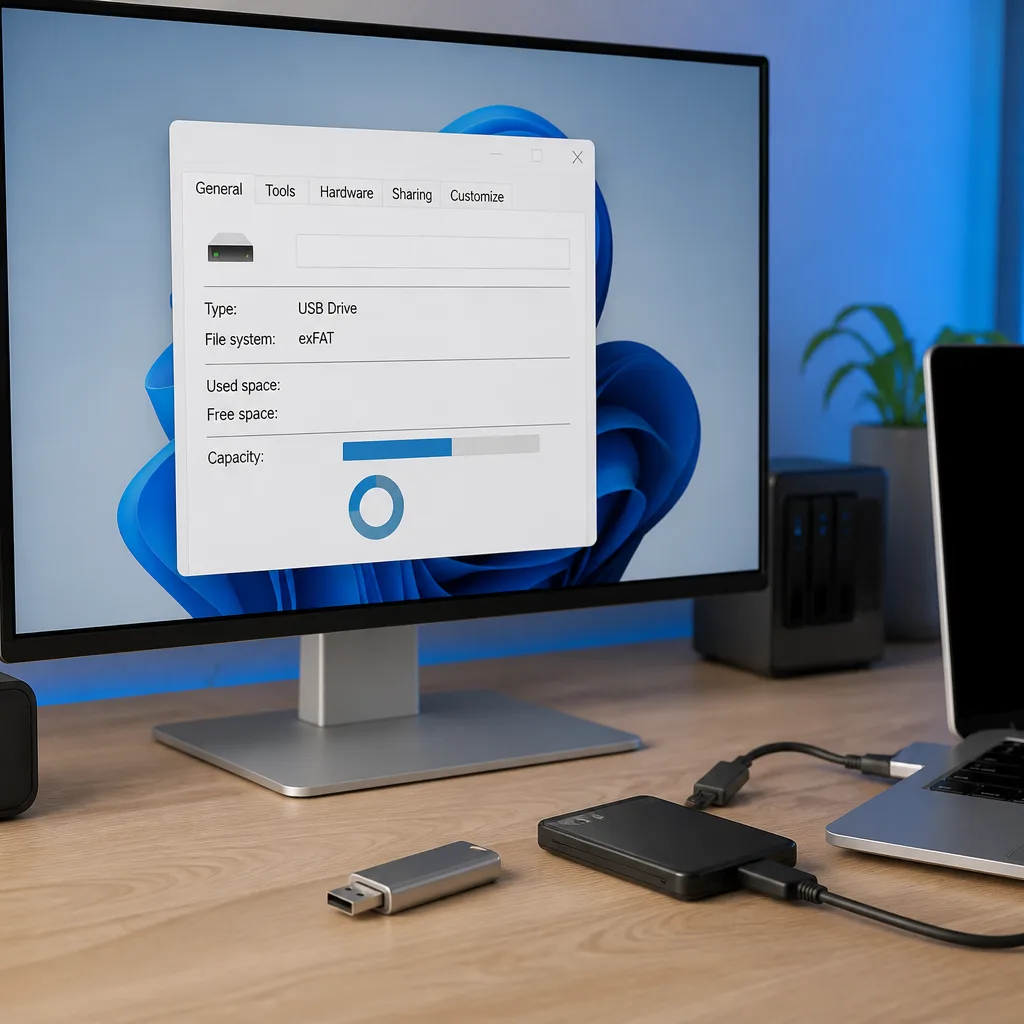
The file system on a flash drive determines which computers can read and write to it without extra software, and it also sets limits such as the largest single file the drive can hold. FAT32 is the oldest and most broadly compatible option, readable by almost any device, but it cannot store a single file larger than 4 gigabytes, which is a real limitation for large videos or disk images.
exFAT removes that file size limit while remaining compatible with the great majority of modern computers, phones and other devices, which makes it a sensible default choice for a general purpose flash drive today. NTFS, the file system most closely associated with Windows, supports large files and additional features such as permissions, but it has more limited native support on some other operating systems, particularly for writing rather than just reading.
| File system | Maximum single file size | Best suited for |
|---|---|---|
| FAT32 | 4 GB | Maximum compatibility with older or simple devices |
| exFAT | Effectively unlimited | General purpose use across most modern devices |
| NTFS | Effectively unlimited | Primarily Windows focused use |
04
How long a flash drive actually lasts
NAND flash memory can only be written to a limited number of times before individual memory cells begin to wear out, though modern controllers spread writes evenly across the chip to extend the drive's usable life, a technique called wear levelling. For typical use, meaning storing documents, photos and occasional file transfers, a decent flash drive can last for many years without issue.
Flash drives that are used for constant, repeated rewriting of the same data, such as certain technical or industrial uses, wear out faster than drives used mainly for occasional storage and transfer. Retaining data reliably over long term storage without power is also not indefinite, so a flash drive should not be treated as a permanent archive on its own, and important files are better kept with a proper backup as described in our guide to external SSDs and backups.
 Matching productExternal SSDAmazon →
05
Keeping data on a flash drive secure
Because flash drives are small and easy to lose, encrypting sensitive data on them is worth considering. Some flash drives include built in hardware encryption, requiring a PIN entered on the drive itself or through companion software before the contents become accessible. Software based encryption, using tools built into modern operating systems, achieves a similar result on an ordinary flash drive without needing specialised hardware.
A drive that only has write protection, sometimes offered as a physical switch or software setting, prevents accidental changes to the data but does not protect its contents from being read if the drive is lost, so it should not be relied on as a security measure on its own.

06
Choosing the right capacity
Flash drive capacity needs vary enormously depending on what the drive is actually used for. A few common patterns help narrow the choice.
- Carrying documents, presentations and small collections of photos: a modest capacity is usually more than enough.
- Carrying installation files for an operating system or software: a moderate capacity that comfortably exceeds the size of the largest single installer is a safe choice.
- Backing up a personal photo or video collection: consider whether an external SSD, covered in our external SSD guide, would suit the task better than a flash drive, since drives at very large capacities are not always the most reliable or cost effective option.
07
Everyday care and handling
A flash drive should always be safely ejected or unmounted through the operating system before being removed, since pulling it out while data is still being written can corrupt files or, in rare cases, the whole drive. Keeping the connector free of dust and avoiding excessive force when inserting it into a port also helps a drive last as long as its internal memory allows.
Temperature and moisture also play a role in how long a flash drive continues to work reliably. Leaving a drive somewhere very hot, such as a car dashboard in direct sunlight, can shorten the life of both the memory chips and the plastic casing over time. A drive left permanently plugged into a laptop that travels everywhere is also more exposed to bumps and knocks than one that is only connected when actually needed, so unplugging a drive after use is a simple habit that reduces the chance of physical damage.
08
Frequently asked questions
Which file system should I use for a new flash drive?
exFAT is a sensible general choice for most modern devices, since it removes the file size limits of FAT32 while remaining broadly compatible.
How long do USB flash drives typically last?
Under normal, everyday use, a good quality flash drive can last for many years, though constant, heavy rewriting of the same data shortens its practical lifespan.
Can I recover files from a flash drive that stopped working?
Sometimes, using specialised data recovery software or services, though success is not guaranteed, which is why important files should always exist in more than one place.
Is it safe to leave sensitive files unencrypted on a flash drive?
Not if the drive could be lost or stolen. Using either built in hardware encryption or software based encryption significantly reduces the risk of the data being read by someone else.
Explore
Read next
 USB Standards and Speeds Explained: USB 1.0 to USB4 Version 2.0A complete overview of USB versions and speeds, from USB 1.0 to USB4 Version 2.0, including the confusing renaming of USB 3.x.
 USB Connector Types Explained: Type-A to USB-CA guide to every USB connector type, from Type-A and Micro-USB to USB-C, which devices use which, and how adapters bridge between them.
 How USB-C Charging Works: Power Delivery, PPS and EPR ExplainedA clear explanation of USB-C charging: Power Delivery negotiation, PPS, Extended Power Range, cable current limits, and common reasons for …