
8 min read
USB Standards and Speeds Explained: USB 1.0 to USB4 Version 2.0
A complete overview of USB versions and speeds, from USB 1.0 to USB4 Version 2.0, including the confusing renaming of USB 3.x.
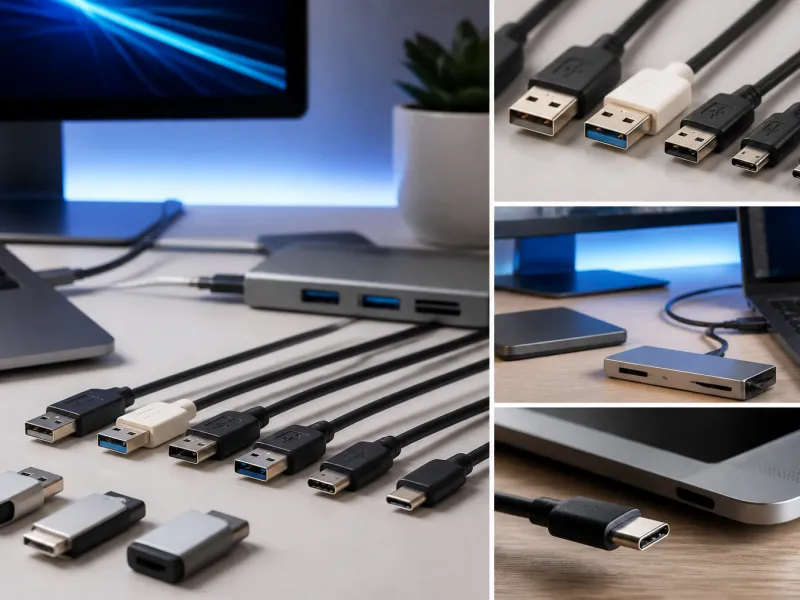
USB has changed its name and its speed several times since it first appeared, and even a technically confident buyer can end up confused in front of a shelf of cables. This overview lists every USB generation from the original USB 1.0 up to the current USB4 Version 2.0, explains the speed each one actually delivers, and untangles the renaming that happened along the way.
The short version is this: a bigger version number does not always mean a faster port, because the USB Implementers Forum, the industry body behind the standard, has renamed some existing speed tiers more than once while introducing genuinely new ones at the same time. The comparison table further down lists every version side by side. For a deeper explanation of real world throughput, see our guide on USB speeds explained.
01
A quick history of USB speeds
USB 1.0 arrived in 1996 with two speed tiers: Low Speed at 1.5 Mbit/s for simple devices such as mice and keyboards, and Full Speed at 12 Mbit/s for devices such as early scanners and audio interfaces. USB 1.1 followed in 1998, fixing early compatibility problems rather than changing the speed, and became the first version widely adopted by computer manufacturers.
USB 2.0, released in 2000, introduced a High Speed mode at 480 Mbit/s, a large jump that made USB practical for flash drives, printers, external drives and webcams. It remained the mainstream standard for well over a decade and is still used today for low bandwidth devices such as keyboards, mice and many chargers.
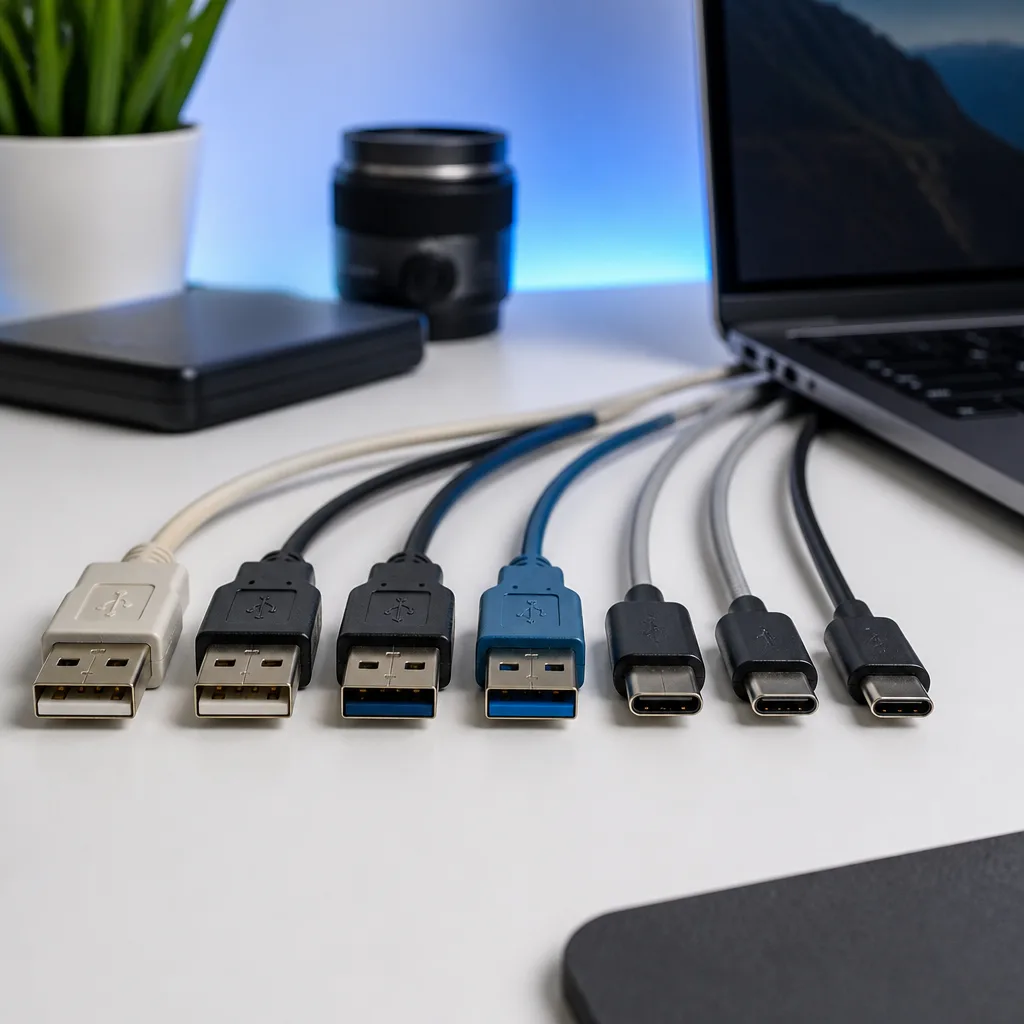
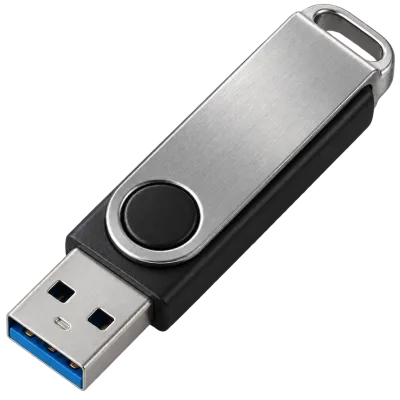
USB 3.0, released in 2008, introduced SuperSpeed at 5 Gbit/s. It added extra pins to the Type-A connector and to a new Micro-B SuperSpeed connector used mainly on external hard drives, so a USB 3.0 cable can be told apart from a USB 2.0 one by its extra contacts and, often, a blue plastic insert, although the colour is only a convention and not a requirement.
USB 3.1, released in 2013, is where the renaming began. The existing 5 Gbit/s mode was relabelled USB 3.1 Gen 1, and a new 10 Gbit/s mode was introduced as USB 3.1 Gen 2. Both speeds could appear on either USB-A or the newly arriving USB-C connector.
USB 3.2, released in 2017, renamed both existing tiers again, this time to USB 3.2 Gen 1 and USB 3.2 Gen 2, and added a new two lane mode called USB 3.2 Gen 2x2 that reaches 20 Gbit/s. The 2x2 mode uses both data lanes inside a USB-C cable at once, which is why it only exists over USB-C and never over the older USB-A connector.
USB4, released in 2019, is built on the protocol foundations of Thunderbolt 3, and it only ever appears on USB-C. Depending on the device and the cable, a USB4 connection runs at 20 or 40 Gbit/s, and it can carry video and data over the same port at the same time through a technique called tunneling.
USB4 Version 2.0, released in 2022, raises the ceiling to 80 Gbit/s in both directions at once, or up to roughly 120 Gbit/s in one direction when the other direction is allowed to carry less, an arrangement known as asymmetric mode. It targets demanding uses such as external graphics cards, high resolution or multiple external displays, and fast external storage.
 Matching productUSB4 / Thunderbolt cableAmazon →
02
Why the names are so confusing
The core problem is that the same physical speed has carried more than one official name over time. The 5 Gbit/s tier introduced in 2008 has been called USB 3.0, then USB 3.1 Gen 1, then USB 3.2 Gen 1, all describing the same speed. The 10 Gbit/s tier has similarly been called both USB 3.1 Gen 2 and USB 3.2 Gen 2. Manufacturers were free to use whichever name matched the specification current at the time, so older products, older packaging and even some current listings still use the Gen 1 and Gen 2 wording.
To reduce the confusion, the USB Implementers Forum introduced a simpler set of marketing names built directly around the speed: USB 5Gbps, USB 10Gbps, USB 20Gbps, USB 40Gbps and USB 80Gbps. These names describe the maximum data rate directly and are meant to appear on packaging and port labels going forward, alongside or instead of the Gen based names. In practice you may still see both systems side by side for years, since many existing products and older manuals will not be updated.
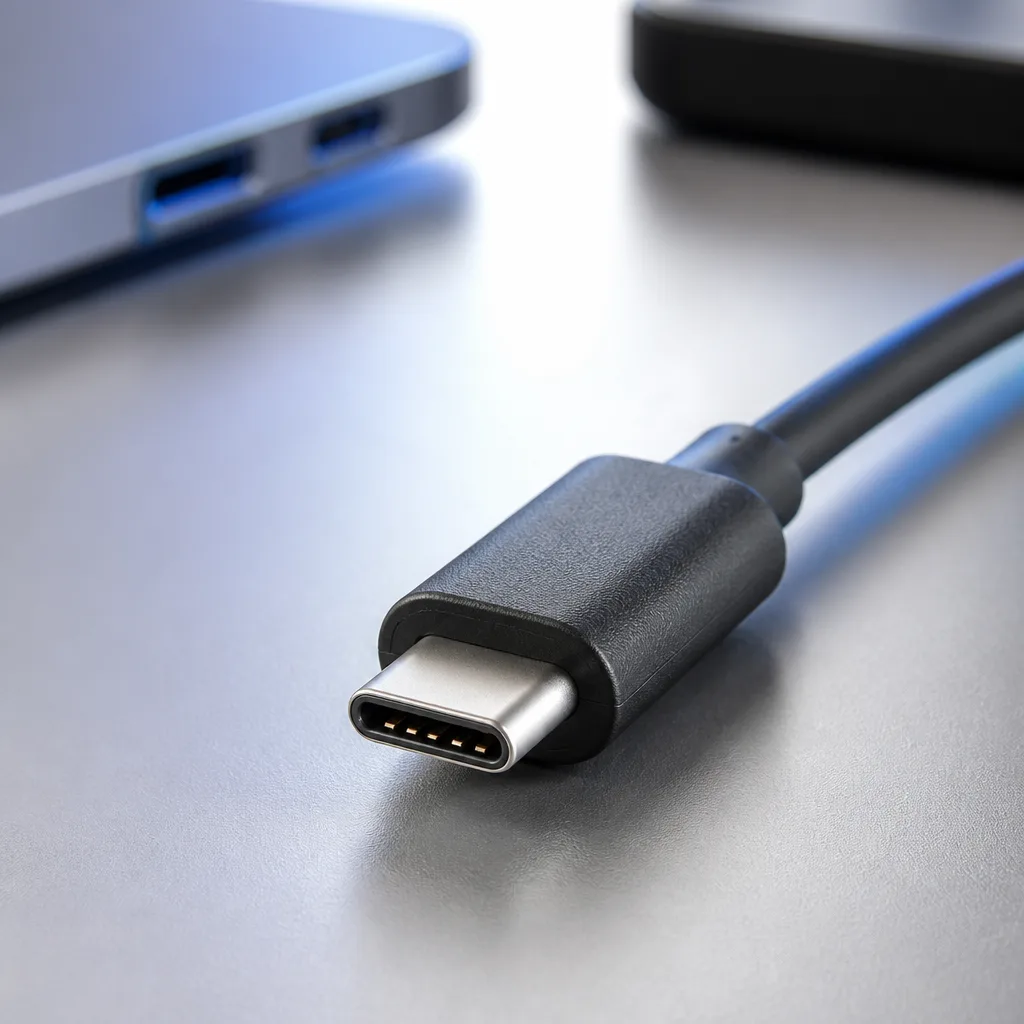
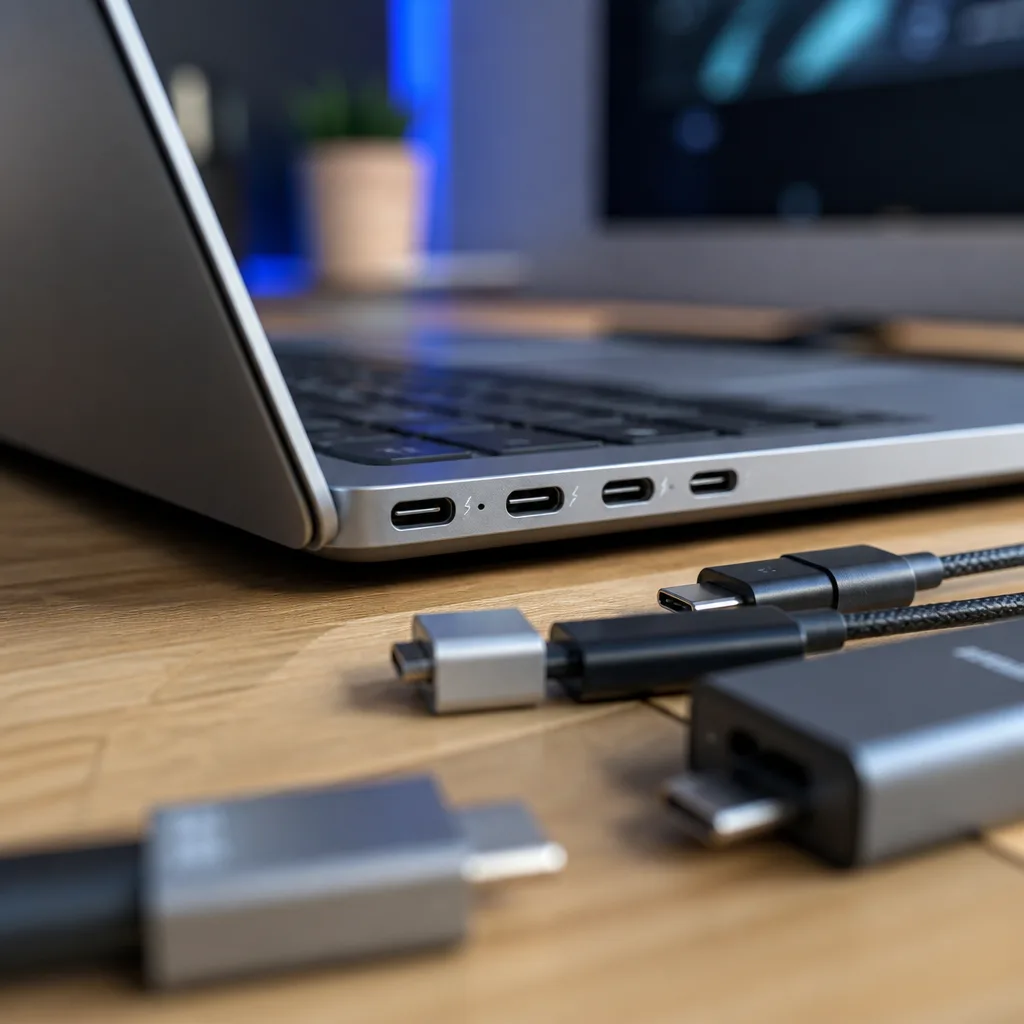
A second layer of confusion comes from the connector itself. USB-C is a connector shape, not a speed. A USB-C port can carry anything from USB 2.0 at 480 Mbit/s up to USB4 Version 2.0 at 80 Gbit/s, depending on what is actually built into the device and the cable. Our guide to USB connectors covers this distinction between connector shape and internal speed in more detail.
03
Comparison table: every USB version at a glance
| Version | Year | Marketing name | Maximum speed | Typical connector |
|---|---|---|---|---|
| USB 1.0 | 1996 | Low Speed / Full Speed | 12 Mbit/s | Type-A, Type-B |
| USB 1.1 | 1998 | Full Speed | 12 Mbit/s | Type-A, Type-B |
| USB 2.0 | 2000 | Hi-Speed | 480 Mbit/s | Type-A, Type-B, Mini, Micro |
| USB 3.0 / USB 3.1 Gen 1 / USB 3.2 Gen 1 | 2008 | USB 5Gbps | 5 Gbit/s | Type-A, Micro-B SuperSpeed, USB-C |
| USB 3.1 Gen 2 / USB 3.2 Gen 2 | 2013 | USB 10Gbps | 10 Gbit/s | USB-C, some Type-A |
| USB 3.2 Gen 2x2 | 2017 | USB 20Gbps | 20 Gbit/s | USB-C only |
| USB4 | 2019 | USB 20Gbps / USB 40Gbps | 20 or 40 Gbit/s | USB-C only |
| USB4 Version 2.0 | 2022 | USB 80Gbps | 80 Gbit/s (up to about 120 Gbit/s asymmetric) | USB-C only |
 Matching productUSB microphoneAmazon →
04
What the speed number does not tell you
The maximum speed listed for a version is a ceiling, not a promise. Real world transfer speeds are usually lower once protocol overhead, the speed of the storage device on either end, cable length and cable quality are taken into account. A USB 10Gbps flash drive, for example, will rarely sustain 10 Gbit/s in practice, because the memory chips inside it are usually the real bottleneck, not the USB connection.
The cable itself also has to support the speed you want. A USB-C cable that only carries USB 2.0 signalling looks identical from the outside to one that supports USB4 at 40 Gbit/s, so a fast port and a fast device can still end up limited by a slow cable. Our guide to USB cables explains how to tell them apart, and our speeds explained guide goes further into why advertised and real speeds differ.
 Matching productUSB flash driveAmazon →
05
Backward compatibility across generations
One of the reasons USB has lasted so long is that every generation is designed to work with the ones before it, at least at a basic level. A USB4 laptop port will still charge a device or move files with an old USB 2.0 flash drive, simply falling back to the older, slower signalling that both sides understand. The connection always runs at the highest speed that every part of the chain, meaning the port, the cable and the device, can support together, never faster.
This is worth remembering when a setup performs worse than expected. If a fast USB4 external drive is connected through an old USB 2.0 cable, or through a hub built to an older standard, the entire connection drops down to that slower link, and no setting on the computer will bring the speed back up. The fix is simply to replace whichever part of the chain is the oldest.
06
Tunneling: how USB4 shares one port for everything
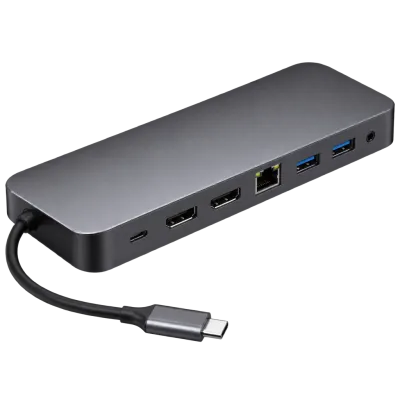
Earlier USB generations dedicate a port to a single kind of traffic at a time. USB4 works differently: it can carry several kinds of traffic, such as ordinary USB data, DisplayPort video, and sometimes Thunderbolt native traffic, over the same physical link at the same time, a method called tunneling. The available bandwidth is then shared dynamically between whatever is actually connected, for example a display and a fast storage device plugged into the same dock.
This is what makes a single USB4 cable able to replace several separate cables on a modern desk, driving an external display, charging a laptop and connecting storage devices all at once through one dock. Our guide to hubs and docking stations looks at how this works in a real desk setup, and our guide to USB video and DisplayPort Alt Mode explains how the video side of this sharing works.
 Matching productUSB-C docking stationAmazon →
07
Which version do you actually need
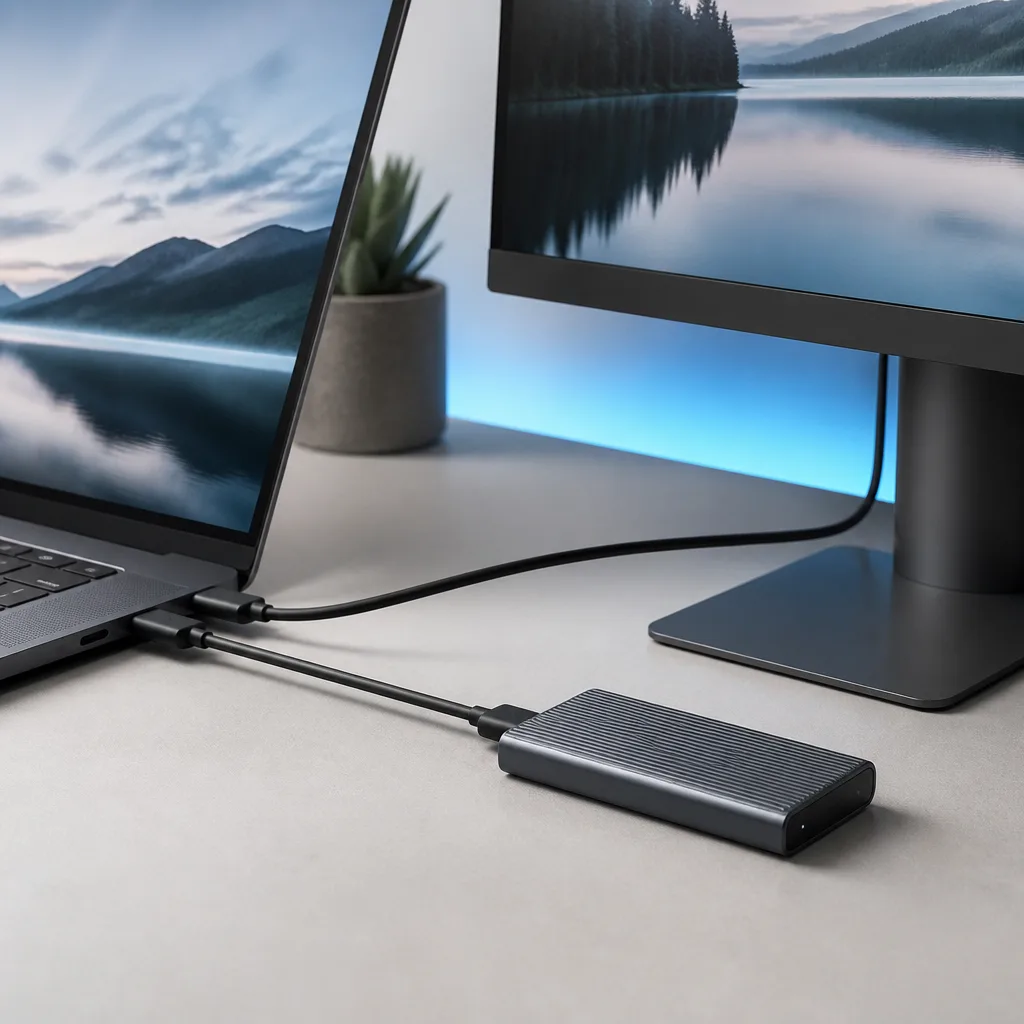
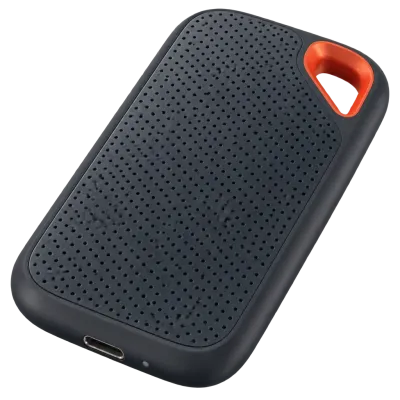
For everyday peripherals such as a mouse, keyboard or webcam, even USB 2.0 speed is more than enough, and most such devices are built to that standard on purpose to keep costs down. For external flash drives and hard drives, USB 5Gbps is a comfortable minimum for smooth file transfers. For external SSDs, which can be much faster than mechanical drives, USB 10Gbps or USB 20Gbps makes a noticeable difference. For docking a laptop to multiple high resolution displays, an external graphics enclosure, or very fast external SSD arrays, USB4 at 40 or 80 Gbit/s is the tier to look for.
Our buying guide walks through matching a device, a cable and a port to the speed you actually need, rather than simply buying the highest number available.
 Matching productExternal SSDAmazon →
08
Frequently asked questions
Is USB4 the same as Thunderbolt?
USB4 is built on the same underlying protocol ideas as Thunderbolt 3, and the two overlap considerably, but they are not identical. Thunderbolt certification imposes stricter minimum requirements, such as guaranteed 40 Gbit/s support and mandatory external display and external graphics support, while USB4 leaves some of these features optional for manufacturers. Most Thunderbolt devices work on USB4 ports and vice versa, but it is not guaranteed at every speed or with every feature.
Does a higher version number always mean a faster port?
No. Because of the renaming described above, a port labelled USB 3.2 Gen 1 runs at the same 5 Gbit/s as an old USB 3.0 port, not faster. The clearest way to compare two ports or cables is by their actual speed in Gbit/s or by the newer marketing names such as USB 10Gbps, rather than by the version number alone.
What does SuperSpeed mean?
SuperSpeed is the marketing term introduced with USB 3.0 for the 5 Gbit/s tier and, informally, for the family of speeds built on the same underlying SuperSpeed signalling technology. You may still see a SuperSpeed logo or the letters SS printed near a port or on a cable.
Will USB4 Version 2.0 replace USB4?
USB4 Version 2.0 extends USB4 rather than replacing it outright. Devices and cables built for the original 40 Gbit/s USB4 continue to work as before, while newer, more demanding devices adopt the 80 Gbit/s tier as it becomes more common. Expect both to coexist in the market for some years.
How can I tell what speed a cable actually supports?
Physical appearance is not a reliable guide, since many cables of different speeds look alike. Check the packaging, any printed markings near the connector, and the manufacturer specification sheet. Our buying guide lists the labels and certification marks worth checking before you buy.
Explore
Read next
 USB Connector Types Explained: Type-A to USB-CA guide to every USB connector type, from Type-A and Micro-USB to USB-C, which devices use which, and how adapters bridge between them.
 How USB-C Charging Works: Power Delivery, PPS and EPR ExplainedA clear explanation of USB-C charging: Power Delivery negotiation, PPS, Extended Power Range, cable current limits, and common reasons for …
 USB Glossary: Terms Explained from A to ZA quick reference glossary of USB terms from A to Z, from connector names to charging and storage vocabulary.