
5 min read
USB speeds explained: real world versus rated
A drive rarely hits its advertised USB speed. Here is what actually limits real world transfers.

The number printed on a USB box rarely matches what you see when a file transfer finishes. A drive advertised at 10 Gbit/s might copy files at a fraction of that speed, while another device seems to hit its rated number every time. Understanding why takes more than remembering a marketing name.
This guide walks through the difference between theoretical and real world USB speeds, the most common bottlenecks, why the naming has become so confusing, and how to check what a specific port on your own computer actually supports.
01
Theoretical speed versus what you actually see
Every USB standard has a maximum signalling rate, the raw number of bits the link can move per second under ideal conditions. USB 3.2 Gen 2, for example, is rated at 10 Gbit/s. That figure describes the wire, not the whole system. Some of that capacity is used for overhead such as error checking and protocol management, and the rest is shared between whatever is generating and receiving the data.
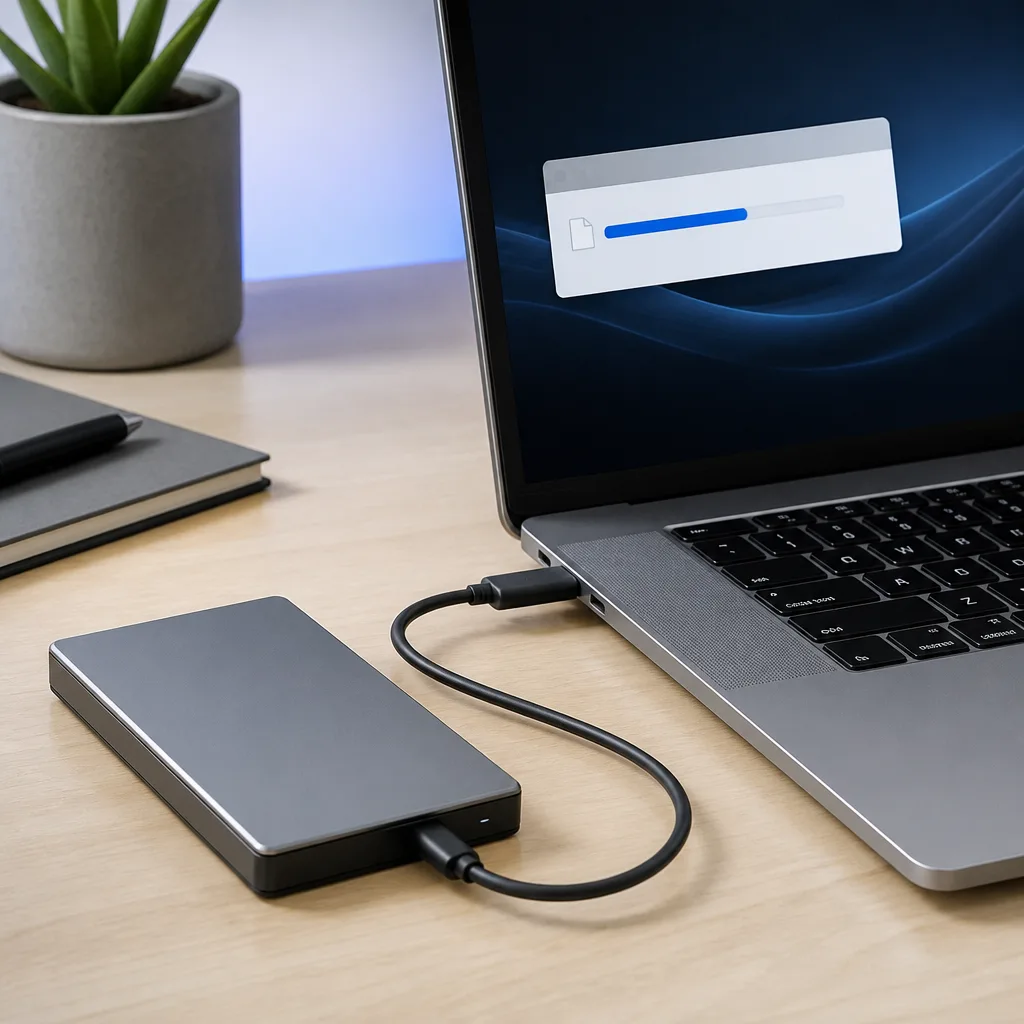
In practice, the component furthest from the wire is usually the real limit. A hard drive or a budget flash drive is mechanically or electronically incapable of reading and writing anywhere near 10 Gbit/s, so it never comes close to the port's rated speed regardless of the cable used. Fast solid state storage can get much closer to the theoretical limit, though even then some overhead is normal and expected.
 Matching productUSB flash driveAmazon →
02
The main bottlenecks in a USB connection
A USB connection is only as fast as its slowest component. Four places commonly hold back real world speed.
- The storage device itself: a mechanical hard drive, a cheap flash drive or an older solid state drive all have their own ceiling that no USB standard can exceed.
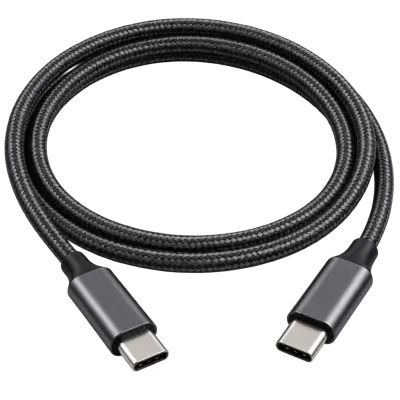
- The cable: an older or budget cable may only be wired for a slower USB generation even if both ends support something faster. See our guide to choosing USB cables.
- The port itself: not every port on a computer runs at the same speed, and a device plugged into a slower port will run at that port's limit.
- The protocol used to talk to the storage, particularly whether the device uses UASP or the older, less efficient Bulk-Only Transport method.
03
Why UASP and BOT matter for storage speed
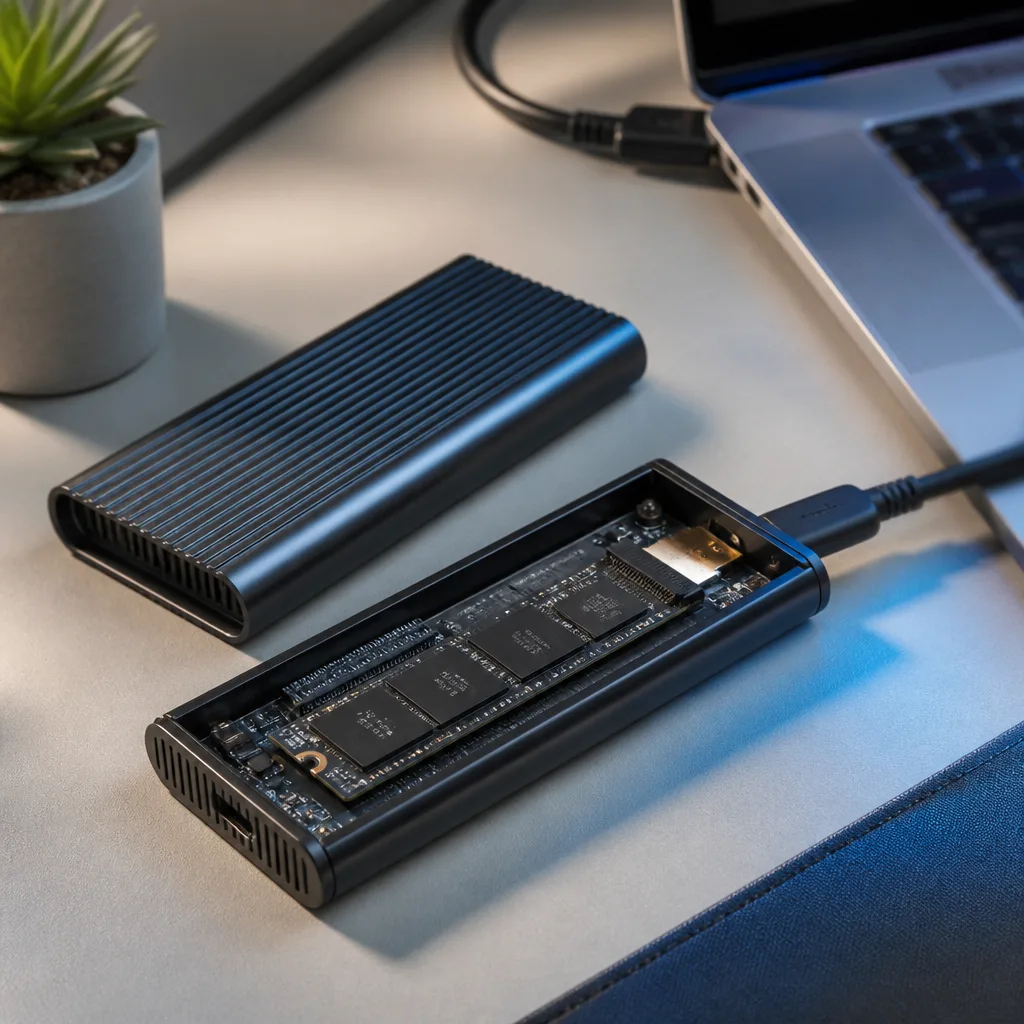
External storage devices talk to a computer using one of two command sets. The older one, Bulk-Only Transport, handles one command at a time and was designed in an era when USB itself was much slower. The newer one, UASP, allows several commands to be in flight at once, which reduces waiting time and noticeably improves performance, especially with many small files rather than a few large ones.
Two external drives with identical internal storage chips can perform quite differently if one uses an enclosure or adapter chip that supports UASP and the other does not. This is one of the least visible bottlenecks, since it is rarely mentioned prominently on packaging, and it is covered in more depth in our guide to external SSDs.
 Matching productExternal SSDAmazon →
04
The confusing world of USB naming
USB naming has changed several times, which is a major source of confusion. USB 3.0 was renamed USB 3.1 Gen 1, then USB 3.2 Gen 1, all while describing the exact same 5 Gbit/s speed. USB 3.1 Gen 2 became USB 3.2 Gen 2, still 10 Gbit/s. A newer addition, USB 3.2 Gen 2x2, reaches 20 Gbit/s by using two lanes at once.
To reduce this confusion, the USB-IF introduced simpler marketing names tied directly to speed: USB 5Gbps, USB 10Gbps, USB 20Gbps, USB 40Gbps and USB 80Gbps. USB4 itself is specified at 20 or 40 Gbit/s, with USB4 Version 2.0 reaching 80 Gbit/s, and an asymmetric mode allowing up to 120 Gbit/s in one direction. Manufacturers do not always adopt the newer marketing names consistently, so both the old Gen numbering and the newer Gbps naming still appear side by side on packaging and specification sheets.
 Matching productUSB4 / Thunderbolt cableAmazon →
05
USB generations and their rated speeds
| Common name | Marketing name | Rated speed |
|---|---|---|
| USB 2.0 | High Speed | 480 Mbit/s |
| USB 3.2 Gen 1 | USB 5Gbps | 5 Gbit/s |
| USB 3.2 Gen 2 | USB 10Gbps | 10 Gbit/s |
| USB 3.2 Gen 2x2 | USB 20Gbps | 20 Gbit/s |
| USB4 | USB 40Gbps | 20 or 40 Gbit/s |
| USB4 Version 2.0 | USB 80Gbps | up to 80 Gbit/s, 120 Gbit/s asymmetric |
06
How to check what a port actually supports
The most reliable way to check a port's real capability is the manufacturer's own documentation for the exact laptop, desktop or dock model, since ports that look identical often support different speeds on the same device. Many laptops mix a fast port next to a much slower one without any visible difference in shape.
Operating systems also include built in utilities that list connected USB devices along with the negotiated link speed, which shows what is actually happening rather than what the packaging claims. Running an actual file transfer with a large file and timing it, then comparing that to the rated speed of the standard involved, is a simple practical check that accounts for the storage device as well as the port and cable.

07
Realistic expectations for everyday transfers
Even under good conditions, real transfer speeds typically land somewhat below the theoretical maximum of the standard involved, because of protocol overhead and the practical limits of storage hardware. A drive that reaches roughly seventy to ninety percent of its rated speed in normal use is behaving normally rather than showing a fault. Expecting the exact number on the box, especially with mechanical hard drives, budget flash drives or older cables, usually leads to disappointment that has nothing to do with a defective product.
The type of file being moved also matters. Copying one very large video file tends to get much closer to a drive's rated sequential speed, while copying thousands of small files, such as photos or documents, is usually slower overall because each individual file carries its own small amount of overhead. This is normal behaviour for almost all storage, not something specific to USB, and it explains why the same drive can feel fast in one situation and slow in another.
08
Frequently asked questions
Why is my external drive slower than its advertised speed?
Advertised speeds are theoretical maximums for the USB standard involved. The real speed depends on the drive's own hardware, the cable, the port, and whether the connection uses UASP or the older Bulk-Only Transport method.
Does a faster USB standard always mean a faster transfer?
Only if every part of the chain, meaning the port, the cable and the device, supports that faster standard. Otherwise the connection runs at the speed of the slowest part.
What is the difference between USB 3.2 Gen 1 and USB 5Gbps?
They are the same thing. USB 5Gbps is the simpler marketing name the USB-IF introduced for what was previously called USB 3.0, then USB 3.1 Gen 1, then USB 3.2 Gen 1.
How can I check the real speed of a USB connection?
Use your operating system's built in device information tools to see the negotiated link speed, or time a large file transfer and compare the result to the rated speed of the standard involved.
Explore
Read next
 USB Standards and Speeds Explained: USB 1.0 to USB4 Version 2.0A complete overview of USB versions and speeds, from USB 1.0 to USB4 Version 2.0, including the confusing renaming of USB 3.x.
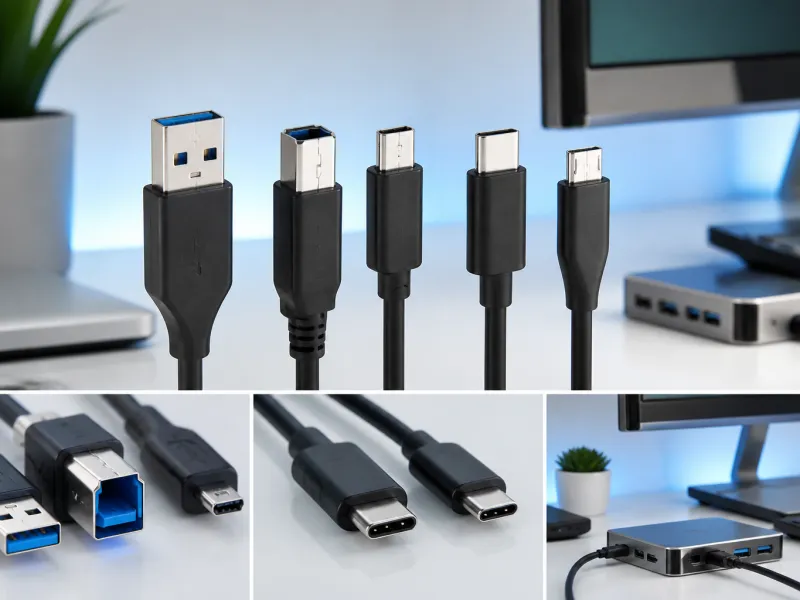 USB Connector Types Explained: Type-A to USB-CA guide to every USB connector type, from Type-A and Micro-USB to USB-C, which devices use which, and how adapters bridge between them.
 How USB-C Charging Works: Power Delivery, PPS and EPR ExplainedA clear explanation of USB-C charging: Power Delivery negotiation, PPS, Extended Power Range, cable current limits, and common reasons for …