
9 min read
USB Buying Guide: Cables, Chargers, Hubs, Docks, Drives and SSDs
A step by step guide to choosing USB cables, chargers, hubs, docks, flash drives and external SSDs, with a practical checklist.
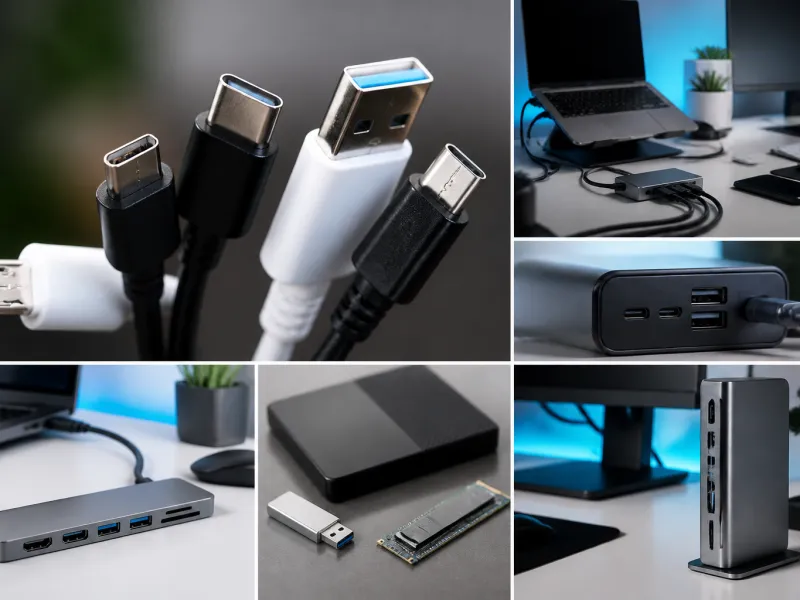
Buying USB equipment would be easy if every cable, charger, hub or drive behaved the same way, but they do not. A cable that looks identical to another can support a completely different speed or power level, and a hub or dock that seems generously equipped with ports can still bottleneck everything connected to it. This guide walks through cables, chargers, hubs, docks, flash drives and external SSDs one at a time, with the specific things worth checking before you buy.
Throughout, the aim is to help you match a product to what you actually need, rather than to point you toward any particular brand or model, which this site never does.
01
Step 1: Work out what you already have
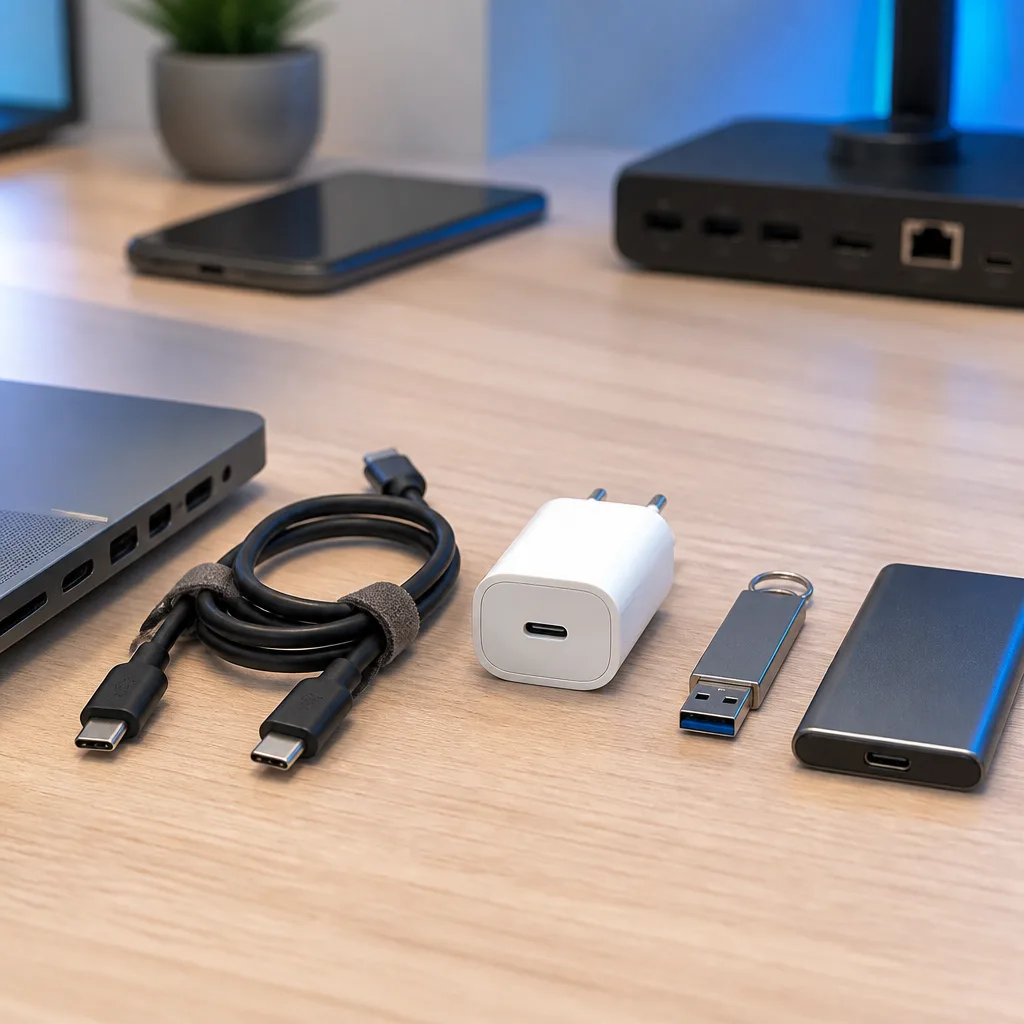
Before buying anything, check the ports and capabilities of the devices you already own. Look at your computer, phone, monitor or dock for the connector shape of each port, and check the manufacturer's specification page for what speed and power each port supports, since ports that look identical often are not. Our connector guide and standards overview are useful references for translating what you find into plain terms, since manufacturer specification sheets often use the exact version names and marketing terms explained on those pages.
02
Step 2: Choosing a cable
A USB cable needs to match three things: the connector shape on each end, the data speed you need, and the power it needs to carry. Cheaper cables are often built only for charging at lower current and slower USB 2.0 data, which is fine for many everyday uses but will bottleneck a fast external drive or a high wattage laptop charger. For higher current charging, above 3 A, the cable needs an e-marker chip, and for high data speeds it needs to be built to the relevant USB generation, not just have the right shaped plug.
Length matters too. Longer cables, especially thin ones, can struggle to maintain the highest data speeds and the highest power levels, so a shorter cable is often the safer choice when maximum speed or power matters. Our dedicated guide to USB cables covers labelling and construction in more detail.
03
Step 3: Choosing a charger
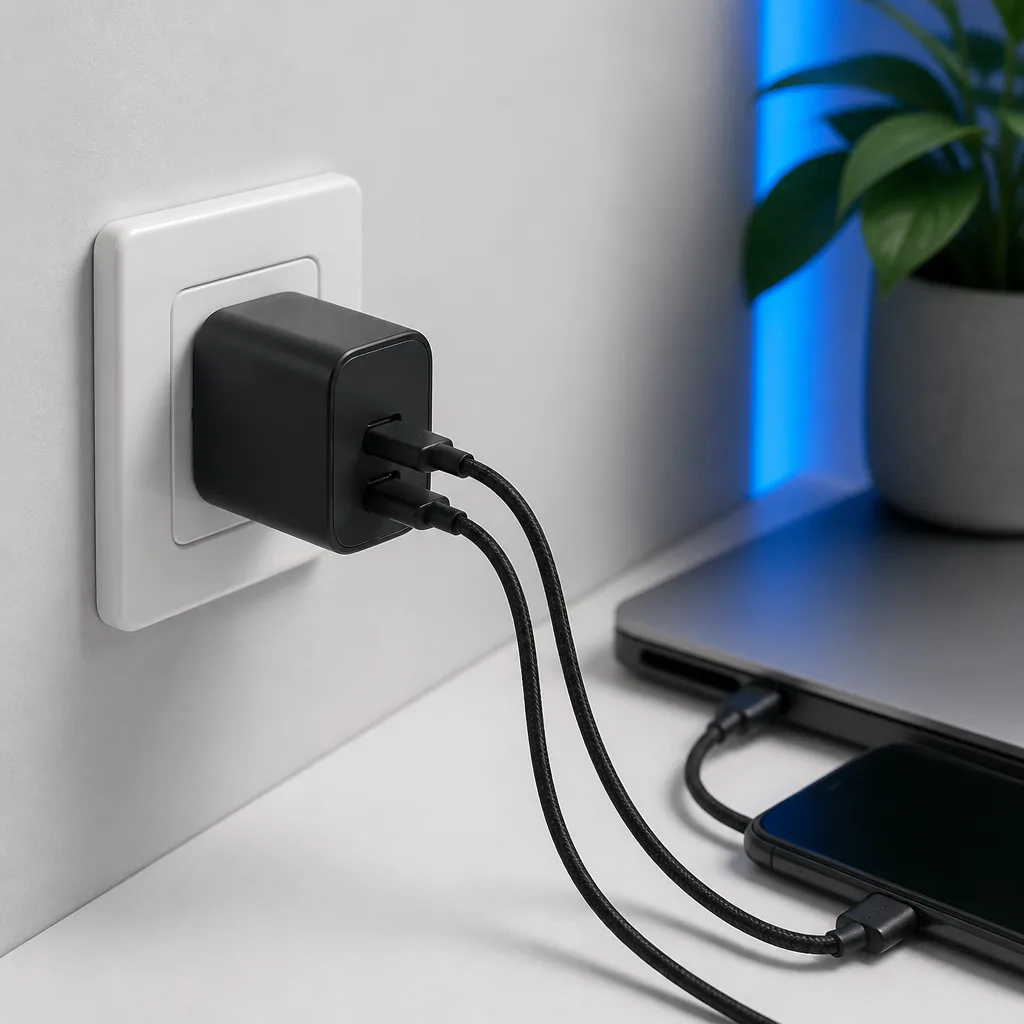
Match a charger's rated wattage to the highest wattage your most demanding device can use, checking the device's own documentation rather than guessing. If you plan to charge more than one device from the same charger at once, check whether the charger's total output is shared between ports or fixed per port, since this affects how fast each device charges when several are plugged in together. Our charging guide and charger guide explain the wattage and negotiation details behind these numbers.
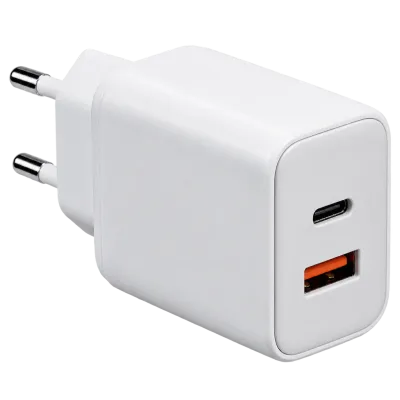 Matching productGaN charger 65 WAmazon →
04
Step 4: Choosing a hub
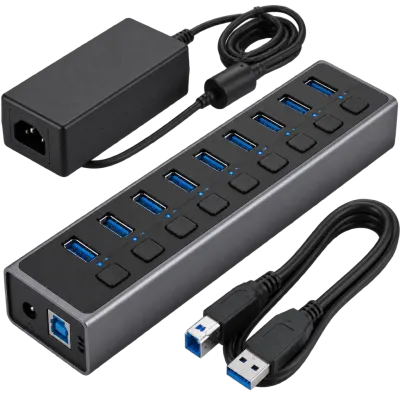
A USB hub multiplies the number of ports available from a single port on your computer, but it cannot multiply the underlying bandwidth or power of that original port. If you connect several fast devices to an unpowered hub at once, they will typically share whatever bandwidth and power the host port can provide, which can be noticeably less than each device could achieve on its own. For anything beyond a couple of low power accessories, a separately powered hub, meaning one with its own plug into a wall outlet, avoids power related problems such as drives disconnecting unexpectedly.
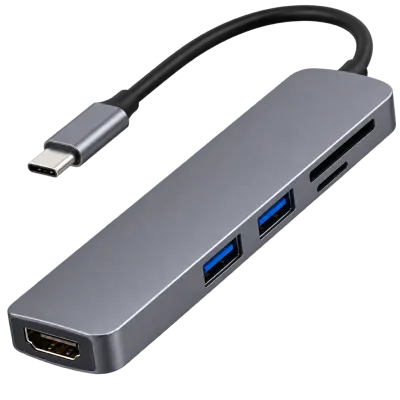 Matching productUSB-C hubAmazon →
05
Step 5: Choosing a dock
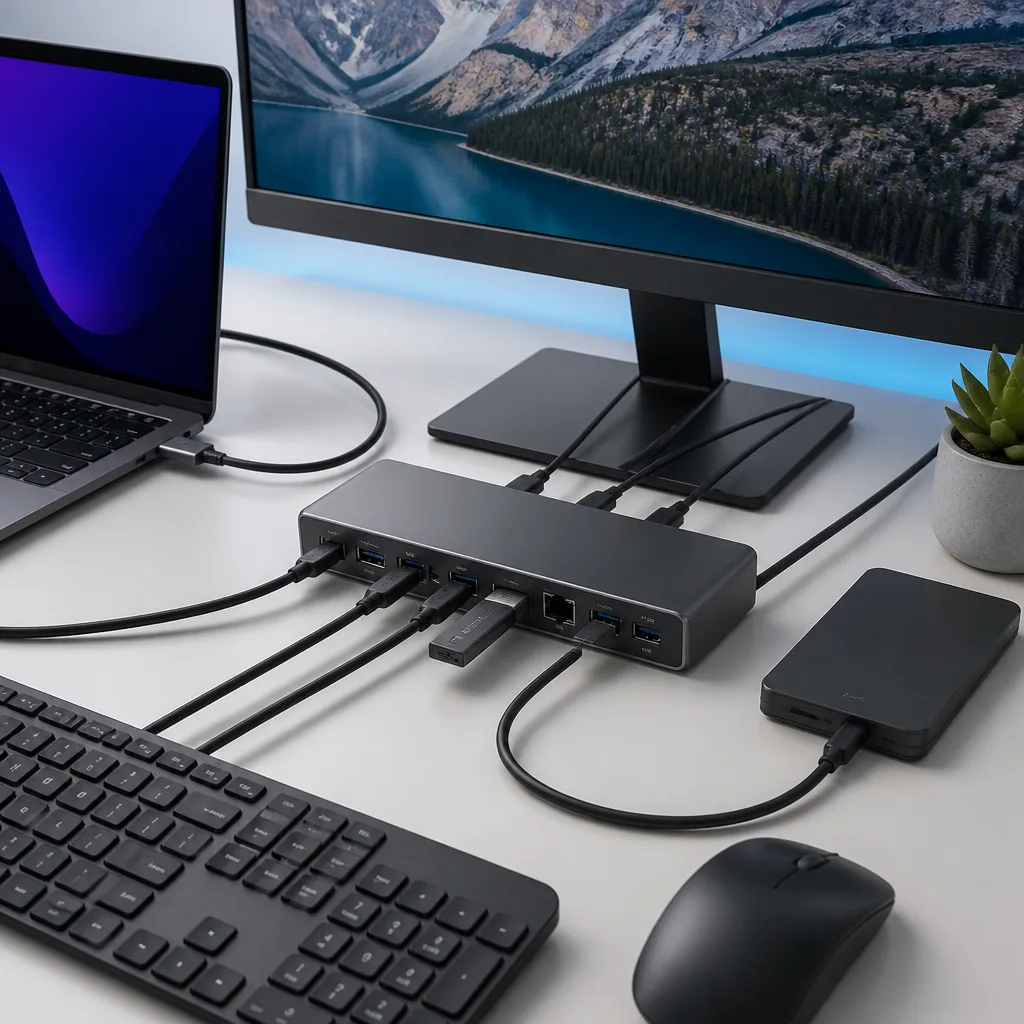
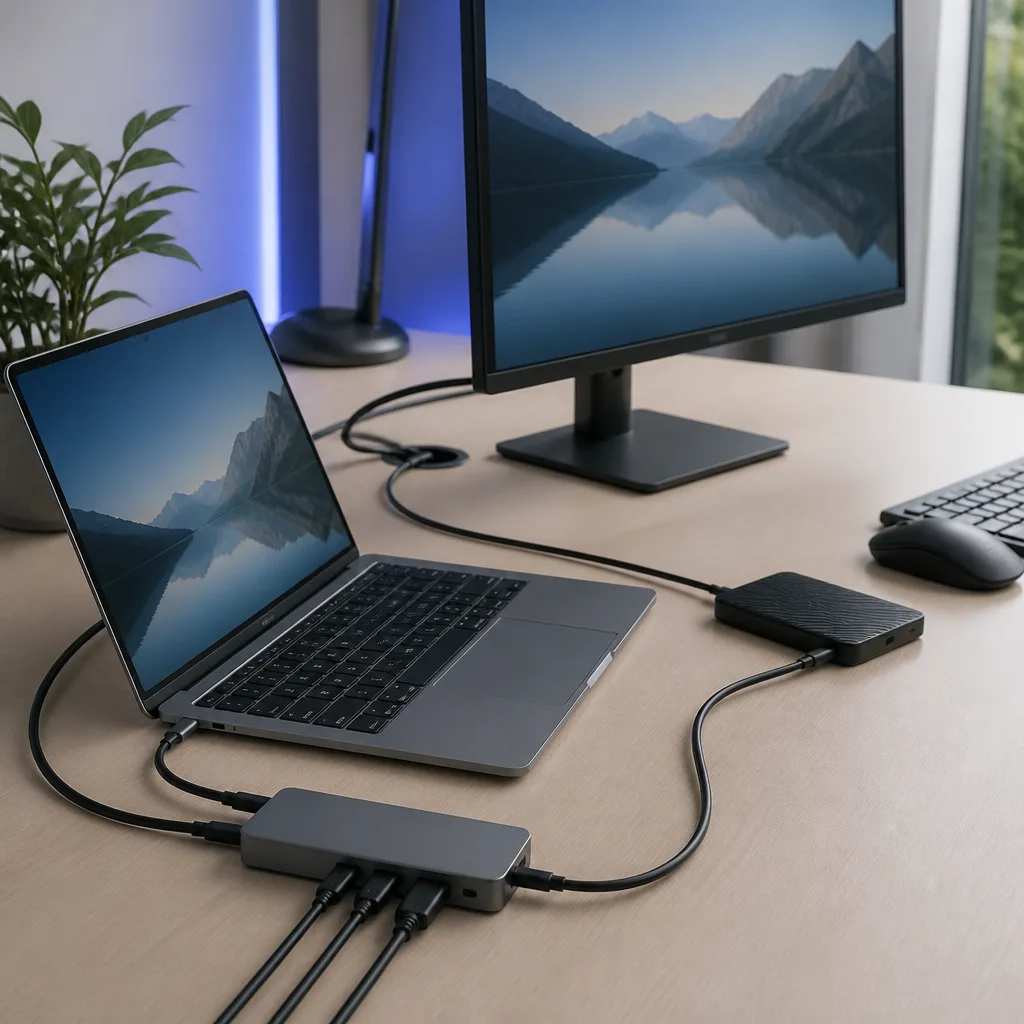
A docking station is a more capable relative of a hub, usually adding video output for one or more external monitors alongside extra USB ports, network connections and sometimes card readers. Before buying one, check that the dock supports the video resolution and number of displays you actually want, that its total USB bandwidth is enough for what you plan to connect at once, and that it can supply enough charging power back to your laptop if you want to charge through the same single cable. Our guide to hubs and docking stations covers these differences in depth, and our guide to USB video explains how external displays are carried over USB-C.
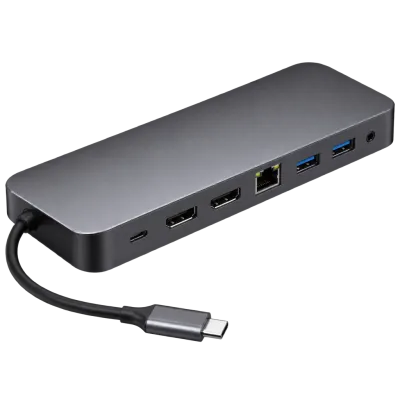 Matching productUSB-C docking stationAmazon →
06
Step 6: Choosing a flash drive
For a USB flash drive, the main things to check are the USB generation it supports, since this sets its maximum possible transfer speed, and its storage capacity relative to what you plan to store on it. Flash drives vary considerably in real world speed even within the same USB generation, since the memory chips and controller inside matter as much as the outer USB connection. If speed matters more than convenience, an external SSD, covered below, is generally a faster option than any flash drive.
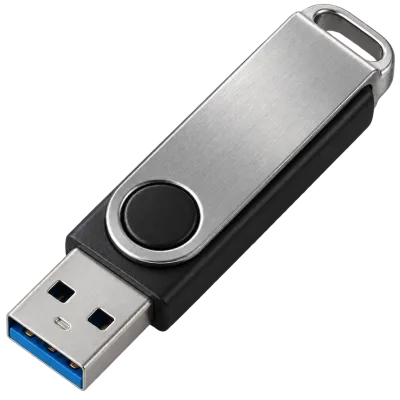 Matching productUSB flash driveAmazon →
07
Step 7: Choosing an external SSD
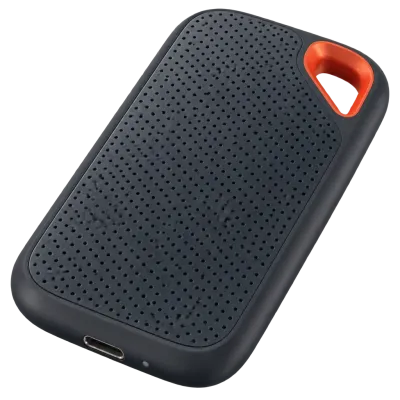
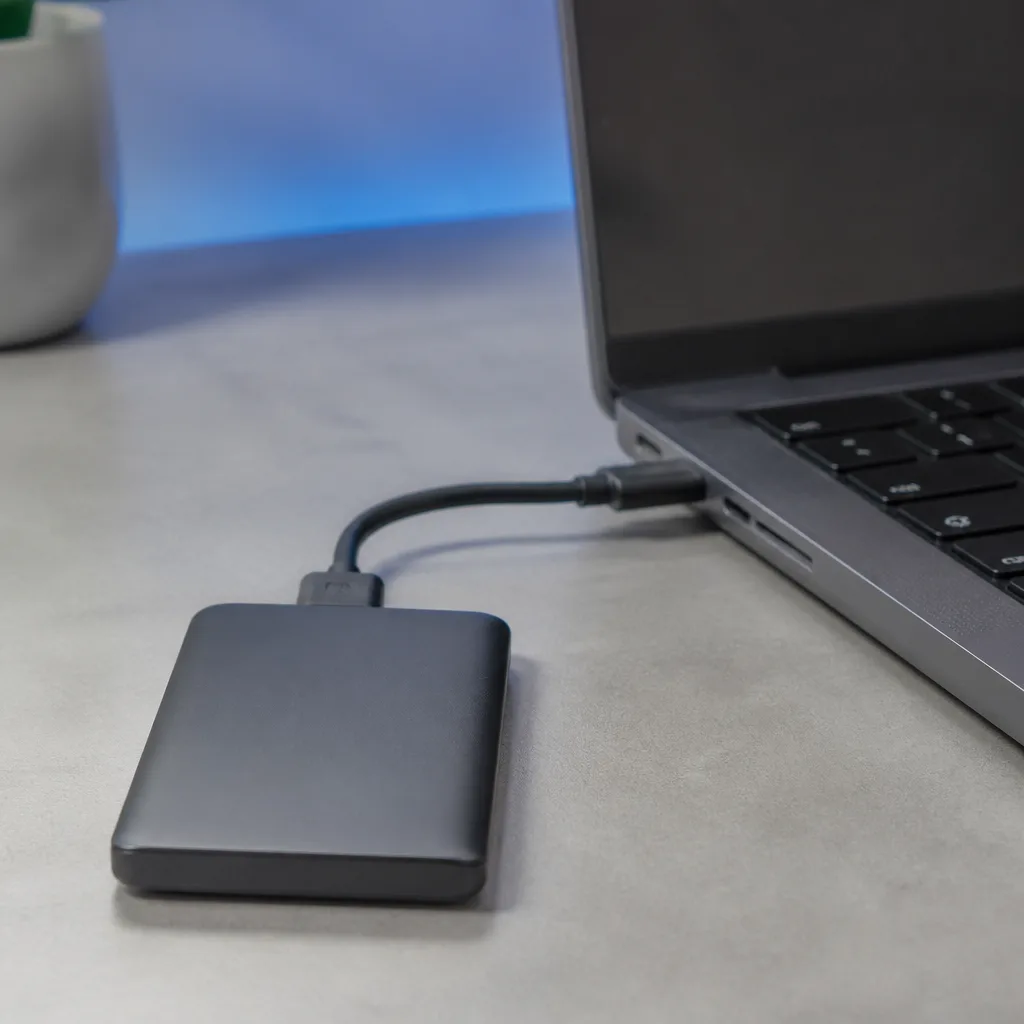
An external SSD's real world speed depends on both the drive's own internal speed and the USB connection carrying it, so check that both sides of the pairing can support the speed you expect. A very fast SSD connected through a slow USB 2.0 port or cable will only reach USB 2.0 speeds, while a modest SSD connected through a fast USB4 port gains nothing beyond what the drive itself can deliver. Our guide to external SSDs covers this pairing in more detail, along with durability and file system considerations.
 Matching productExternal SSDAmazon →
08
Common mistakes worth avoiding
A few recurring mistakes account for a large share of USB related disappointment. Buying a cable based on connector shape alone, without checking its speed or current rating, is probably the most common, since a USB-C to USB-C cable can be built for anything from basic charging to full USB4 speeds while looking exactly the same from the outside. Assuming every port on a laptop behaves identically is another frequent trap, since manufacturers often reserve the fastest features for only one or two of the available ports, a point covered in more depth in our connector guide.
Buying an unpowered hub for demanding devices such as external hard drives is a third common mistake, since it frequently leads to drives disconnecting or failing to spin up correctly when power is shared too thinly across several devices. Finally, expecting a hub, dock or cable to increase the speed of a device beyond what that device itself supports is a misunderstanding worth avoiding, since none of these accessories can add capability that is not already present in the connected device or the host port.
09
Matching purchases to how you actually use your devices
The right USB purchase depends heavily on your own setup rather than on any universal answer. Someone who mainly charges a phone and occasionally transfers a few photos has very different needs from someone running a laptop docked to two monitors with an external SSD for video editing. Before buying, it helps to write down, even briefly, what you actually plan to connect together, including how many devices at once, how far apart they will sit, and whether charging, data transfer or both matter for each connection.
This small amount of upfront thought avoids the two most wasteful outcomes: paying for far more capability than you will realistically use, or buying something that turns out to be the bottleneck in a setup that was otherwise ready for something faster. Our overview pages on standards and charging are useful references while you work this out.
10
Future-proofing without overspending
USB standards continue to evolve, and buying strictly for today's needs can mean replacing a cable or hub again sooner than you would like. A reasonable middle ground is to buy one tier above your current requirement for anything you expect to keep using for several years, such as a dock or a set of desk cables, while buying more precisely for short lived or low cost items such as a single charging cable for a specific accessory. This avoids overspending across the board while still leaving some headroom as your devices improve, without needing to guess at standards that do not exist yet.
11
A quick checklist before buying
| Product | Check before buying |
|---|---|
| Cable | Connector shape on both ends, rated speed, rated current, e-marker if above 3 A, length |
| Charger | Rated wattage versus device needs, Power Delivery support, port sharing behaviour with multiple devices |
| Hub | Whether it is separately powered, total bandwidth shared across ports, number and type of ports |
| Dock | Supported display resolution and count, total USB bandwidth, pass-through charging wattage |
| Flash drive | USB generation supported, storage capacity, expected real world speed |
| External SSD | Drive speed matched to port and cable speed, connector type, durability if used on the move |
13
Certification labels and marketing claims
Official USB-IF logos and marketing names, such as USB 10Gbps or USB Charger, indicate that a product has been through a certification process against the relevant specification, which is a useful, if not absolute, signal of compliance. Beyond that, treat purely descriptive marketing language on packaging with some caution, and prefer the specific, checkable numbers, meaning speed in Gbit/s, current in amps, and power in watts, over vaguer wording. This site deliberately avoids ranking or recommending specific products, since the right choice always depends on the exact combination of devices you already own and how you plan to use them together.
14
Frequently asked questions
Do I need to buy the most expensive cable available?
No. Price alone does not reliably indicate speed or power rating. Checking the specific speed and current rating stated by the manufacturer is more useful than price when comparing options.
Will a faster hub or dock make my existing devices faster?
Only up to the speed those devices already support. A hub or dock cannot exceed the speed of the slowest link in the chain, including the devices connected to it and the port on your computer.
Is it worth buying a cable rated higher than I currently need?
It can be, if you expect to use faster devices later, since a well rated cable will keep working as your other equipment improves, while a basic cable may need replacing sooner.
How do I know if a hub needs its own power supply?
If you plan to connect more than one or two low power accessories, or any external drive, a separately powered hub is the safer choice, and the product listing or manual will usually state whether a power input is included.
Should I buy the same brand for my cable and charger?
Not necessarily. USB standards are designed so that compliant products from different manufacturers work together correctly, so matching specifications matters far more than matching brands.
What should I do if a product I bought does not perform as advertised?
Recheck the specific speed and power figures against your other equipment first, since a mismatch elsewhere in the chain is a common cause, and contact the retailer or manufacturer if the product itself still appears to fall short of its stated specification after that check.
 Matching productPowered USB hubAmazon →
Explore
Read next
 USB Standards and Speeds Explained: USB 1.0 to USB4 Version 2.0A complete overview of USB versions and speeds, from USB 1.0 to USB4 Version 2.0, including the confusing renaming of USB 3.x.
 USB Connector Types Explained: Type-A to USB-CA guide to every USB connector type, from Type-A and Micro-USB to USB-C, which devices use which, and how adapters bridge between them.
 How USB-C Charging Works: Power Delivery, PPS and EPR ExplainedA clear explanation of USB-C charging: Power Delivery negotiation, PPS, Extended Power Range, cable current limits, and common reasons for …