
5 min read
USB hubs and docks: which one you need
A hub and a dock solve different problems. Here is how to tell them apart and pick the right one.
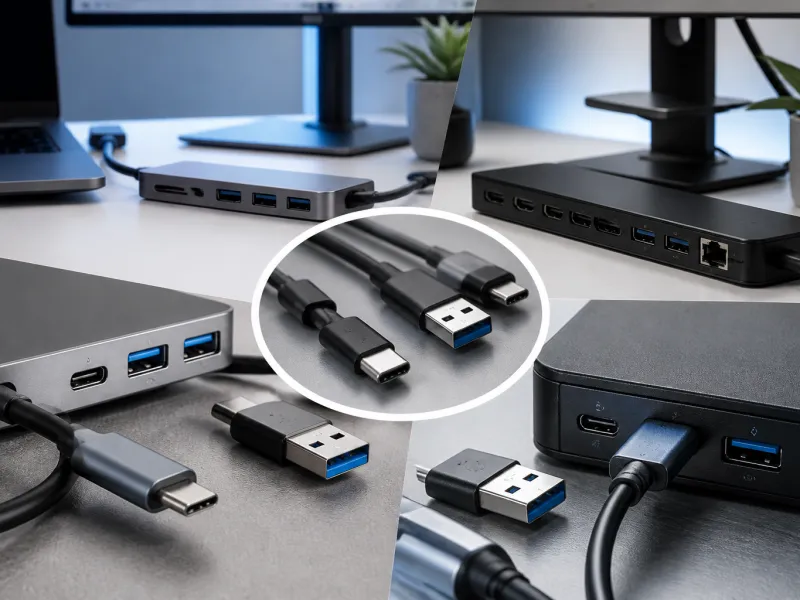
Modern laptops often come with only two or three ports, which is rarely enough once a keyboard, a mouse, an external drive and a monitor all need to connect at the same time. USB hubs and docking stations solve this problem, but they are not interchangeable, and picking the wrong one leads to sluggish performance or a monitor that will not turn on.
This guide explains the difference between a hub and a dock, what bus powered and self powered actually mean, how video output and multiple monitors work, and how to choose the right device for a laptop setup or a permanent desk.
01
Hub or dock: what is the actual difference
A USB hub is, at its simplest, a way of splitting one USB port into several. It typically adds extra USB-A or USB-C data ports and does little else. A docking station, often just called a dock, goes further, usually adding video outputs for one or more monitors, a wired network connection, audio jacks, and sometimes card readers, alongside the extra USB ports.
The line between the two categories is not perfectly sharp, since some larger hubs include a single video output and blur into dock territory, but as a rule of thumb, a hub focuses on multiplying USB ports while a dock focuses on turning a single cable connection into a full desk setup with a monitor, network and accessories all included.
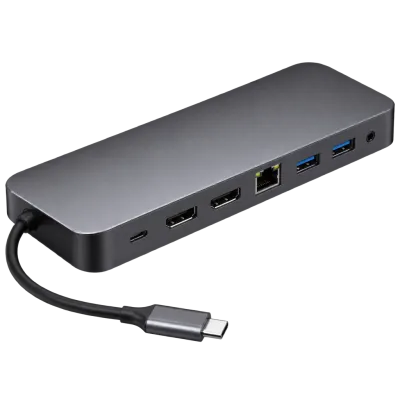 Matching productUSB-C docking stationAmazon →
02
Bus powered versus self powered
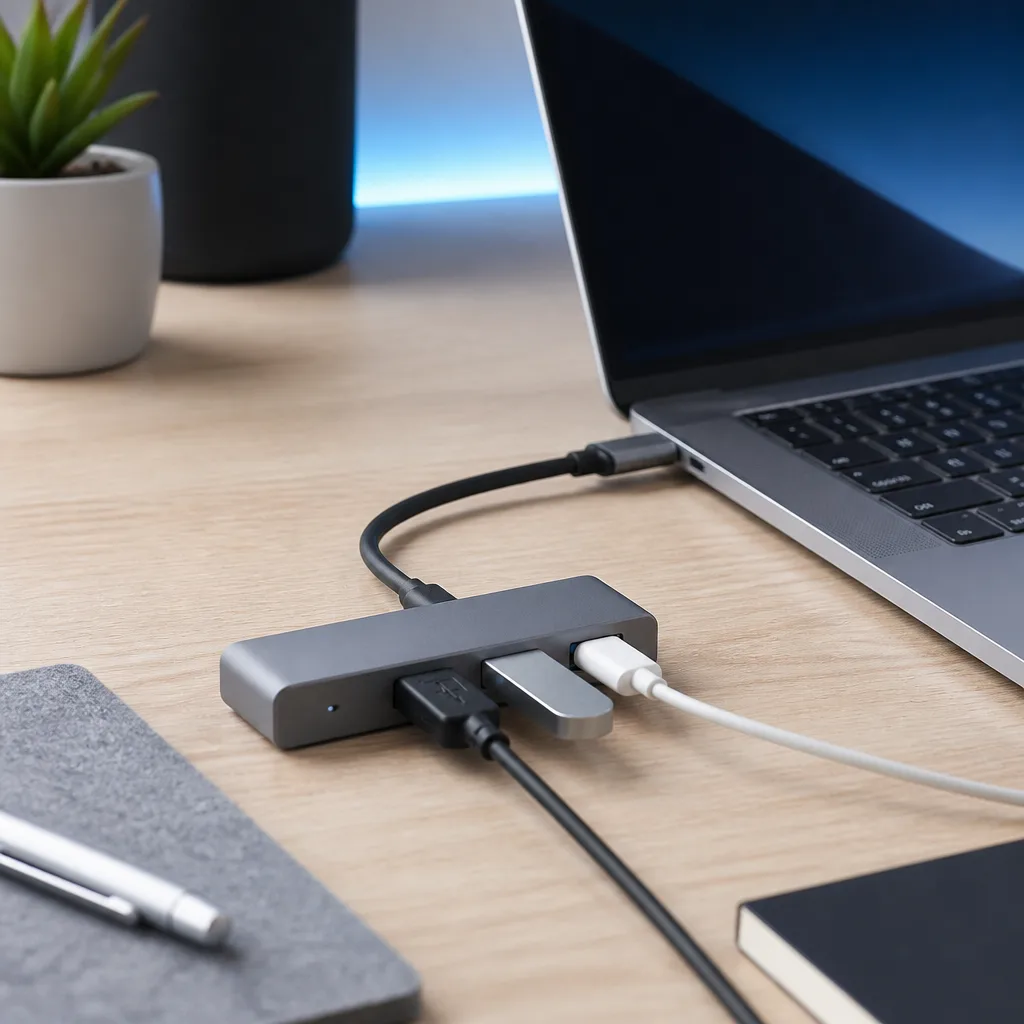
A bus powered hub or dock draws all of its own electricity from the host laptop's USB port, with no separate power supply of its own. This keeps the device small and simple, but it also limits how much power is available to share among connected accessories, and it does nothing to help charge the laptop itself.
A self powered hub or dock plugs into a wall outlet with its own power supply. This allows it to power accessories more generously, and many self powered docks also pass a substantial charging current back to the laptop through the same single cable, which is one of the main reasons people choose a dock in the first place: one cable that both charges the laptop and connects everything else.
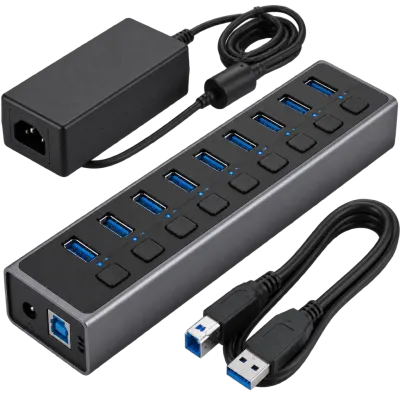 Matching productPowered USB hubAmazon →
03
Video output, MST and multiple monitors
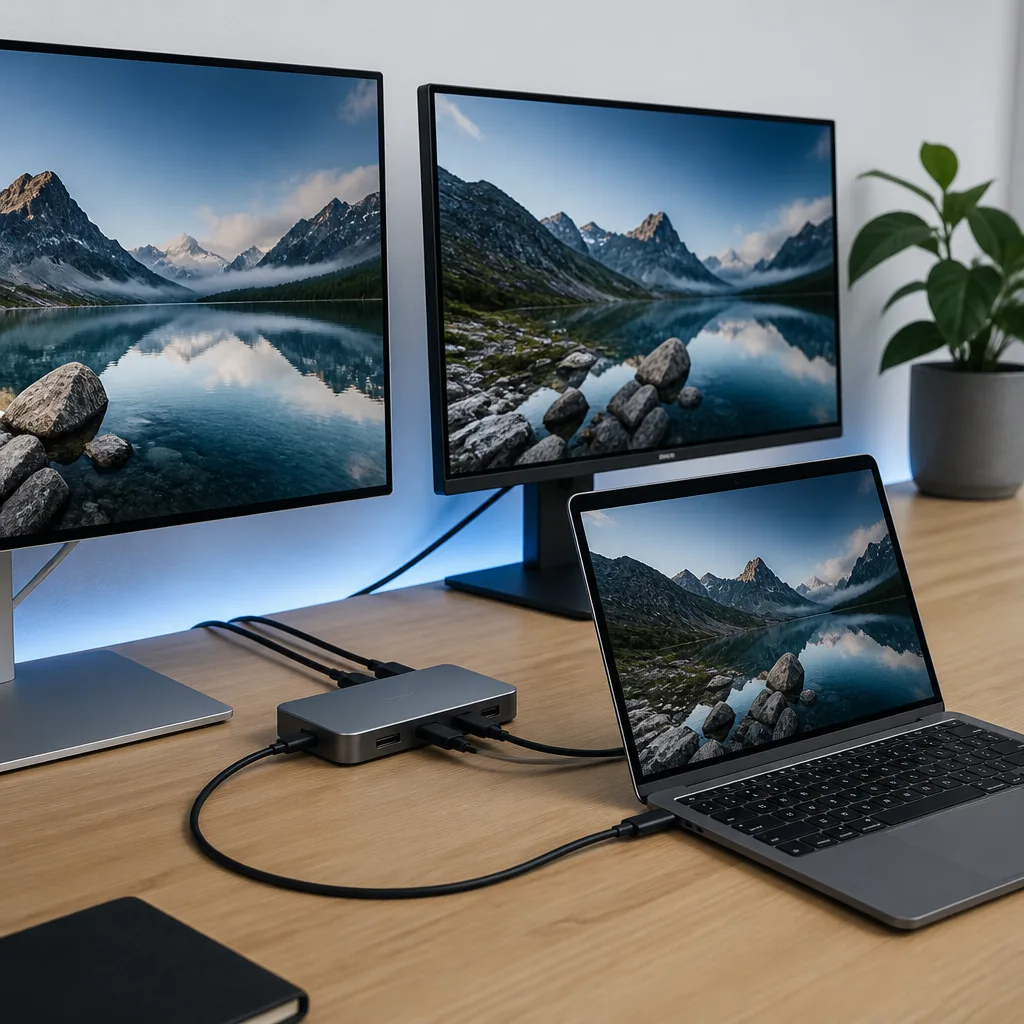
Docks that support video typically use the DisplayPort or HDMI alternate mode carried over the same USB-C connection described in our guide to USB-C. A single video stream from the laptop can sometimes be split into two separate monitor outputs using a technique called Multi Stream Transport, or MST, which effectively treats two monitors as one larger combined display from the laptop's point of view.
Not every laptop or dock supports MST, and not every monitor supports being used this way either, so a setup with two monitors sometimes needs the laptop to have two separate video capable connections instead of relying on MST through a single dock. Checking the exact model of laptop, dock and monitor against each other before buying avoids a common and frustrating mismatch.
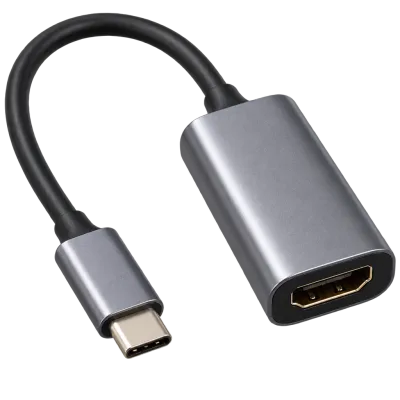 Matching productUSB-C to HDMI adapterAmazon →
04
Choosing a hub or dock for a laptop
For occasional travel use, a small, light, bus powered hub with a handful of ports is usually the most practical choice, since portability matters more than raw capability on the move. For a fixed desk setup used every day, a self powered dock that also charges the laptop tends to be worth the extra size and cost, since it turns sitting down at the desk into a single cable connection rather than plugging in a charger, a monitor cable and several accessories separately each time.
- Count the ports you actually use regularly, rather than buying the hub with the largest possible number of ports.
- Check whether the dock's video output matches your monitor's connector and resolution, including refresh rate for higher resolution screens.
- If the laptop should charge through the dock, check the dock's charging wattage against the laptop's own charger rating.
- For fast external drives, check that the dock's USB ports run at a speed that will not bottleneck the drive, a topic covered in our guide to USB speeds explained.
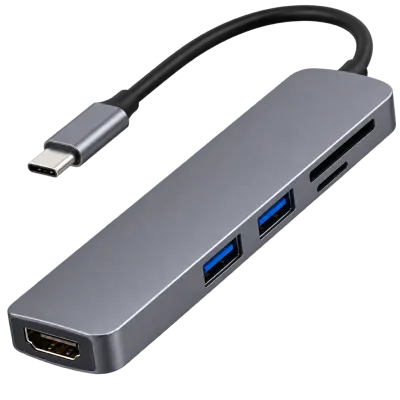 Matching productUSB-C hubAmazon →
05
Comparing hub and dock features
| Feature | Typical hub | Typical dock |
|---|---|---|
| Extra USB ports | Yes | Yes |
| Video output | Rare or single output | Common, often multiple outputs |
| Wired network port | Rare | Common |
| Own power supply | Sometimes | Usually |
| Passes charging power to laptop | Rare | Common |
06
Everyday desk setups
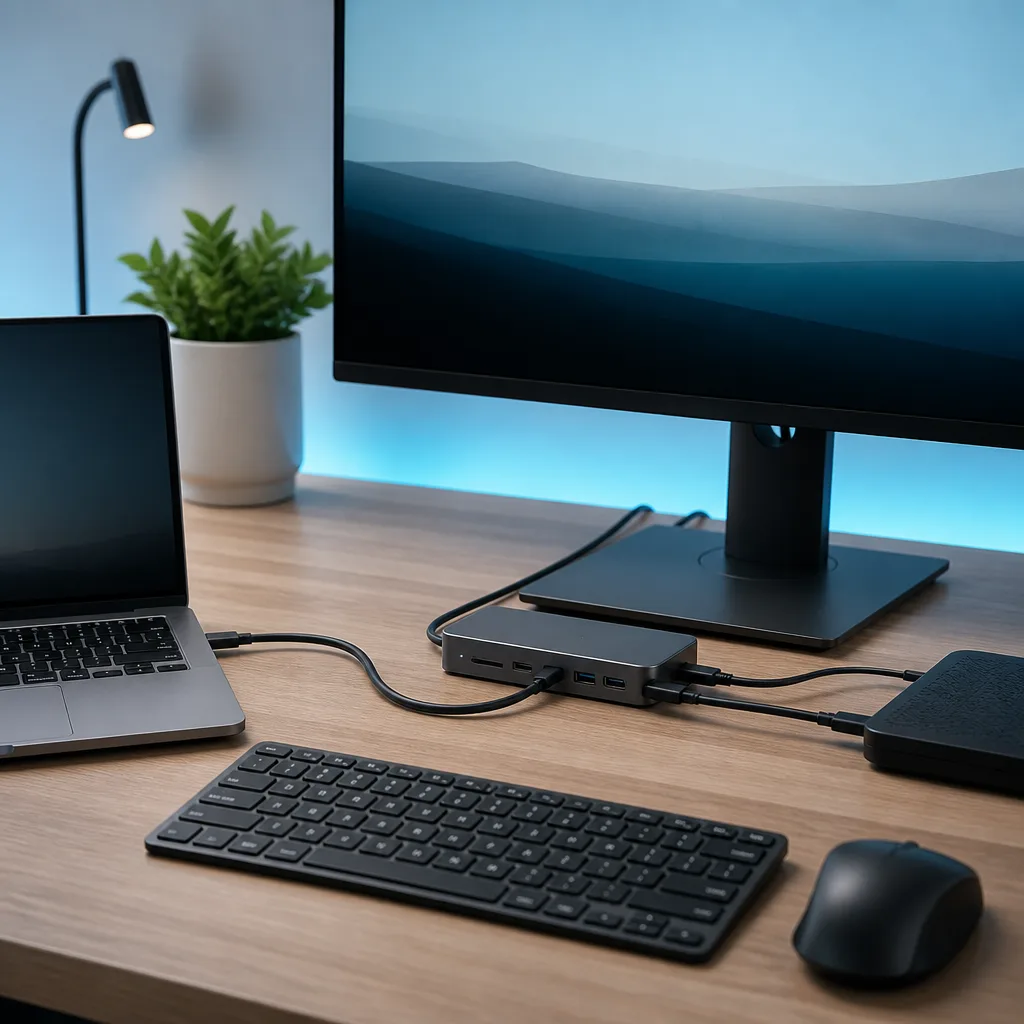
A common and effective desk arrangement places a single dock near the monitor, connected to the laptop with one cable, with the keyboard, mouse and any other accessories plugged into the dock rather than directly into the laptop. This means arriving at the desk and sitting down becomes a single plug in action, and leaving with the laptop is just as simple, without hunting for several separate cables each time.
Cable management also improves with this approach, since only one cable crosses the desk to the laptop's actual position, and the rest of the connections stay fixed at the dock. For more setup ideas built around this idea, see our collection of USB based desk setups.
07
Common problems and how to avoid them
The most frequent complaint with hubs and docks is a monitor that will not turn on, which is almost always caused by a mismatch between the video alternate mode the laptop supports and what the dock or monitor expects, or a cable that does not carry video signals at all. The second most common issue is a laptop charging slowly or not at all through a dock, which usually comes down to the dock's power supply being too small for the laptop's needs, or a cable between the dock and laptop that is not rated for the required power, as explained in our guide to USB Power Delivery.
A third, less obvious problem is a dock that works fine on its own but slows down as soon as several accessories are used together, such as a fast external drive alongside two monitors. This usually means the total bandwidth or power the dock can offer is being shared out across more devices than it was really designed to support at once, rather than any single device being faulty. Reducing the number of demanding accessories connected at the same time, or choosing a dock explicitly rated for that combination, generally resolves it.
08
Frequently asked questions
Can a hub charge my laptop?
A basic bus powered hub cannot, since it has no power supply of its own. A self powered dock with enough wattage can, provided the laptop, dock and cable between them all support the required power level.
Why does my second monitor not work through my dock?
This is usually a compatibility issue between the laptop's video output, the dock, and whether Multi Stream Transport is supported by all three, including the monitor itself.
Do I need a dock if I only use one extra device?
Probably not. A simple hub or even a single adapter cable is usually enough if you only need one or two extra ports and no video output.
Does a longer cable between the laptop and dock cause problems?
It can, particularly for high speed data or video, since longer cables are more sensitive to signal loss. See our guide to choosing USB cables for length limits by speed.
Explore
Read next
 USB Standards and Speeds Explained: USB 1.0 to USB4 Version 2.0A complete overview of USB versions and speeds, from USB 1.0 to USB4 Version 2.0, including the confusing renaming of USB 3.x.
 USB Connector Types Explained: Type-A to USB-CA guide to every USB connector type, from Type-A and Micro-USB to USB-C, which devices use which, and how adapters bridge between them.
 How USB-C Charging Works: Power Delivery, PPS and EPR ExplainedA clear explanation of USB-C charging: Power Delivery negotiation, PPS, Extended Power Range, cable current limits, and common reasons for …