
6 min read
Video Over USB-C: DisplayPort Alt Mode, HDMI and Monitors
How USB-C carries a video signal, from DisplayPort and HDMI Alt Mode to multi-monitor setups and the limits on resolution and refresh rate.
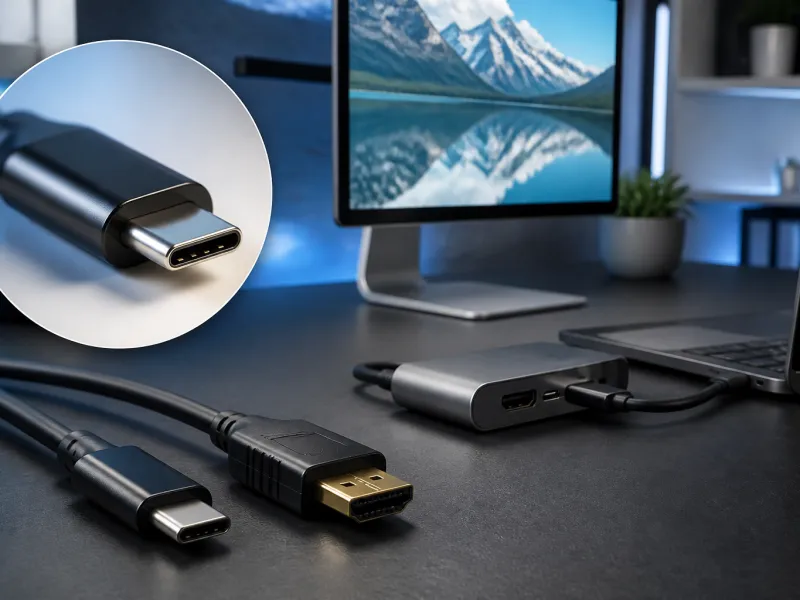
One of the most convenient tricks a USB-C port can perform is carrying a full video signal alongside data and power, all through the same small connector. This is what lets a single cable connect a laptop to an external monitor and still charge the laptop at the same time.
This guide explains the main technologies behind USB-C video, what limits their resolution and refresh rate, and how multiple monitors fit into the picture.
01
DisplayPort Alternate Mode
DisplayPort Alt Mode is the most common way USB-C carries video today. It repurposes some of the connector's high speed data lanes to carry a native DisplayPort signal instead of USB data, while the connector's power and lower speed data lines usually continue to work as normal. Because the video signal is native DisplayPort, a USB-C monitor built around this mode behaves much like a traditional DisplayPort monitor once connected.
Not every USB-C port supports DisplayPort Alt Mode, since it depends on the port being wired for it inside the device. Checking a laptop or phone's specifications for a video output symbol next to the USB-C port, or for an explicit mention of DisplayPort Alt Mode, is the most reliable way to know whether a particular port supports it.
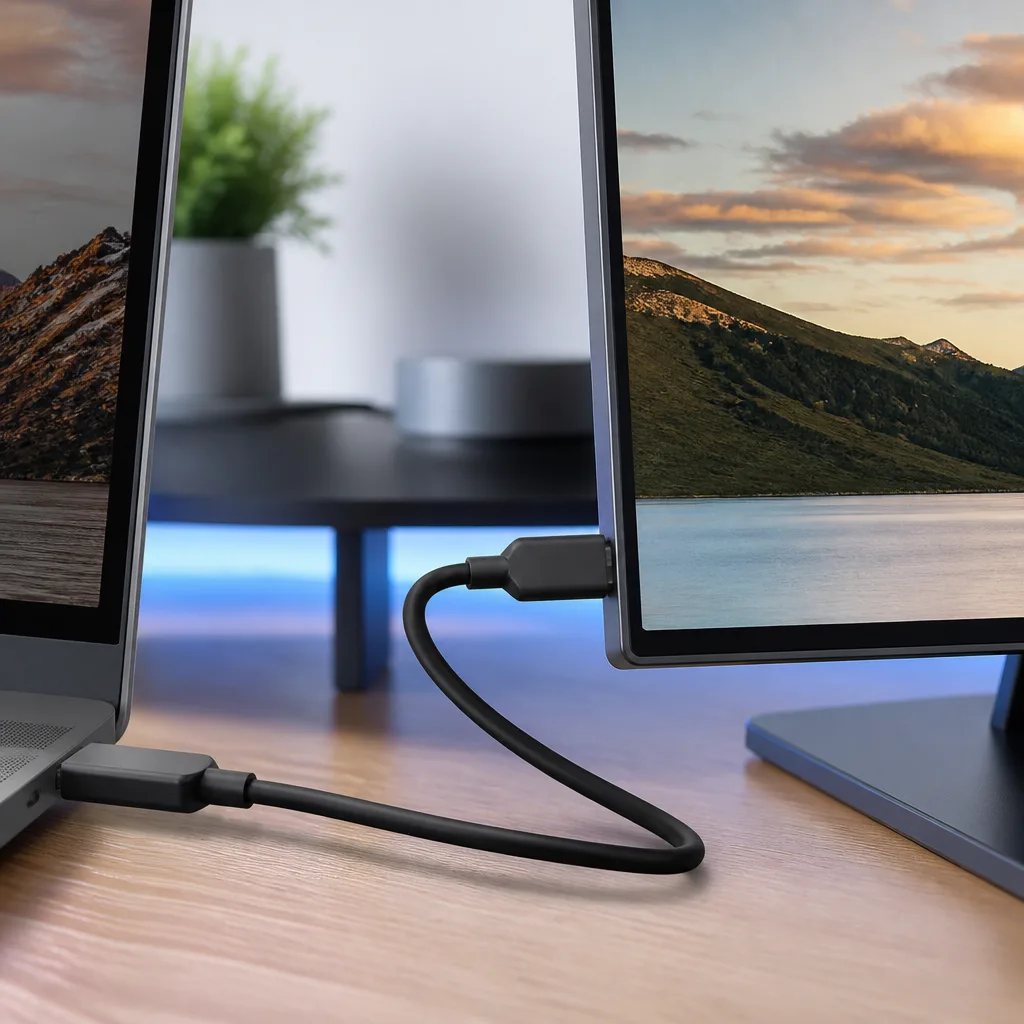
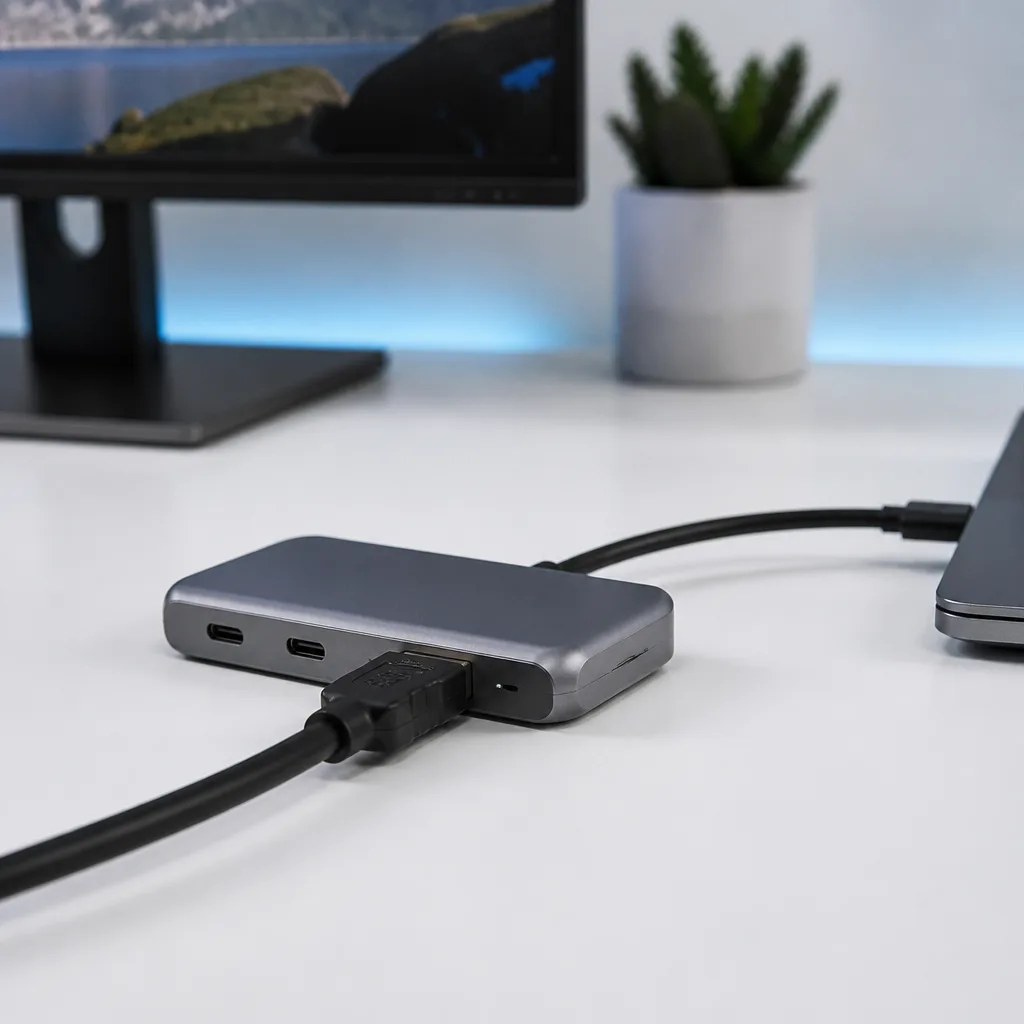
Because DisplayPort Alt Mode shares the physical connector with USB data and power, a single well specified cable can carry video, data, and enough power to charge the source device, all at once. This is why many single cable docking setups are possible today, where one cable does the work that once needed three or four separate connections.
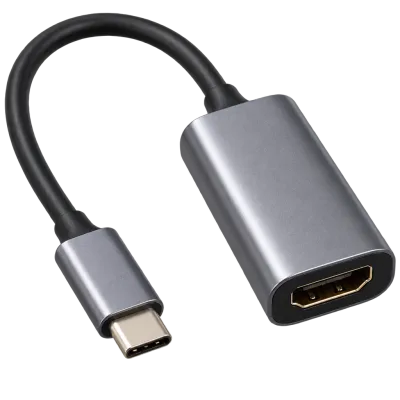 Matching productUSB-C to HDMI adapterAmazon →
02
HDMI Alt Mode
HDMI Alt Mode works on a similar principle but carries a native HDMI signal instead. It is far less common in practice than DisplayPort Alt Mode, and most USB-C to HDMI cables and adapters on the market actually convert a DisplayPort Alt Mode signal into HDMI internally, rather than relying on HDMI Alt Mode directly. Either approach can deliver a working HDMI connection, but the conversion approach depends on the source device supporting DisplayPort Alt Mode in the first place.
03
DisplayLink and other conversion methods
Some docks and adapters use a different approach entirely, sending compressed video data over ordinary USB and rendering it into a picture using dedicated hardware and software inside the dock, an approach often associated with DisplayLink technology. This method does not rely on Alt Mode at all, which makes it useful on ports that only carry plain USB data, but it depends on driver support in the operating system and typically adds a small amount of processing overhead compared with a native video signal.
Because this method sends video as ordinary data rather than a dedicated video signal, it can also work over connections that were never designed to carry video at all, including some older or lower speed USB ports. The trade off is a reliance on software drivers staying up to date, and a small amount of extra work for the connected computer's processor to keep the image smooth.
This approach is especially useful for connecting multiple monitors to a laptop that only has ordinary USB or USB-C data ports without native video support, since each monitor can be handled independently by the dock's own hardware.
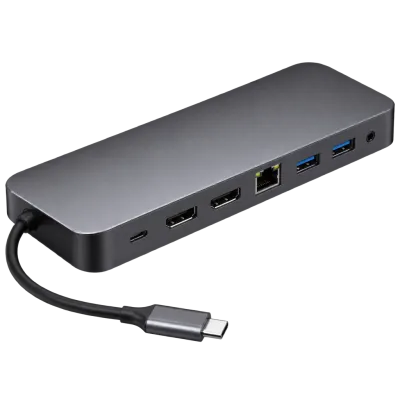 Matching productUSB-C docking stationAmazon →
04
Resolution and refresh rate limits
How sharp and how smooth a USB-C video connection can be depends on how much bandwidth is available for video, which in turn depends on how many of the connector's data lanes are dedicated to video rather than shared with USB data. A connection using all available lanes for video can support higher resolutions and refresh rates than one that reserves some lanes for USB data at the same time.
| Configuration | What it affects |
|---|---|
| Full bandwidth Alt Mode, no shared USB data lanes | Higher resolution and refresh rate headroom |
| Alt Mode sharing lanes with USB data | Lower maximum resolution or refresh rate on that same cable |
| Compressed video over standard USB | Flexible on any USB port, but adds processing overhead |
The cable itself also matters. A cable that only supports lower speed USB signalling will limit the video bandwidth available, even if both the source device and the monitor could otherwise support a sharper picture. Our guide to USB cables explains how cable ratings connect to real-world speed and video bandwidth.
05
Multiple monitors and MST
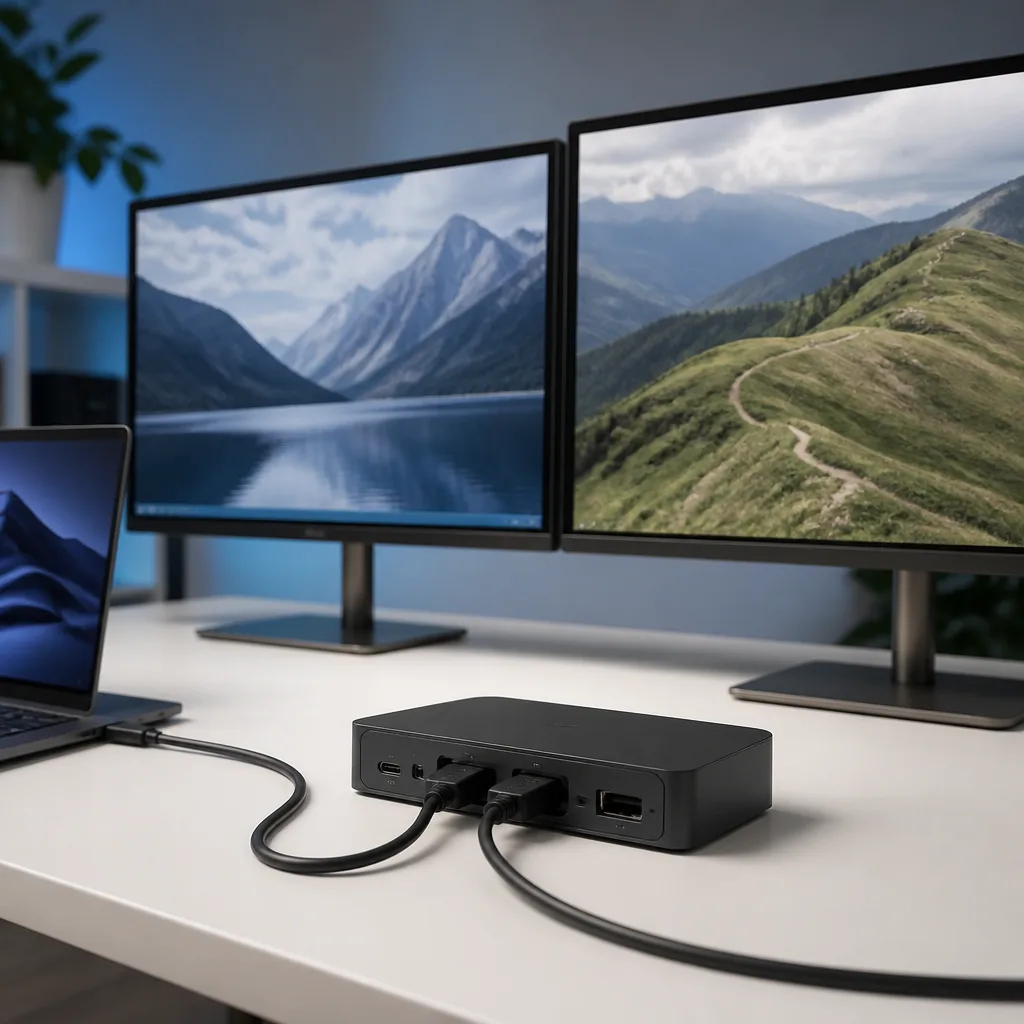
Multi-Stream Transport, usually shortened to MST, allows a single DisplayPort or USB-C video connection to be split into signals for more than one monitor, typically through a dock or a specially built MST hub. This is different from simply plugging two monitors into two separate ports, since MST shares the bandwidth of one original connection between the monitors attached to it.
Because MST divides available bandwidth, running two demanding, high resolution monitors through a single MST connection may mean each one is limited to a lower resolution or refresh rate than it could achieve on its own dedicated port. Checking a dock's specifications for how it handles multiple monitors, rather than assuming any two ports behave the same way, avoids disappointment after buying one.
06
Choosing the right cable and dock
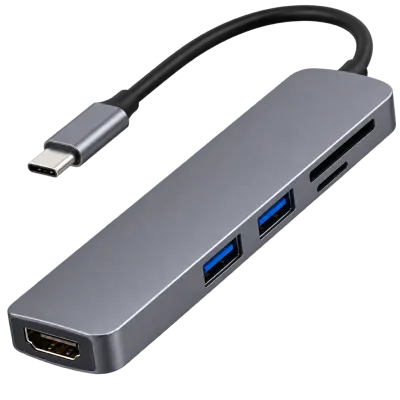
For a straightforward single monitor setup, a cable and monitor both built around DisplayPort Alt Mode generally gives the simplest, most predictable result. For more complex setups involving several monitors, a dedicated USB hub or docking station designed for multi-monitor use, with clear specifications for each output, is usually a safer choice than assembling several separate adapters.
Where very long cable runs or the highest resolutions and refresh rates are needed, some cables include an internal chip called a retimer, which helps maintain signal quality over greater lengths. This is one more reason why a well specified cable, not just any cable that fits the port, makes a real difference to video quality.
It is also worth checking whether a laptop's own graphics hardware can drive the resolution and refresh rate you want in the first place, since even a perfect cable and dock cannot exceed what the source device itself is capable of outputting. Specifications for both the laptop and the monitor are usually listed together in this way for exactly this reason.
 Matching productUSB-C hubAmazon →
07
Setting up a reliable multi-monitor desk
For anyone building a more permanent desk setup, planning the video connections before buying hardware saves time later. Checking the laptop's supported Alt Modes, the dock or hub's maximum output per port, and each monitor's own resolution and refresh rate, all before purchase, avoids the common disappointment of a setup that technically works but never reaches the sharpness or smoothness expected. Our desk setup guides and hub and dock guide go through this in more detail for different combinations of laptops and monitors.
08
Frequently asked questions
Why does my external monitor only show a lower resolution than expected?
This is often a cable or bandwidth limit rather than a fault with the monitor. Try a cable rated for full DisplayPort Alt Mode bandwidth, and check whether other USB devices are sharing the same connection.
Can any USB-C port be used for video?
No. Only ports wired for DisplayPort Alt Mode, HDMI Alt Mode, or connected to a dock using compressed video technology can output a picture. Plain data or charging only ports cannot.
Does using a USB-C hub reduce my monitor's quality?
It can, particularly if the hub splits limited bandwidth between several outputs or between video and other USB devices. A hub's specification sheet usually states the maximum resolution and refresh rate it supports.
What is the difference between MST and simply having two video ports?
Two separate native video ports each have their own full bandwidth, while MST divides the bandwidth of a single connection between the monitors attached through it.
Explore
Read next
 USB Standards and Speeds Explained: USB 1.0 to USB4 Version 2.0A complete overview of USB versions and speeds, from USB 1.0 to USB4 Version 2.0, including the confusing renaming of USB 3.x.
 USB Connector Types Explained: Type-A to USB-CA guide to every USB connector type, from Type-A and Micro-USB to USB-C, which devices use which, and how adapters bridge between them.
 How USB-C Charging Works: Power Delivery, PPS and EPR ExplainedA clear explanation of USB-C charging: Power Delivery negotiation, PPS, Extended Power Range, cable current limits, and common reasons for …