
6 min read
USB-C explained: the connector everyone uses
USB-C looks the same everywhere, but the connector says nothing about speed, power or video. Here is what actually matters.
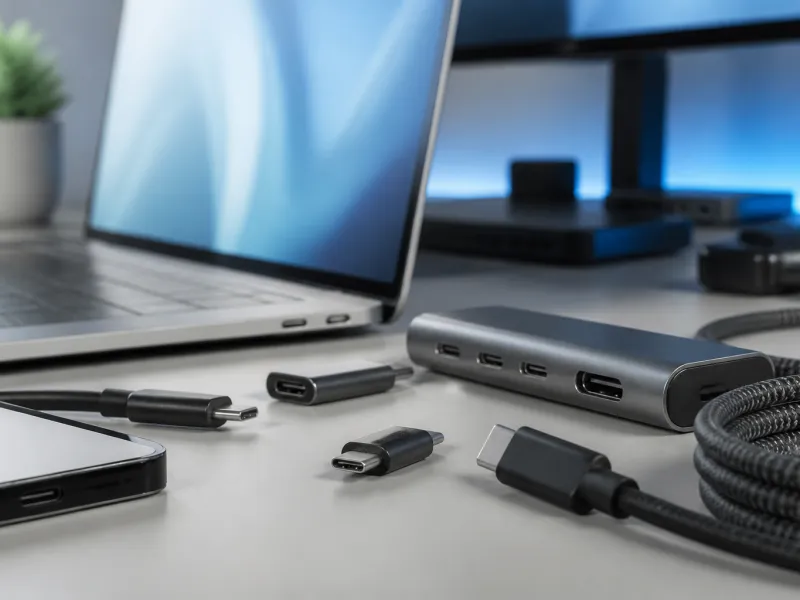
USB-C has quietly become the one connector that phones, laptops, tablets, headphones and even monitors now share. If you have bought any electronics in the last few years, you have almost certainly plugged in a small, oval, symmetrical connector without thinking much about it.
That simplicity on the outside hides real complexity on the inside. Two USB-C cables that look identical can behave completely differently, and two USB-C ports on the same laptop can offer very different features. This guide explains what USB-C actually is, what it can carry, and how to tell what a specific cable or port supports.
01
What makes USB-C different from older connectors
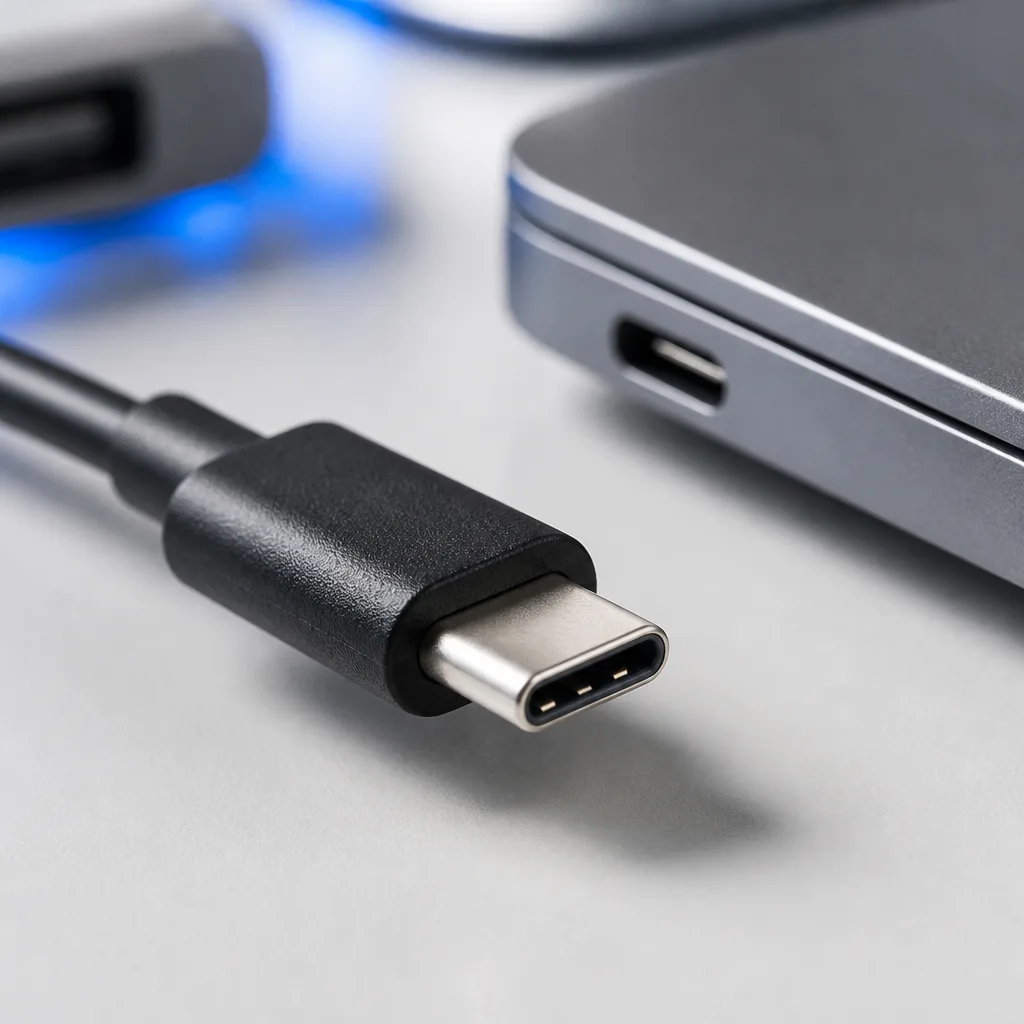
Older USB connectors such as USB-A and USB-B have a clear top and bottom, so you can insert them the wrong way round and have to flip them. USB-C was designed from the start to be reversible. The plug is a small, oval shape, and it works the same way whichever side faces up.
Inside the connector there are far more pins than older USB plugs used, arranged so that the same functions are mirrored on both sides. That is what makes the reversible design possible without giving up any features. The connector itself is defined by a mechanical and electrical specification from the USB Implementers Forum, the industry group also known as the USB-IF that manages USB standards.
It is worth separating two things that people often mix up. USB-C describes the shape of the connector and plug. USB 2.0, USB 3.2, USB4 and Thunderbolt describe what happens electrically once you plug in. A USB-C connector can be wired for a very basic, slow connection, or for a very fast and capable one. The shape alone tells you nothing about the speed.
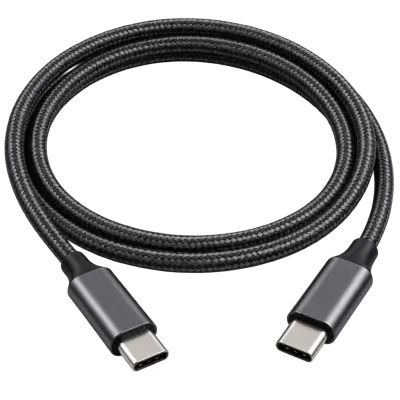 Matching productUSB4 / Thunderbolt cableAmazon →
02
What a USB-C port can actually carry
A single USB-C port can carry several different kinds of signal at the same time, depending on how the device and cable support it. In practice, a USB-C connection can include some combination of the following.
- Regular USB data, for file transfers, external drives, printers and similar accessories.
- Electrical power, in either direction, using the Power Delivery system.
- Video, carried directly over the same cable using what is called an alternate mode.
- Other protocols such as Thunderbolt, which can tunnel several of these signals together over one link.
This bundling is the main reason USB-C has spread so widely. A single port and a single cable can, in principle, charge a laptop, send video to an external monitor and connect a keyboard and storage drive at the same time, all without separate connectors for each job. Whether a specific laptop, phone or monitor actually uses all of these capabilities depends on how the manufacturer wired that particular port.
03
Why two USB-C cables are not the same
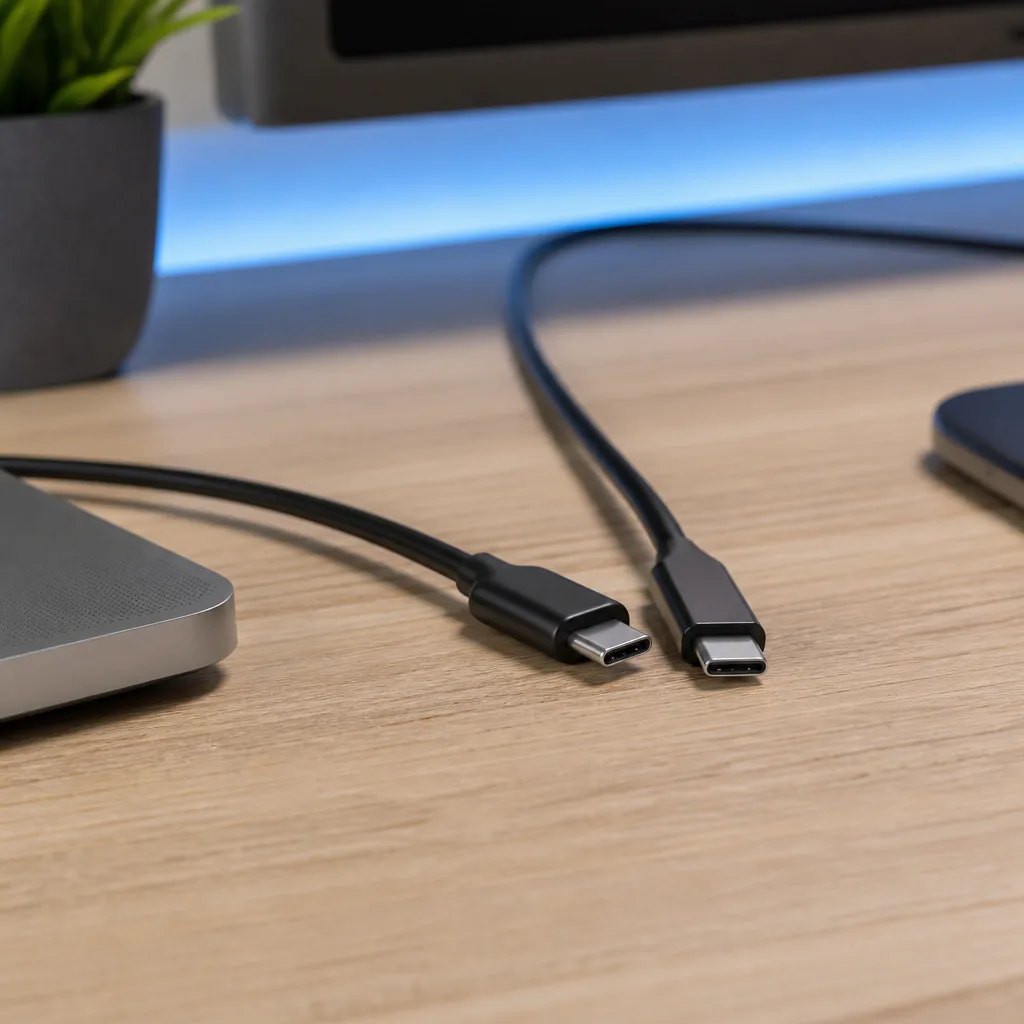
This is the single most confusing part of USB-C for most people. Because every USB-C cable has the same connector shape on each end, there is no way to tell from the outside whether a cable supports fast data, high power, video, or only the most basic charging function.
A cable that came in the box with a basic power bank may only be designed for charging at a modest wattage and slow data speeds, sometimes even no data connection at all. A cable sold for an external SSD may support fast data but a lower power limit. A cable marketed for a high wattage laptop charger may carry high power well but only slow, basic data. None of this is visible just by looking at the plug.
The practical effect is that swapping a seemingly identical cable can quietly change your experience: a monitor that stops working over USB-C, a laptop that charges more slowly, or an external drive that runs at a fraction of its rated speed. See our dedicated guide on choosing USB-C cables for how to pick the right one for a specific job.
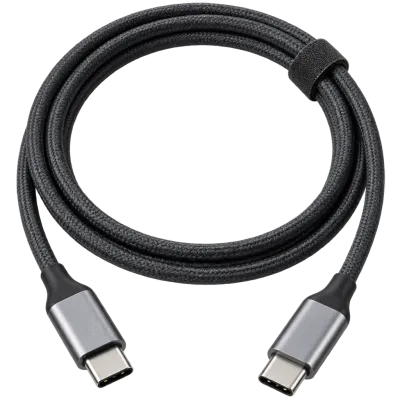 Matching productUSB-C cable 240 WAmazon →
04
Reading the small print: markings and symbols
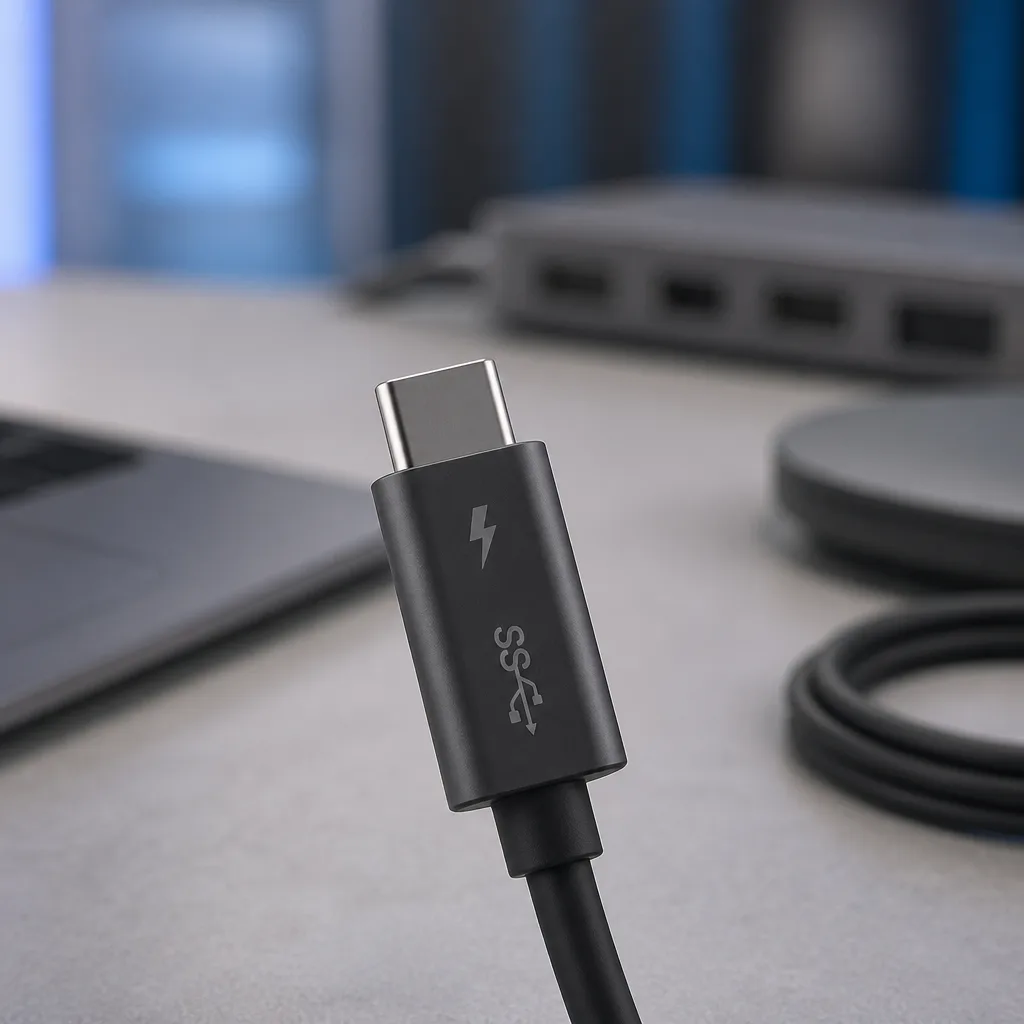
Some cables and devices print small symbols near the connector to hint at their capabilities: a lightning bolt style icon for higher charging power, the word SuperSpeed with a number, or a small Thunderbolt icon shaped like a lightning bolt in a rounded arrow. Ports on laptops are sometimes labelled in the same way, occasionally with the letters SS for SuperSpeed, or a number indicating the marketing speed such as 10 or 20.
These markings are not consistent across all manufacturers, and many budget cables carry no markings at all. When they are present, they are a useful shortcut, but the only fully reliable way to know a cable's real capability is to check the specification sheet or packaging from the manufacturer, or to test the cable with a known fast drive and a known high power device.
05
Matching cable, port and device
Because capability depends on all three parts of a connection working together, it helps to think of USB-C as a chain. The slowest or least capable link decides what you actually get. The table below summarises the parts of that chain.
| Part of the chain | What it can limit |
|---|---|
| Source port (laptop, dock, wall charger) | Maximum data speed, maximum power output, whether video is offered at all |
| Cable | Maximum data speed, maximum power it can safely carry, whether video or Thunderbolt signals pass through |
| Device port (drive, monitor, phone) | Maximum data speed it can receive, maximum power it can accept or supply |
If any one part in that chain only supports a basic level, the whole connection drops to that level. A fast external drive plugged into a fast port with a slow, charge only cable will transfer files slowly, even though both ends are capable of much more. This is explained in more depth, together with real world speeds, in our guide to USB speeds explained.
06
USB-C compared with what came before
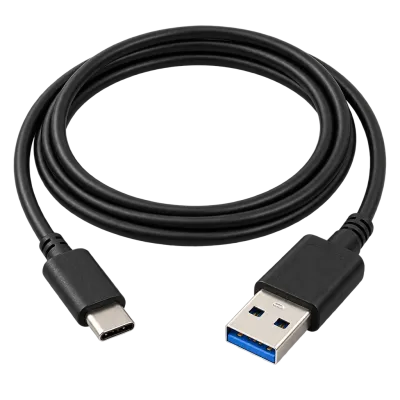
USB-C replaces several older connector shapes at once. USB-A, the traditional rectangular plug, is not reversible and is still common on older computers and many chargers. USB-B and its smaller relatives Mini-USB and Micro-USB were used on printers, older phones and many small gadgets. Apple's Lightning connector, used for iPhones for many years, is a separate, proprietary design that is gradually being phased out in favour of USB-C following regulatory changes in the European Union.
Our overview of USB connectors compares all of these shapes side by side, including which devices still use the older ones and why.
 Matching productUSB-C to USB-A cableAmazon →
07
Practical tips for everyday use
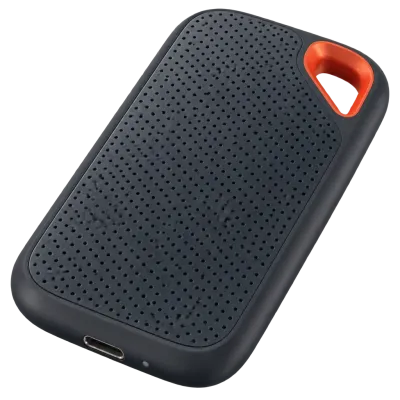
A few habits make living with USB-C much easier. Keep cables that you know are fast and high power separate from basic charging only cables, and label them if they look identical. When buying a new cable for a specific job such as an external SSD or a high wattage charger, check the rated speed and power explicitly rather than assuming any USB-C cable will do. If a device behaves oddly, such as charging slowly or a monitor flickering, trying a different, known good cable is one of the fastest ways to rule out the cable as the cause.
 Matching productExternal SSDAmazon →
08
Frequently asked questions
Is every USB-C cable the same inside?
No. Even though the connector shape is identical, the wiring inside can differ a great deal, affecting data speed, power capacity and whether video or Thunderbolt signals are supported.
Can I use any USB-C charger with any USB-C device?
In most cases a USB-C charger and device will negotiate a safe charging speed automatically, even if it is not the fastest one available. For the full negotiation process, see our guide to USB Power Delivery.
Does USB-C always mean fast data speeds?
No. The connector shape says nothing about speed. A USB-C port can be wired for anything from the slowest USB standard to the fastest currently available, and the same is true for cables.
Why does my monitor not work when connected over USB-C?
Video over USB-C requires the port, the cable and the monitor to all support the relevant video alternate mode. If any one of them does not, no picture will appear even though the connector fits.
How can I tell how much power a USB-C cable can carry?
Check the manufacturer's specification or packaging. Some cables print a wattage or amperage rating near the connector, but this is not universal, so the documentation is the more reliable source.
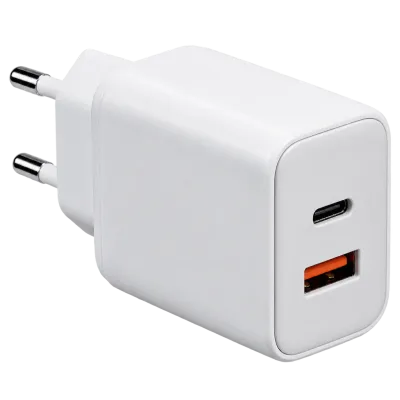 Matching productGaN charger 65 WAmazon →
Explore
Read next
 USB Standards and Speeds Explained: USB 1.0 to USB4 Version 2.0A complete overview of USB versions and speeds, from USB 1.0 to USB4 Version 2.0, including the confusing renaming of USB 3.x.
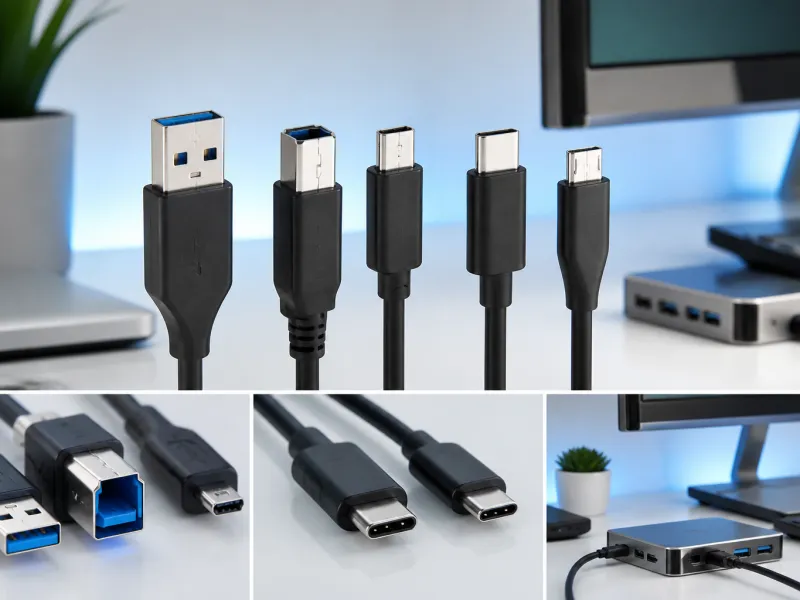 USB Connector Types Explained: Type-A to USB-CA guide to every USB connector type, from Type-A and Micro-USB to USB-C, which devices use which, and how adapters bridge between them.
 How USB-C Charging Works: Power Delivery, PPS and EPR ExplainedA clear explanation of USB-C charging: Power Delivery negotiation, PPS, Extended Power Range, cable current limits, and common reasons for …