
6 min read
USB Troubleshooting: A Practical Guide to Common Problems
A calm, step by step guide to the most common USB problems: devices not showing up, slow transfers, charging trouble, disconnects, and driver issues.
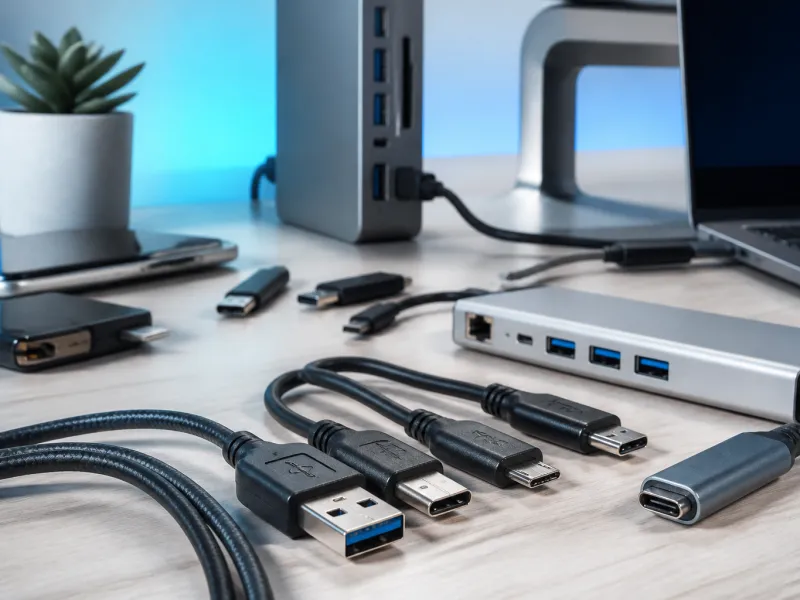
A USB connection that stops working is one of the most common tech problems, and also one of the easiest to fix once you know where to look. Most issues come down to a handful of causes: a worn cable, a port that cannot deliver enough power, a driver that needs a refresh, or a device that has quietly gone into a fault state.
This guide walks through the main symptoms you might see, in a logical order, so you can find the fix instead of guessing. Keep a spare cable and a different port or computer nearby if you can, since swapping one part at a time is the fastest way to isolate a problem.
01
Device not recognised
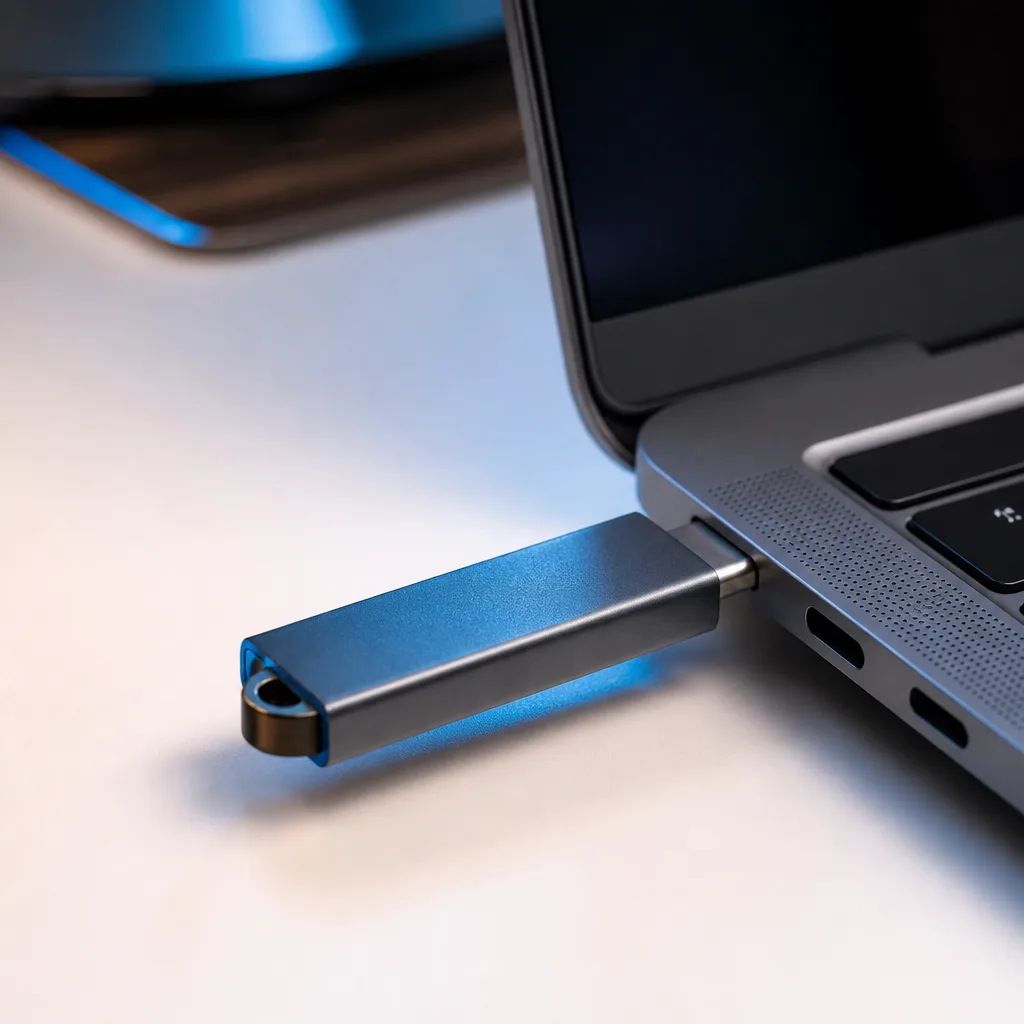
When a drive, phone, or accessory does not show up at all, start with the physical connection. Unplug the cable, check both ends for bent pins, and reconnect it firmly. Try a different USB port on the same computer, ideally one built directly into the case rather than through a keyboard or an unpowered hub.
If the device still does not appear, try a different cable. Many cables that charge a phone happily carry no data at all, because they are wired for power only. Swapping to a cable you know supports data is one of the fastest ways to rule out this cause.
Sometimes the issue is not the hardware at all, but how the operating system currently sees the device. A storage device that has been unplugged without being safely ejected can be left in a confused state, where the system still remembers it but no longer talks to it properly. Restarting the computer usually clears this. For phones and tablets, check whether the device is asking for a permission prompt on its own screen, since many phones require you to confirm that a computer is allowed to access files before anything appears.
A device that is recognised as a generic, unnamed item rather than by its proper name often points to a cable or port limitation rather than a fault with the accessory itself. In that case, working through a different cable and a different port, one change at a time, remains the most reliable way to narrow down the cause.
- Try another USB port, including one on the back of a desktop computer.
- Try a cable that you know carries data, not only power.
- Restart the computer or phone, since a stuck driver or background service often clears on reboot.
- Test the device on a second computer to see whether the fault follows the device or stays with the first machine.
02
Slow transfer speeds
Transfer speed problems usually trace back to one of three things: the cable, the port, or the storage device itself. USB standards define maximum speeds such as 480 Mbit/s for High Speed, 5 Gbit/s and 10 Gbit/s for the two common SuperSpeed tiers, and higher again for USB4, but a connection only runs as fast as its slowest link.
A long or thin cable, or one built only for charging, can silently fall back to a much slower mode. Plugging a fast external drive into an older USB port has the same effect. Our guide to USB cables explains which cable types support which speeds, and our buying guide can help you choose new hardware with the right ports.
| Symptom | Likely cause | What to try |
|---|---|---|
| Copy speed far below expected | Cable rated for charging only, or an older port | Swap the cable, connect directly to a rear or side port |
| Speed drops during long transfers | Drive overheating or nearly full | Let the drive cool, free up space, check available capacity |
| Different speed on different computers | Port generation differs between machines | Check the port markings or the manual for the port's rated speed |
03
Charging problems
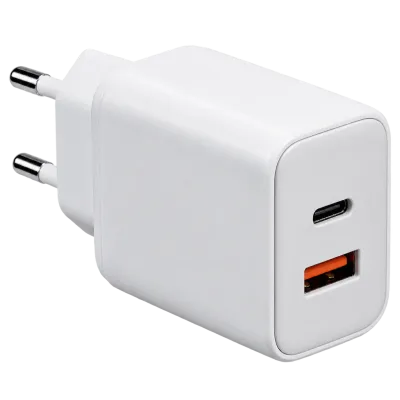
If a phone, tablet, or laptop charges slowly or not at all, the charger, the cable, and the device all need to agree on how much power to send. A basic charger and a basic cable can only supply a modest amount of power, while fast charging over USB-C usually depends on Power Delivery being supported at both ends. See our overview of USB-C charging for how that negotiation works.
Cables built for higher current carry an identification chip called an e-marker. Above 3 A of current, a cable is required to include this chip, and a cable without it will simply be limited to lower power even if the charger and device could otherwise go faster.
- Try the original charger and cable that came with the device, if you still have them.
- Check that the wall outlet or power strip itself is working.
- Avoid charging through a hub that is not separately powered, since it may not pass enough current.
- Let the device cool down if it feels warm, since many devices slow or pause charging when hot.
 Matching productGaN charger 65 WAmazon →
04
Random disconnects
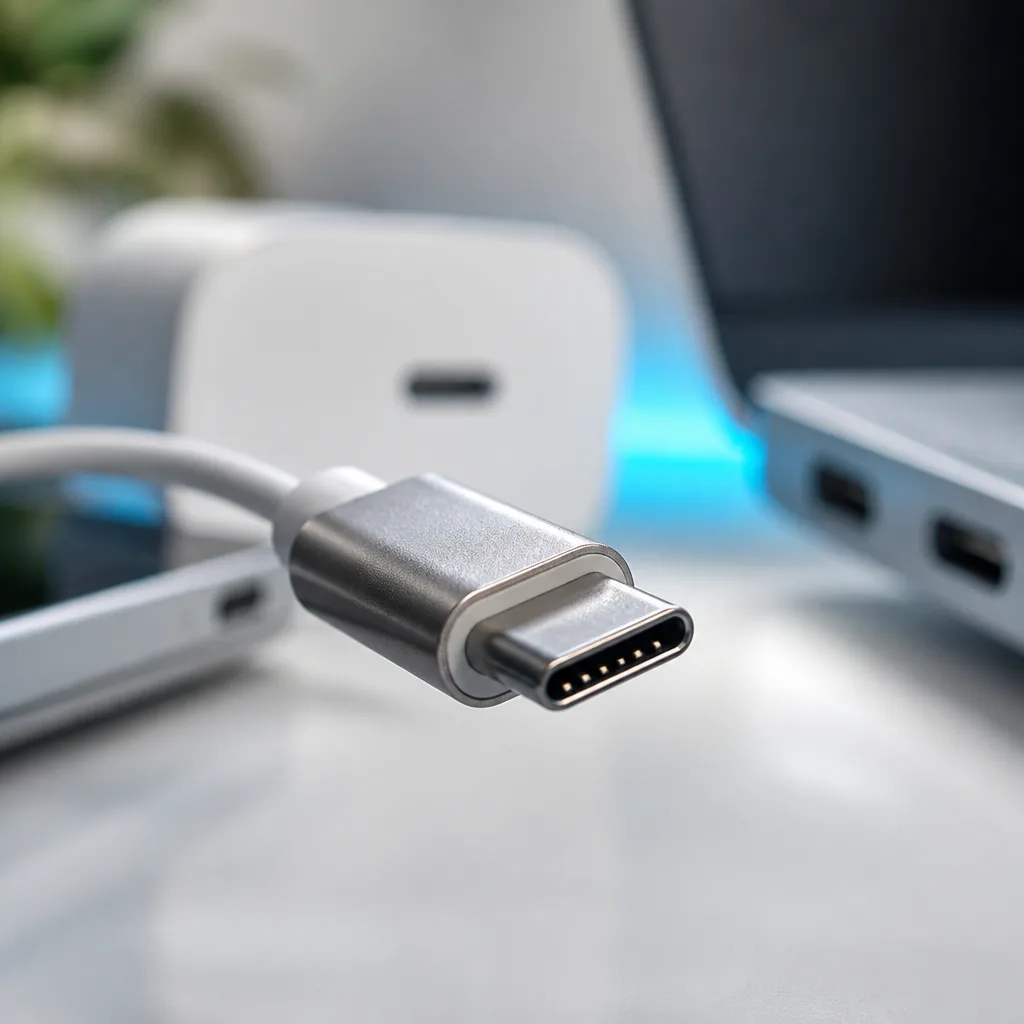
A connection that drops out now and then is often a power or contact issue rather than a software one. Dust or lint inside a port can prevent a firm connection, and a cable that is bent sharply near the connector can develop an internal break that only shows up under movement.
Power saving settings can also be a factor. Some operating systems are allowed to suspend USB ports to save energy, which can look like a disconnect on external drives or hubs. If you use a USB hub or dock, check that it has its own power supply connected, since an unpowered hub struggling to share power between several devices is a frequent cause of dropouts.
Cable quality plays a bigger role here than many people expect. A cable that is too long for the speed it is trying to carry, or one with thin internal wiring, can cause intermittent signal loss that shows up as random disconnects rather than a complete failure to connect. If the problem only happens with one particular cable, that cable is the most likely place to start.
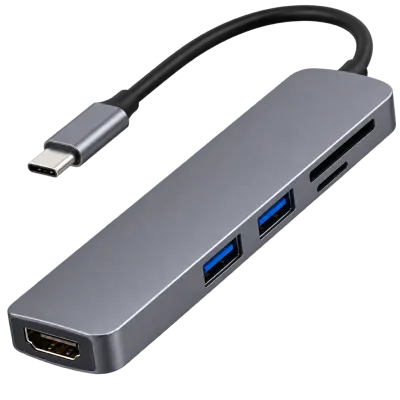 Matching productUSB-C hubAmazon →
05
Driver and software issues
Most USB device classes, such as storage, keyboards, and mice, use drivers built into the operating system, so they normally work without installing anything extra. Specialised hardware such as some audio interfaces, capture cards, or docking stations may need a manufacturer driver to unlock their full features.
If a device worked before and suddenly stopped, a recent system update or a conflicting driver is a common culprit. Restarting the computer, checking for pending system updates, and reinstalling the manufacturer's driver, in that order, resolves the majority of these cases.
It is also worth checking whether a security or power management setting on the computer is quietly blocking new USB devices, since some organisations and some operating system settings restrict which devices are allowed to connect at all. If a device is blocked this way, it typically will not appear even briefly when plugged in, unlike a driver problem, which usually shows the device appearing and then failing.
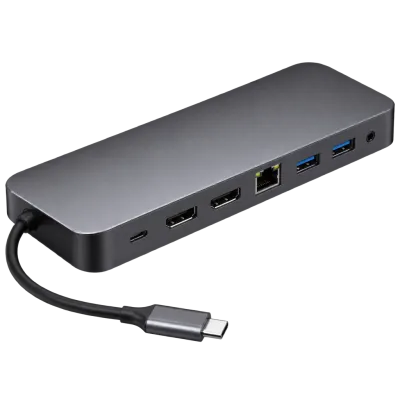 Matching productUSB-C docking stationAmazon →
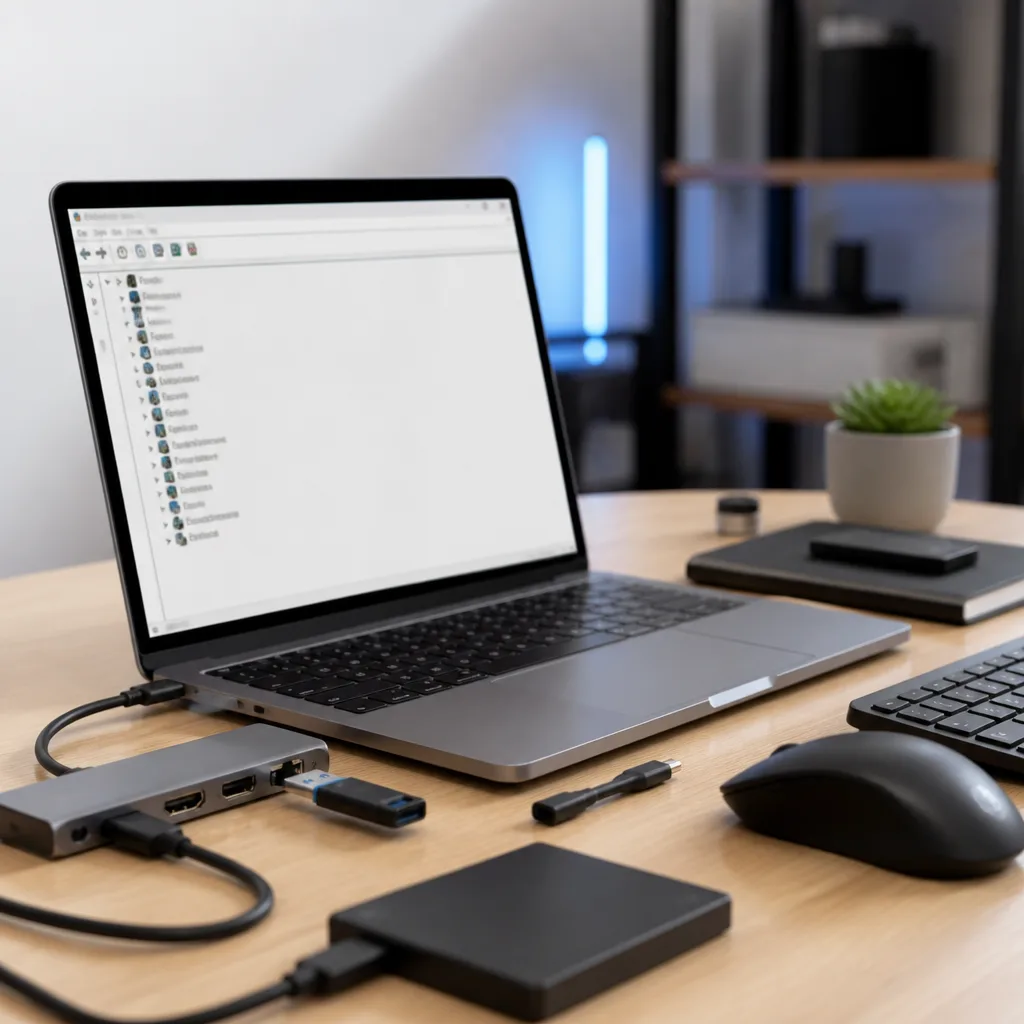
06
Step by step checklist
When you are not sure where to start, work through this list in order. Each step narrows down the possible cause before you move to the next one.
- Reseat the cable at both ends and try a different port.
- Swap in a cable that you know is good, ideally one rated for both data and higher current.
- Restart the device and the computer.
- Test the accessory on a second computer or with a second cable to isolate the fault.
- Check for pending operating system or driver updates.
- Connect directly to the computer rather than through a hub, to rule out power sharing limits.
- If nothing helps, the device, cable, or port itself may be faulty and worth replacing.
07
Frequently asked questions
Why does my USB drive work on one computer but not another?
This usually points to a difference between the two computers rather than the drive. Older ports, missing updates, or a hub on one machine but not the other are the most common reasons.
Can a USB port itself wear out?
Yes. Repeated insertion, dust, and bent pins can all reduce how well a port makes contact over time, especially on frequently used devices.
Does using a cheap cable actually make a difference?
It can. Thin wiring and missing components mean a cable may only support lower power and lower data speeds than a well built one, even if the connector looks identical from the outside.
Is it safe to leave a device plugged in overnight?
Modern devices and chargers are designed to stop drawing full power once a battery is full, so overnight charging is generally considered normal use.
Explore
Read next
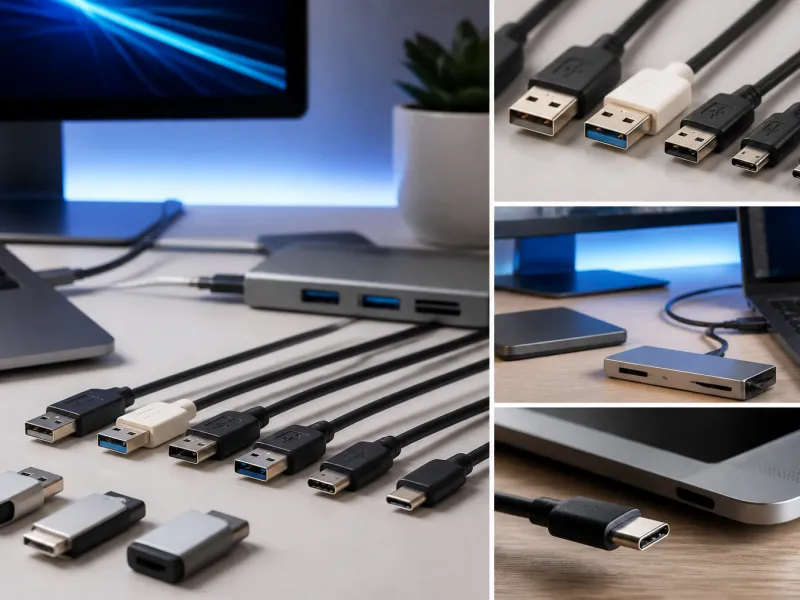 USB Standards and Speeds Explained: USB 1.0 to USB4 Version 2.0A complete overview of USB versions and speeds, from USB 1.0 to USB4 Version 2.0, including the confusing renaming of USB 3.x.
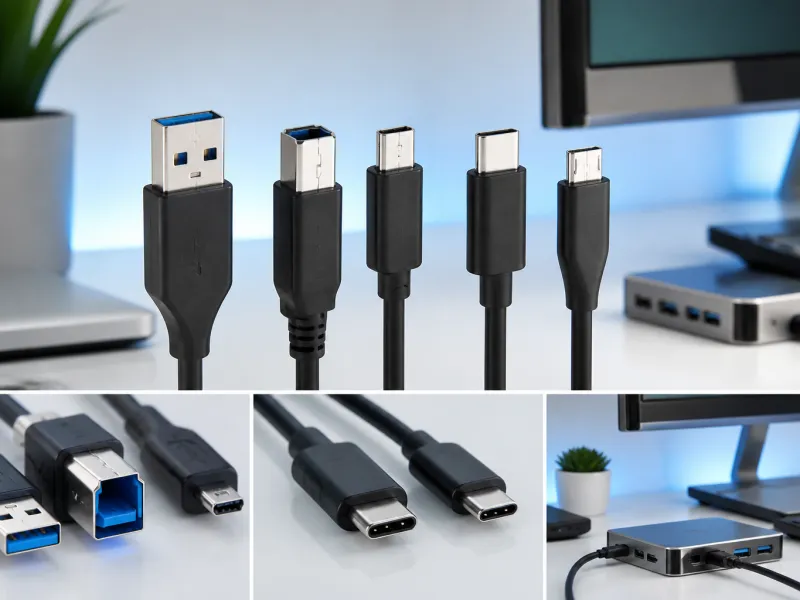 USB Connector Types Explained: Type-A to USB-CA guide to every USB connector type, from Type-A and Micro-USB to USB-C, which devices use which, and how adapters bridge between them.
 How USB-C Charging Works: Power Delivery, PPS and EPR ExplainedA clear explanation of USB-C charging: Power Delivery negotiation, PPS, Extended Power Range, cable current limits, and common reasons for …