
6 min read
USB4 and Thunderbolt: what the versions mean
USB4 and Thunderbolt share the same connector and much of the same technology. Here is how the versions differ.
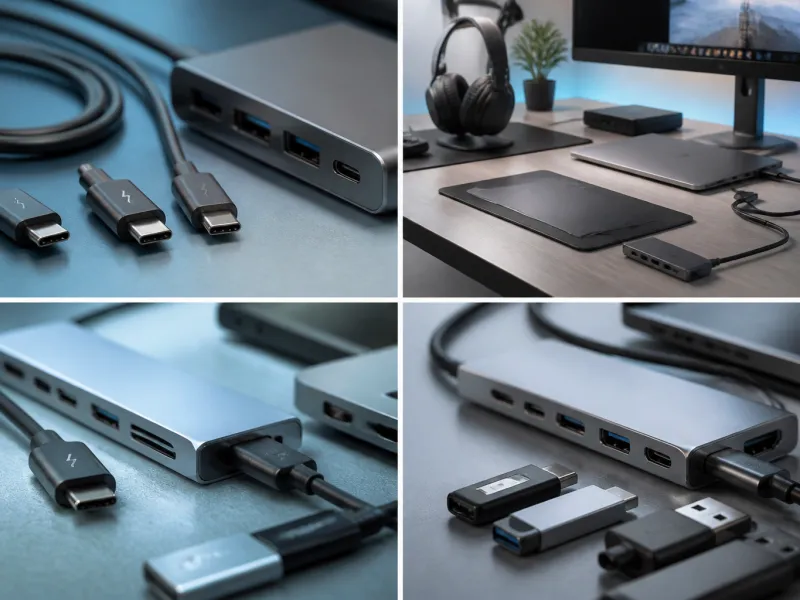
USB4 and Thunderbolt are two names that show up on the same kind of USB-C port, and the overlap between them confuses even experienced users. Both promise very high speeds and the ability to connect a monitor, a dock and storage through a single cable, but they are not identical, and the version numbers matter.
This guide explains what USB4 and USB4 Version 2.0 are, how Thunderbolt 3, 4 and 5 relate to them, what tunneling means in practice, and how to work out which one you actually need.
01
USB4: one cable, several signals combined
USB4 is a USB standard that runs at 20 or 40 Gbit/s depending on the device and cable, using the USB-C connector. Unlike earlier USB generations, which mostly focused on moving data between a host and a single device, USB4 is built around the idea of tunneling. Instead of carrying only one type of signal, a USB4 link can carry regular USB data, DisplayPort video and, in some implementations, PCI Express storage traffic, all sharing the same physical cable at the same time.
A newer revision, USB4 Version 2.0, raises the maximum speed to 80 Gbit/s in each direction, with an option for an asymmetric mode that pushes up to 120 Gbit/s in one direction while reducing the other, which is useful for driving very demanding displays. USB4 Version 2.0 needs cables and ports that are specifically rated for it, since older USB4 or USB-C cables are not built for that bandwidth.
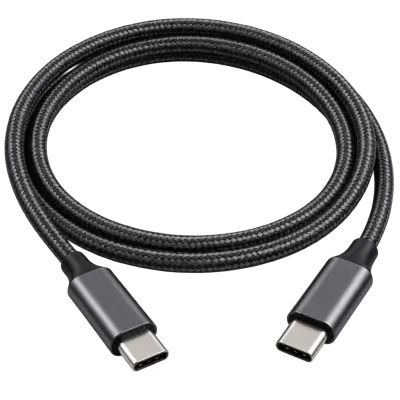 Matching productUSB4 / Thunderbolt cableAmazon →
02
Where Thunderbolt fits in
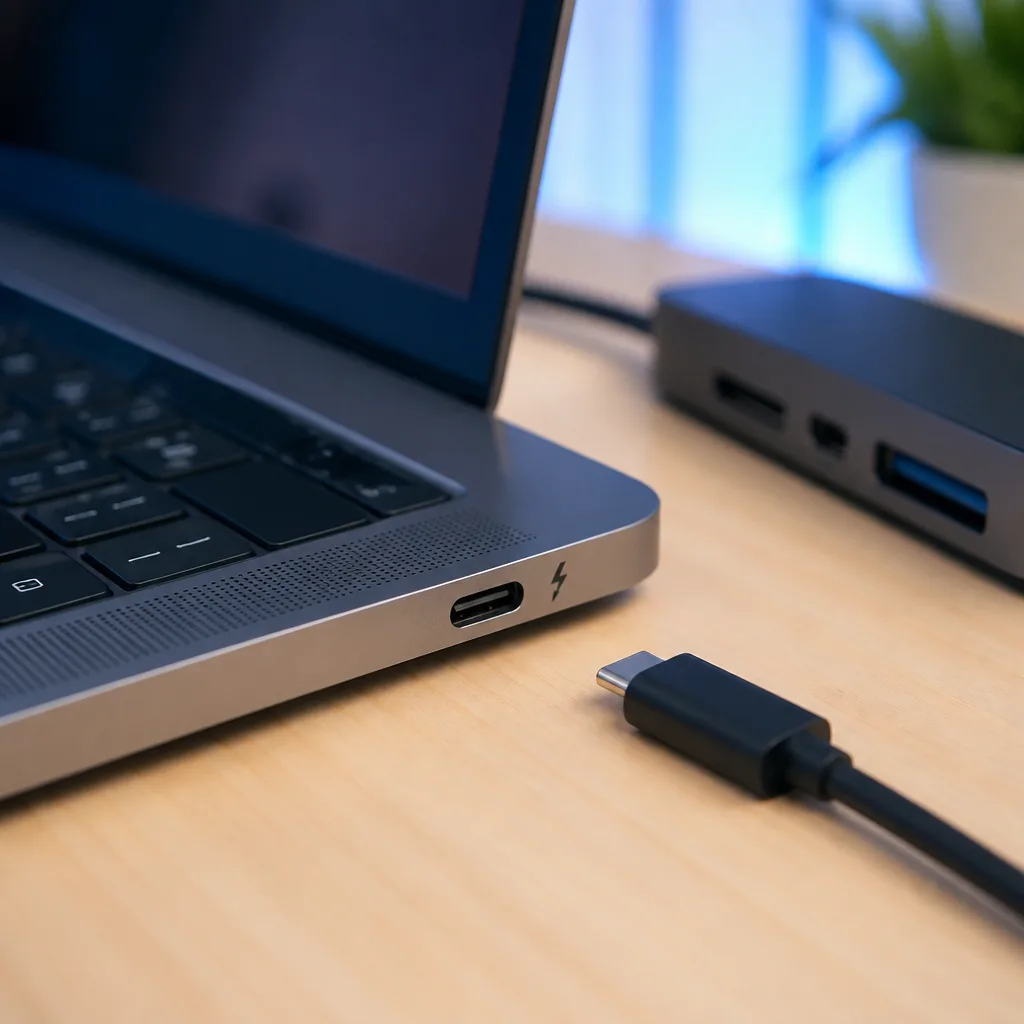
Thunderbolt is a technology originally developed by Intel, in cooperation with Apple, that predates USB4 and uses the same tunneling idea. Thunderbolt 3 was the version that first adopted the USB-C connector, running at up to 40 Gbit/s, and it became the technical basis that USB4 was later built on.
Thunderbolt 4 adds a stricter set of minimum requirements on top of the same 40 Gbit/s speed, such as guaranteed support for two 4K displays, minimum PCI Express speeds for external storage, and mandatory support for waking a sleeping computer from a connected dock. In effect, Thunderbolt 4 guarantees a consistent set of features that plain USB4 does not always guarantee, since USB4 allows manufacturers to implement a smaller subset of optional features.
Thunderbolt 5 is the newest generation, built on top of USB4 Version 2.0, offering up to 80 Gbit/s symmetrically and up to 120 Gbit/s in the asymmetric mode aimed at high refresh rate displays, along with higher power delivery limits for charging through the same port.
03
Compatibility between the two families
Thunderbolt ports are generally able to accept plain USB4 and USB-C devices, running them at whatever speed those devices support, since Thunderbolt controllers are designed to also handle USB4 and regular USB traffic. The reverse is less certain: a USB4 port on a laptop is not guaranteed to support everything a Thunderbolt accessory expects, particularly around external graphics cards or docks that rely on Thunderbolt specific features.
In practice this means a Thunderbolt dock or drive will usually work when plugged into a USB4 only laptop, though sometimes at a reduced speed or with fewer features, while a Thunderbolt only laptop can generally use ordinary USB4 and USB-C accessories without trouble. When in doubt, the manufacturer's documentation for the specific device is the most reliable source.
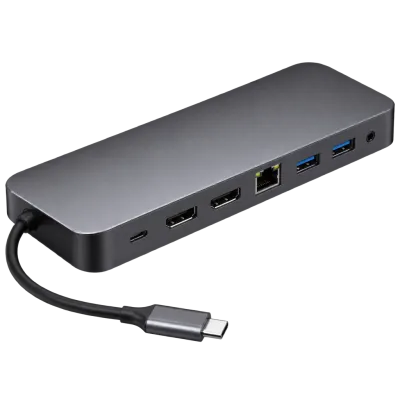 Matching productUSB-C docking stationAmazon →
04
What tunneling actually means
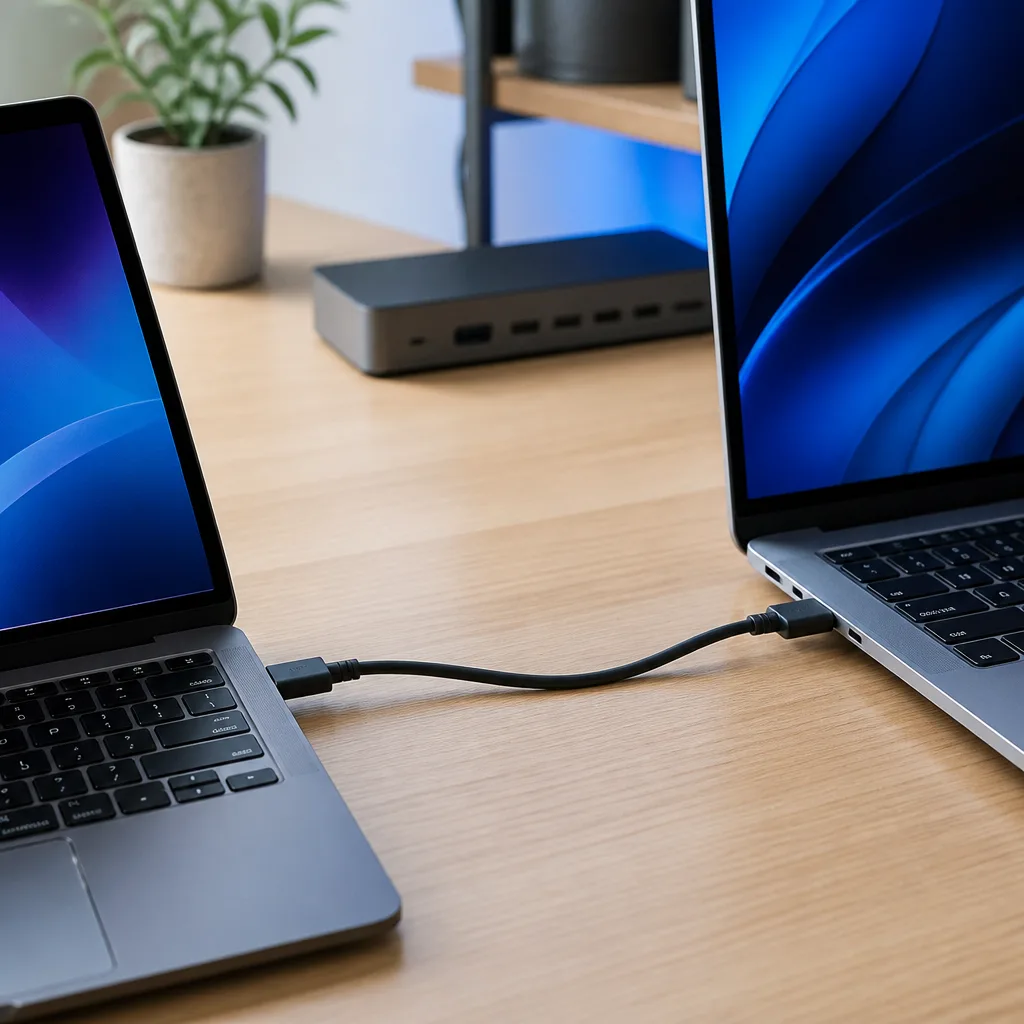
Tunneling is the technique that lets one physical cable carry several different kinds of traffic that would traditionally have needed separate cables. Instead of dedicating fixed wires to video and other fixed wires to data, the link divides its total bandwidth dynamically between whichever signals are active at that moment.
This is why a single Thunderbolt or USB4 cable from a laptop to a dock can supply an external monitor, a wired network connection, a keyboard and mouse, and an external drive, all at once, provided the dock and the laptop both support enough total bandwidth for everything connected. If too many demanding devices share the link at the same time, for example two high resolution monitors and a very fast drive, the total available bandwidth can become the limiting factor.
05
Comparing the generations at a glance
| Standard | Typical maximum speed | Connector |
|---|---|---|
| USB4 | 20 or 40 Gbit/s | USB-C |
| USB4 Version 2.0 | 80 Gbit/s, up to 120 Gbit/s asymmetric | USB-C |
| Thunderbolt 3 | 40 Gbit/s | USB-C |
| Thunderbolt 4 | 40 Gbit/s, with guaranteed minimum features | USB-C |
| Thunderbolt 5 | 80 Gbit/s, up to 120 Gbit/s asymmetric | USB-C |
These figures describe the maximum the standard allows. The real speed you experience always depends on the specific device, cable and drive involved, a topic covered in detail in our guide to real world USB speeds.
06
When you actually need USB4 or Thunderbolt
Most everyday tasks such as charging a laptop, connecting a keyboard, or transferring photos from a phone do not require USB4 or Thunderbolt speeds at all, and a much simpler USB connection is perfectly adequate. These faster standards earn their keep in more demanding situations.
- Connecting a single cable dock that needs to drive one or more external monitors, a wired network connection and several accessories at once.
- Using very fast external storage, such as certain external solid state drives, where the drive itself can exceed the speed of older USB standards.
- Connecting an external graphics enclosure, which relies specifically on the PCI Express tunneling that Thunderbolt provides.
- Editing large video files directly from an external drive, where read and write speed has a direct effect on how smoothly the software responds.
If none of these apply to how you use your computer, a simpler and often less expensive USB connection, as described in our buying guide, will usually do the job just as well.
07
Checking what your own hardware supports
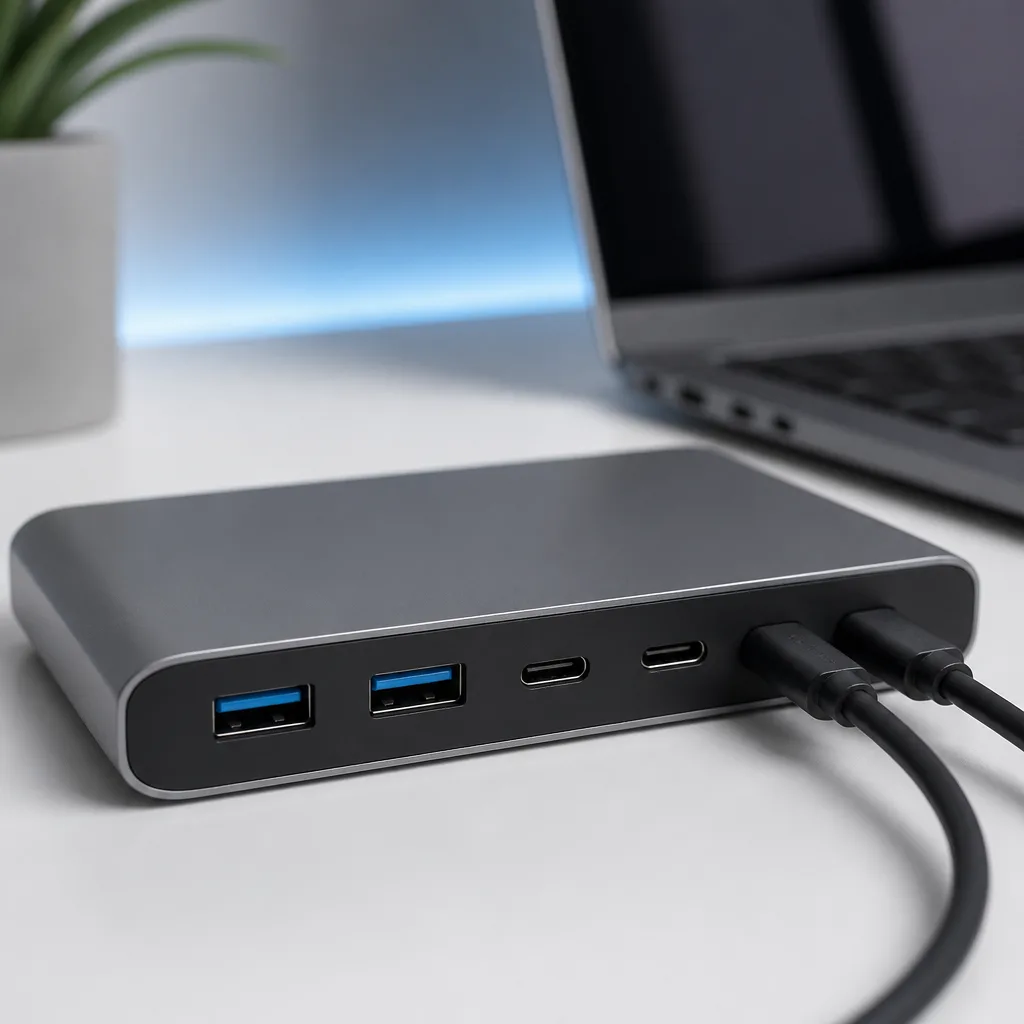
The safest way to know what a given laptop, dock or cable actually supports is to check the manufacturer's specification sheet for the exact model, since the port shape alone does not reveal the standard behind it. Operating systems also provide built in tools that list connected USB and Thunderbolt devices along with their negotiated speed, which is a reliable way to confirm what is actually happening on a specific connection.
It also helps to remember that a laptop can mix port types. One USB-C port may support the full 40 Gbit/s of Thunderbolt while a second, otherwise identical looking port on the same laptop only supports basic USB charging and slow data. Checking the manual for which port is which avoids a lot of confusion when a dock or monitor behaves differently depending on which socket it is plugged into.
08
Frequently asked questions
Is Thunderbolt faster than USB4?
Not inherently. Thunderbolt 3 and USB4 both reach up to 40 Gbit/s, and Thunderbolt 5 and USB4 Version 2.0 both reach up to 80 Gbit/s, since Thunderbolt and USB4 share the same underlying technology.
Can I plug a Thunderbolt device into a USB4 only laptop?
Usually yes, since Thunderbolt controllers are designed to be broadly compatible with USB4, though some Thunderbolt specific features may not be guaranteed on every USB4 implementation.
Do I need a special cable for USB4 Version 2.0 or Thunderbolt 5?
Yes. Reaching the higher speeds of these newer standards requires a cable that is specifically rated for them, since older USB-C or USB4 cables are not built for that bandwidth. See our guide to choosing USB-C cables.
Does every USB-C port support USB4 or Thunderbolt?
No. Many USB-C ports only support much slower USB standards. The port shape alone does not indicate the standard behind it, so checking the device specification is necessary.
Explore
Read next
 USB Standards and Speeds Explained: USB 1.0 to USB4 Version 2.0A complete overview of USB versions and speeds, from USB 1.0 to USB4 Version 2.0, including the confusing renaming of USB 3.x.
 USB Connector Types Explained: Type-A to USB-CA guide to every USB connector type, from Type-A and Micro-USB to USB-C, which devices use which, and how adapters bridge between them.
 How USB-C Charging Works: Power Delivery, PPS and EPR ExplainedA clear explanation of USB-C charging: Power Delivery negotiation, PPS, Extended Power Range, cable current limits, and common reasons for …